ENEnglish
 LTLietuviškai
 DEDeutsch
 FRFrançais
 RUРусский
 ESEspañol
 PLPolski
 ITItaliano
 UKУкраїнська
 CSČeština
 PTPortuguês
 JA日本語
JA日本語 LVLatviešu valoda
 ETEesti
 HUMagyar
 IDBahasa Indonesia
 TRTürkçe
 HIहिन्दी
 ELΕλληνικά
 ARالعربية
 THไทย
THไทย VITiếng Việt
 RORomână
 MSBahasa Melayu
 BNবাংলা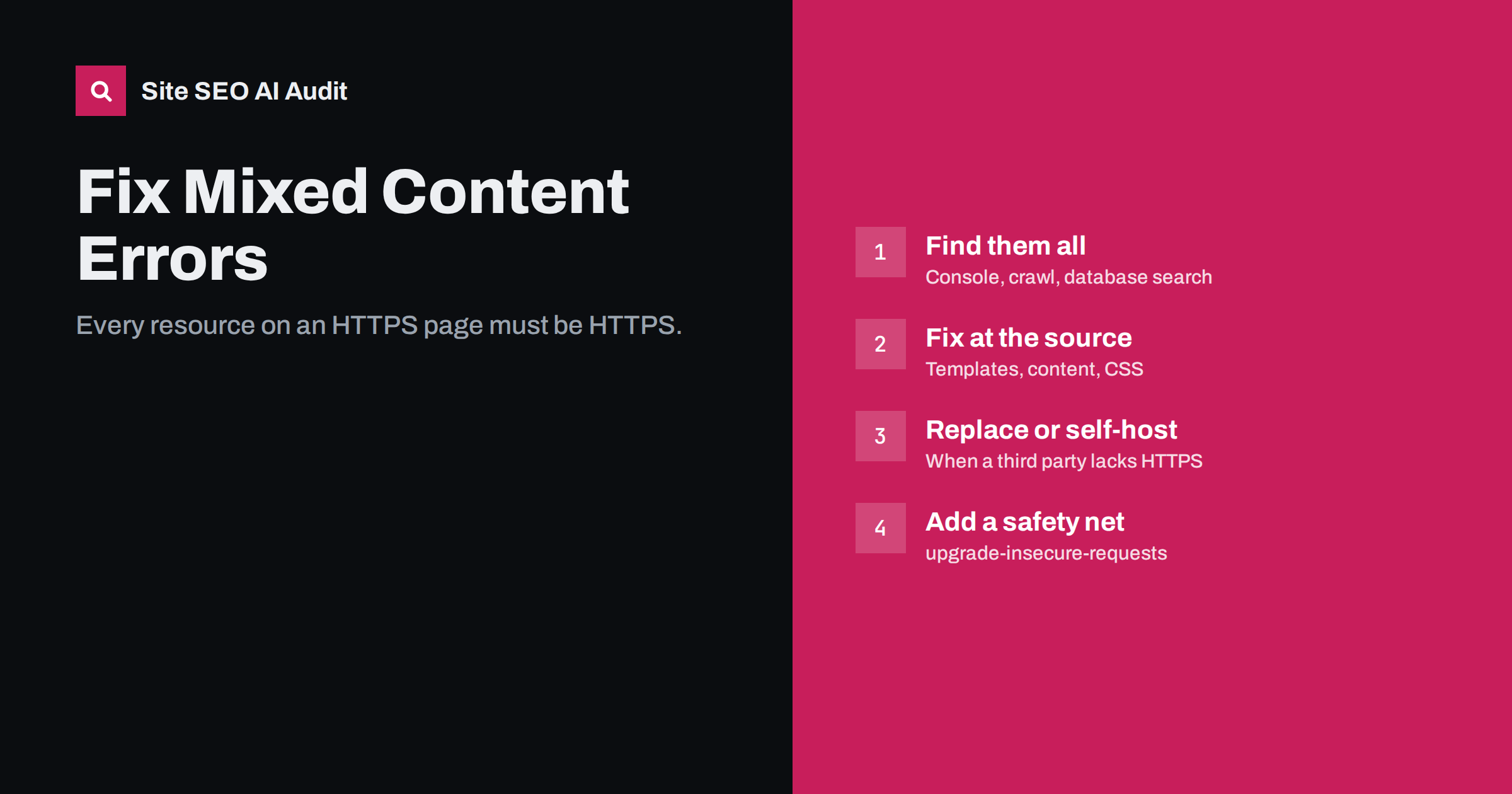
Short answer: mixed content means an HTTPS page loads some resources, such as images, scripts, stylesheets, fonts or iframes, over plain HTTP. Browsers block insecure scripts and many other resources, which can break layouts, forms and tracking, and they may remove the padlock. Find mixed content with the browser console and a site crawl, fix the URLs at their source in templates, content, CSS and plugin settings, and use upgrade-insecure-requests only as a safety net.
What mixed content is
When a page is served over HTTPS, the connection between the visitor and your server is encrypted. If that page then pulls in a resource with an http:// URL, that part of the page travels unencrypted and could be read or altered on the way. Browsers treat this as a security problem, as explained in MDN’s mixed content documentation.
There are two broad kinds:
- Active mixed content: scripts, stylesheets, iframes, fetch requests and similar resources that can change the page. Browsers block these.
- Passive or display content: images, audio and video. Modern browsers try to upgrade these to HTTPS automatically, and block them if the HTTPS version does not load.
Why it matters
- Broken pages. A blocked stylesheet or script can break layout, menus, sliders, forms and checkout.
- Missing images when an automatic upgrade fails because the image host does not support HTTPS.
- Lost trust. Browsers may show a warning or remove the secure indicator, which worries visitors, especially on forms and checkout.
- Broken tracking when analytics or conversion scripts are loaded over HTTP.
- SEO side effects. Mixed content is not a ranking factor in itself, but blocked resources can make pages render incorrectly for search engines too, and a broken page is a worse page for users.
Where mixed content comes from
Most mixed content is left over from a site’s HTTP past or from copied code:
- Old content: images and links inserted into posts years ago with absolute HTTP URLs.
- Theme files with hard-coded HTTP URLs for scripts, fonts or background images.
- CSS files referencing
url(http://...)for backgrounds and fonts. - Plugin and widget settings storing full URLs, such as logo URLs or slider images.
- Embed codes copied from third parties years ago: maps, videos, forms, badges.
- Third-party services that still serve some resources over HTTP only.
- Site URL settings still on HTTP, making the CMS generate HTTP URLs everywhere.
The problem is often invisible to site owners. Browsers upgrade many images automatically, so pages look fine, and warnings appear only in the developer console. A site can carry hundreds of HTTP references for years until one of them points to a resource that cannot be upgraded, and a section of a page suddenly breaks. Finding and fixing them systematically once is far less work than chasing individual breakages later.
How to find mixed content
- Browser console. Open DevTools on a page and look for mixed content warnings in the Console, which name each insecure resource. The Security panel in Chromium-based browsers summarises the page’s state.
- Check key templates by hand: home, category, product, article, contact, cart and checkout, and any page with forms or embeds.
- Crawl the site and extract every resource URL (images, scripts, stylesheets, iframes) that starts with
http://. This is the only way to find problems on hundreds of old posts. - Search the database for
http://yourdomainin post content, options and meta tables, and forhttp://in theme and plugin files. - Check CSS files separately, because resources referenced inside stylesheets do not show up in the HTML.
- Test with a Content-Security-Policy report-only header on larger sites, which makes browsers report insecure requests from real visits without blocking anything.
How to fix it
| Source | Fix |
|---|---|
| Site URL setting on HTTP | Change WordPress Address and Site Address to HTTPS |
| Old post content | Database search-and-replace of http://yourdomain with https://yourdomain |
| Theme templates | Replace hard-coded URLs with HTTPS or functions that output the site URL |
| CSS files | Update url() references to HTTPS or relative paths |
| Plugin and widget settings | Re-save settings with HTTPS URLs |
| Third-party embeds | Get the current HTTPS embed code from the provider |
| Resource without HTTPS | Self-host it or replace the service |
On WordPress, use a search-and-replace tool that handles serialised data, and take a full database backup first. Replacing strings inside serialised arrays with a naive SQL query can corrupt widget and plugin settings.
A step-by-step cleanup on WordPress
WordPress sites that moved to HTTPS years ago are the most common place to find mixed content. A cleanup that works on most of them:
- Back up the database and files, and note the current state with a crawl or a list of affected pages.
- Check Settings, General: both the WordPress Address and the Site Address must start with
https://. If they are locked, they are defined inwp-config.php. - Run a serialisation-safe search and replace of
http://yourdomain.comwithhttps://yourdomain.com, and repeat for the www variant if it was ever used. Run it in dry-run mode first to see how many replacements it would make, and in which tables. - Search the theme folder for
http://in PHP, CSS and JavaScript files. Child themes and custom CSS in the Customizer are frequent hiding places. - Review page builder and slider settings, which often store image URLs in their own tables or JSON fields.
- Clear all caches: page cache, object cache, CDN and any minified CSS or JavaScript bundles, which may still contain the old URLs.
- Recheck key templates in the browser console and run a new crawl to confirm nothing is left.
If a small number of resources remain, they usually come from third-party embeds or external services. Handle those one by one.
Checkout, forms and payment pages
Mixed content on pages that collect data deserves priority. Browsers are strict on these pages, and visitors are most sensitive to warnings there. Pay particular attention to:
- payment and checkout templates, which may load provider scripts or logos;
- contact and quote forms, including form actions that post to HTTP URLs, which browsers warn about;
- login and account pages;
- embedded booking, chat or survey widgets.
Test these pages after every plugin or theme update, because a single outdated asset URL in a payment plugin can quietly break checkout for some visitors.
Safety nets: upgrade-insecure-requests and HSTS
Two headers help, but neither replaces fixing the URLs:
Content-Security-Policy: upgrade-insecure-requeststells browsers to request every HTTP resource on the page over HTTPS instead. It fixes mixed content for resources that are available over HTTPS, but resources that only exist on HTTP will simply fail. It also does not help other tools and crawlers that read your HTML.- HSTS (
Strict-Transport-Security) makes browsers always use HTTPS for your own domain. It prevents downgrade to HTTP for your pages, but does nothing for resources on other domains.
“Really simple” SSL plugins that rewrite HTTP to HTTPS on the fly work in a similar way, by filtering the output. They are a quick fix but add processing on every request and hide the underlying problem. Fixing the stored URLs is cleaner.
Preventing it from coming back
- Use relative URLs or the CMS’s own URL functions in templates rather than hard-coded addresses.
- Paste embed codes from providers fresh, rather than reusing old snippets.
- Check imported content, for example from another site or a page builder template, for HTTP URLs.
- Include a mixed content check in your launch checklist for redesigns and new sections.
- Crawl periodically and alert on any new
http://resource URL.
How Site SEO AI Audit helps
An audit crawl loads every page the way a crawler does and records what each page links to and references. Redirect chains from HTTP to HTTPS, internal links and canonicals still pointing to HTTP, and broken resources show up in the crawl and links areas with the pages involved, which usually leads straight to leftover HTTP URLs in templates and content. WordPress sites get the steps to fix the relevant settings. You can run a free audit.
Related reading
- HTTP to HTTPS migration: an SEO checklist that works
- Redirect chains and loops: how to find and fix them
- Broken links: how to find and fix them across your site
The bottom line
Mixed content is almost always leftover HTTP URLs from the past. Find them with the browser console, a crawl and a database search; fix them in content, templates, CSS and settings; replace or self-host resources that have no HTTPS version; and use upgrade-insecure-requests only as a backup. Then check new content and embeds so it does not return.
SSS
What is a mixed content error?
It is when an HTTPS page loads a resource such as a script, stylesheet, image or iframe over HTTP. Browsers block insecure scripts and styles and may upgrade or block images, which can break the page.
Does mixed content affect SEO?
Not as a direct ranking factor. It can break rendering, layout and functionality, which harms users and can affect how search engines see the page, so it is worth fixing.
Can a plugin fix mixed content automatically?
Some plugins rewrite HTTP URLs to HTTPS on output, which hides the problem quickly. Fixing the stored URLs in the database and templates is cleaner and avoids extra processing on every page.
What does upgrade-insecure-requests do?
It is a Content-Security-Policy directive that tells browsers to load HTTP resources over HTTPS instead. It works only if the resources are available over HTTPS, and it does not change your HTML.
Why do I still see mixed content after replacing URLs?
Common reasons are HTTP URLs inside CSS files, cached pages, plugin settings stored separately from content, and third-party scripts that themselves load HTTP resources. Clear caches and check each source.