ENEnglish
 LTLietuviškai
 DEDeutsch
 FRFrançais
 RUРусский
 ESEspañol
 PLPolski
 ITItaliano
 UKУкраїнська
 CSČeština
 PTPortuguês
 JA日本語
JA日本語 LVLatviešu valoda
 ETEesti
 HUMagyar
 IDBahasa Indonesia
 TRTürkçe
 HIहिन्दी
 ELΕλληνικά
 ARالعربية
 THไทย
THไทย VITiếng Việt
 RORomână
 MSBahasa Melayu
 BNবাংলা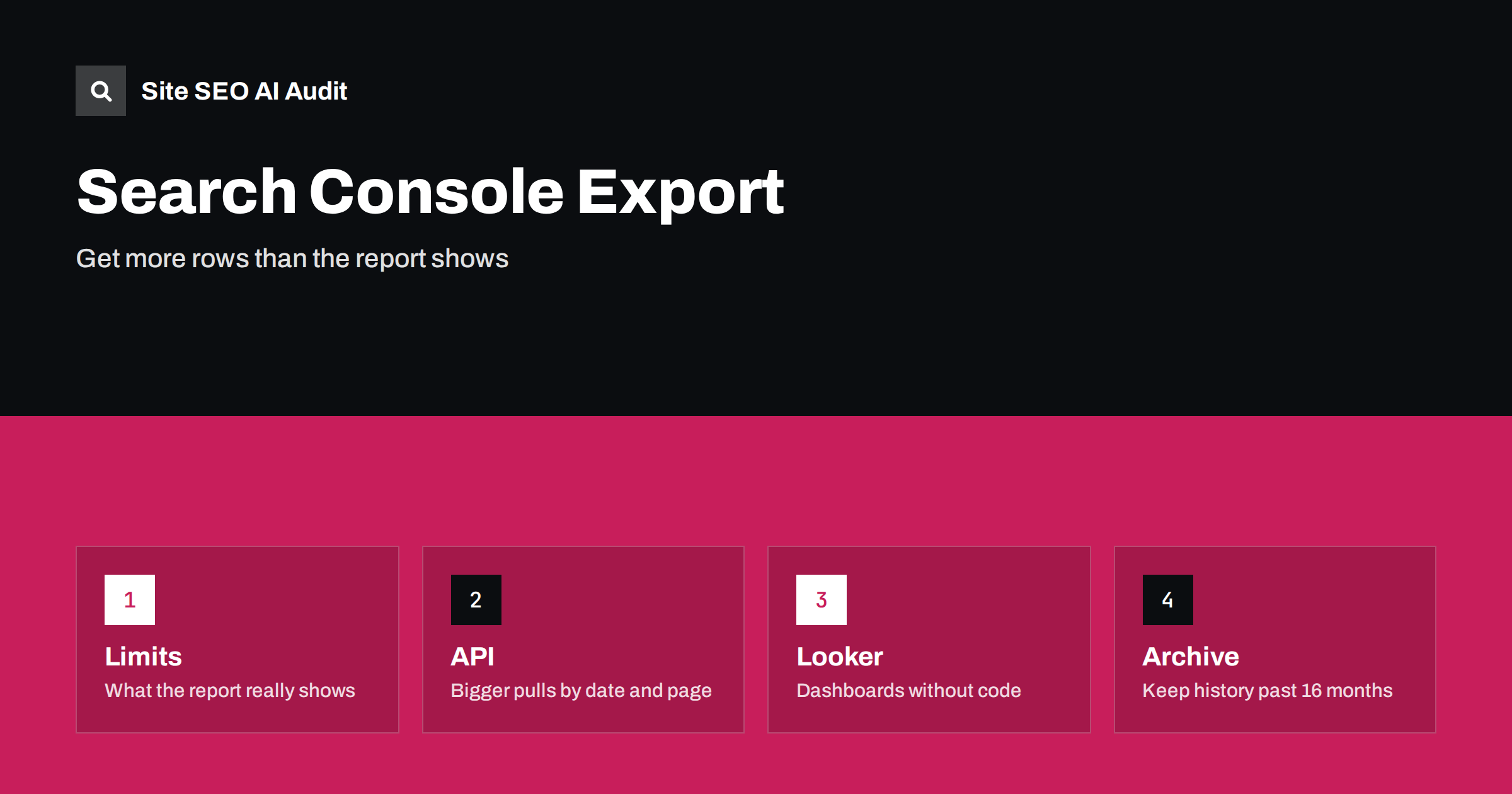
Short answer: The Search Console Performance report and its download button give you a limited number of rows, so large sites lose much of their long tail. To get more data you can use the Search Console API, connect the data to Looker Studio, use the bulk export to BigQuery if it is available for your property, or use spreadsheet add-ons that call the API. Whichever method you choose, store exports regularly, because the interface keeps only about sixteen months of history.
Search Console is the closest thing to first-hand data about how Google sees your site. It also hides much of that data in a narrow window: a report that shows only the top rows, an export button that downloads what you see and a history that stops after months. For a small site this is rarely a problem. For a shop with thousands of products or a publisher with years of articles, the missing rows contain exactly the long tail queries and pages where improvements start. This guide explains the limits, the export routes and how to choose between them.
What the interface gives you, and what it hides
The Performance report lets you group clicks, impressions, click-through rate and average position by query, page, country, device, search appearance and date. The table in the interface and the file you download show a limited number of rows, and the limit is often around a thousand. If your site has far more queries or pages, the rest is simply not shown. Filters help you look at slices of the data, but you must repeat the export for every slice.
There are two other limits to remember. First, privacy filtering: some queries are anonymised because they are rare or personal, so totals by query will not equal the totals of the whole property. Second, history: the interface keeps a limited period, which Google documents as around sixteen months. If you do not save data, year-on-year comparisons beyond that window are impossible. For help with reading the report itself, see how to read the Performance report.
Option 1: Use the Search Console API
The API returns the same performance data as the report, but it allows you to request rows in pages and to slice by date, query, page, country and device in a single call. Google sets limits per request and per day, which are far higher than the interface limit, so the usual approach is to request one date at a time, or one filter at a time, and combine the results. This method needs a little code or a tool, but it gives the most control.
A practical routine looks like this:
- Authorise access with an account that has permission for the property.
- Request data for each day with dimensions such as date, page and query.
- Request additional pulls with fewer dimensions to capture totals, because combinations of dimensions hide some rows.
- Store the rows in a database or a set of files with the property name, the date range and the pull date.
- Repeat on a schedule, for example every week, so that you never lose the oldest data.
Be careful when you add up the results. A pull by page and query will not sum to the same totals as a pull by page only, because of the anonymised queries. Decide which pull is the source of truth for each metric and document it.
Option 2: Looker Studio for dashboards
Looker Studio, Google’s reporting tool, has a connector for Search Console. It lets you build charts and tables without writing code and share them with a team or a client. The connector offers two main data sources: a site-level source and a page-level source. They aggregate differently, so a chart that mixes them can show numbers that look inconsistent. Choose one source per chart, label it and avoid combining the two in a single table.
A dashboard is excellent for trends and for sharing, but it is not an archive. It reads from the same data that the interface keeps, so it does not extend history. If you want a long-term record, combine it with a stored export. When you design the report, think about the questions it answers: which sections of the site grow, which queries bring impressions without clicks and which pages lost clicks after a change. Start from the outline in SEO testing: measuring changes so that the dashboard supports decisions.
Option 3: Bulk data export to BigQuery
For large sites, Search Console offers a bulk export of performance data to BigQuery, Google’s data warehouse. After you set it up, the data arrives in tables on a daily basis without the row limit of the interface, and you can query it with SQL. This route suits teams that already use BigQuery or have a data analyst. It requires a Google Cloud project, billing and permissions, and it only collects data from the day you switch it on. It does not backfill history, so the earlier you start, the longer your archive will be.
Set a sensible budget and access rules. Storage of this kind of data is usually inexpensive, but queries over large tables can cost money, so partition by date and avoid scanning everything for each question. Document the table structure for your team, including how anonymised queries appear.
Option 4: Spreadsheets and add-ons
Many people prefer a spreadsheet. Several add-ons for spreadsheets call the Search Console API and write the rows into sheets, with options for date ranges, dimensions and filters. They are convenient for small and medium sites and for ad hoc analysis. Keep in mind that a spreadsheet has a limit on rows and becomes slow when it grows, so use it for summaries and move bulk data to a database or to BigQuery.
Whichever tool you use, check what it requests from the API, how it handles limits and whether it keeps credentials secure. Use access with the minimum permissions you need, and revoke tools you no longer use.
Other reports worth exporting regularly
Performance data is only one part. The Page indexing report, sitemaps, links and Core Web Vitals sections also contain information that disappears or changes over time. Some can be downloaded from the interface, and some are available through other tools or APIs. Export the lists of non-indexed URLs and their reasons at regular intervals so that you can see whether problems grow or shrink; the structure of that report is explained in the Page indexing report guide. Save a copy of the links report before a migration as a baseline, using the links report guide as a reference.
Choose an approach and set up a routine
The right method depends on your size and skills. A small site can use the interface with filters and a monthly export. A growing site benefits from Looker Studio for sharing and a weekly API pull for the archive. A large site with data resources should enable the BigQuery export early and build queries on top of it. Whatever you choose, keep the routine light enough to survive busy months.
- Write down what you export, how often and where the files are stored.
- Name files by property, date range and pull date, and never overwrite old files.
- Check totals against the interface now and then to catch broken pulls.
- Annotate major changes, such as migrations, redesigns and updates, so that later analysis makes sense.
- Limit who can access the exports, since query data can reveal business information.
Combine Search Console data with a crawl
Search Console tells you how Google sees your pages, but not which pages exist or what is wrong with them. Joining the two is powerful: a crawl lists every page with its title, status, depth and links, and the export adds impressions and clicks. Pages with many impressions and few clicks need better titles or snippets; pages with no impressions may be orphaned or unindexed. Site SEO AI Audit crawls your pages, scores them across seven areas and ranks the fixes by impact. The first audit of up to 200 pages is free, and the pricing page shows how to repeat the crawl and compare it with your exports.
Related reading
- Search Console Performance Report: How to Read It
- Search Console Page Indexing Report: Every Status Explained
- SEO Testing: How to Measure the Effect of a Change
- Low CTR: Why Pages Get Impressions but Few Clicks
The bottom line
The interface is a window, not an archive. Use the API for control, Looker Studio for sharing, BigQuery for scale and spreadsheets for quick analysis, and save your data on a schedule so that history survives the sixteen-month limit. A simple, regular export is worth more than a perfect system you never run.
الأسئلة الشائعة
Why does my export have only around a thousand rows?
The interface limits the number of rows in the table and in the download. To get more, slice the data with filters or use the API, Looker Studio or the BigQuery export.
How far back does Search Console data go?
Google documents roughly sixteen months of performance data in the interface. Export regularly if you want to compare periods beyond that.
Does the BigQuery export include past data?
No. It starts collecting from the day you set it up, so enable it early if you want a long history.
Why do my totals differ between exports?
Anonymised queries and different aggregation by page or by property cause differences. Decide which export is the source for each metric and keep a note of it.
Is Looker Studio enough as an archive?
No. It reads from the same limited history. Use it for dashboards and add a stored export if you need a long-term record.