ENEnglish
 LTLietuviškai
 DEDeutsch
 FRFrançais
 RUРусский
 ESEspañol
 PLPolski
 ITItaliano
 UKУкраїнська
 CSČeština
 PTPortuguês
 JA日本語
 LVLatviešu valoda
 ETEesti
 HUMagyar
 IDBahasa Indonesia
 TRTürkçe
 HIहिन्दी
 ELΕλληνικά
 ARالعربية
 THไทย
 VITiếng Việt
 RORomână
 MSBahasa Melayu
 BNবাংলা
Short answer: A canonical tag tells search engines which address is the main version of a page. When that address redirects or returns an error, the signal points to a dead end. Site SEO AI Audit marks this as a critical issue, called “Canonical points to a broken or redirected page”, and in its sample report it is worth nine points, the biggest single fix. Find the affected pages in the report, point each canonical to a live address that returns status 200, and run a new check to confirm.
Most SEO problems are quiet. This one is quiet and powerful at the same time: a single wrong line in the head of a page can stop that page from being treated as the version that should rank. It often appears after a migration, a change of address format or a plugin update, and nobody notices because the page still looks perfect in the browser. This article explains what the issue means, how Site SEO AI Audit finds it, what the usual causes are and how to repair them without creating new problems.
What the issue means
A canonical link is a line in the HTML head, such as a link element with the relation canonical and an address. It says: “if you find several versions of this content, treat this address as the main one.” Search engines use it to choose which address to show and where to collect signals such as links.
The trouble starts when the address in that line is not a healthy page. If it redirects somewhere else, the page is telling search engines to prefer an address that itself says “go elsewhere”. If it returns an error, the page prefers an address that does not exist. Search engines then have to guess, and a guess is not what you want for an important page. The issue description in the product says it plainly: search engines are sent to an address that does not work, so neither page ranks well.
This is different from the related notice “Canonical points to another page”. That notice only asks you to confirm that a different canonical is intended, which is common for filtered or tracked addresses. The critical version means the target itself is broken or redirected, so it is almost never intended.
How Site SEO AI Audit finds it
The crawler, SEOAuditBot, starts from your home page and your XML sitemap and reads every page it can reach, following your robots.txt. For each page it records the canonical address. Then it compares that address with the pages it has crawled. If the canonical target answers with a redirect or an error, the page is listed under the critical issue.
The check belongs to the Crawl and index area, which carries the largest weight in the score, 25 percent. Severity also matters: a critical issue counts ten points in the formula, against four for a warning and one for a notice, and the penalty grows with the share of indexable pages affected. In the sample report on the home page, this single issue is worth plus nine points, more than duplicate titles on sixty-four pages. That is why it appears at the top of the “Top fixes by impact” list.
To see it, create a free account and run your check. The free account runs one check and shows the report locked, and any plan unlocks the full report: every issue, the affected pages and the fixes. The affected-pages list is the part you need here, because the fix is always done page by page or, better, template by template.
The usual causes
Canonical errors rarely come from one person making one mistake. They come from changes that touched many pages at once. These are the causes seen most often:
- A migration that changed the address format. The site moved from http to https, from www to non-www or from one path structure to another. Redirects were added, but the canonical lines kept the old addresses.
- A trailing slash rule. The site redirects addresses without a final slash to those with one, but templates still output the version without it.
- A hard-coded address in a theme. A developer typed the staging or old domain into a template, so every page canonicalises to a domain that now redirects.
- An SEO plugin set to the wrong site address. The plugin builds canonicals from the address in its settings, so one wrong setting changes every page.
- Removed pages. A page was deleted, and other pages still declare it as their canonical, for example a product variant that points to a discontinued main product.
- A language or country change. The canonical points to a version that was merged or redirected to another language folder.
Look at the list of affected pages in the report and see whether they share a folder, a template or a date. A pattern tells you where the cause is. Fixing the cause once is far better than editing a hundred pages by hand.
Step by step: from report to repair
- Open the issue card. It shows why the issue matters, how to fix it and the affected pages. On a WordPress site it also shows steps in wp-admin and your SEO plugin.
- Pick three affected pages. Open each in the browser, view the source and find the canonical line. Copy the address.
- Test the target. Open the copied address. Does it show the page, or does it jump to another address? Note where it ends. That final address is usually the right canonical.
- Find where the line comes from. Search your theme, your SEO plugin settings and any custom code for the old address or for the setting that builds it.
- Change the source, not only the symptoms. Correct the site address setting, the template or the rule. If you can, make the canonical always point to the page itself, which is the safest default for normal pages.
- Clear caches. Page caches and CDNs may keep serving the old head for hours.
- Run a new check. Starter, Pro and Agency include re-checks. The issue should disappear, and the score should rise by roughly the points shown.
If your redirects themselves are messy, read the guide to redirect chains and loops as well, because a canonical that points to the start of a long chain is a double problem. For the background of the tag itself, the article on canonical tags explains when to use it and when not to.
What the correct canonical looks like
For an ordinary page, the canonical should be the full address of that very page, in its final form: the protocol you use, the host you use, the path as visitors see it and no tracking parameters. Every character matters, including the slash at the end. A useful rule is that the canonical must return status 200 without any redirect, and it must be an address that you would be happy to see in search results.
| Situation | Good canonical | Problem if wrong |
|---|---|---|
| Normal page | The page’s own final address | Mixed signals if it points elsewhere |
| Page reached with tracking parameters | The clean address without parameters | Duplicate versions compete |
| Product variant | The main product, if it is live | Critical issue if the product is deleted |
| Moved page | The new address, never the old one | Critical issue if it still redirects |
Why a redirect is not a substitute
People sometimes ask whether a redirect from the old address is enough and the canonical can stay as it is. The answer is no, because the two tools do different jobs. A redirect moves visitors and crawlers. A canonical is a hint about preference. When the hint disagrees with the redirect, the page sends conflicting messages, and search engines may ignore the hint or choose a different address than you intended. Keep both consistent: redirect old addresses to the new one, and let the new page declare itself canonical.
The comparison in the article on canonical versus redirect goes deeper, and it is worth reading if you are unsure which tool fits a given situation.
Prevent it from coming back
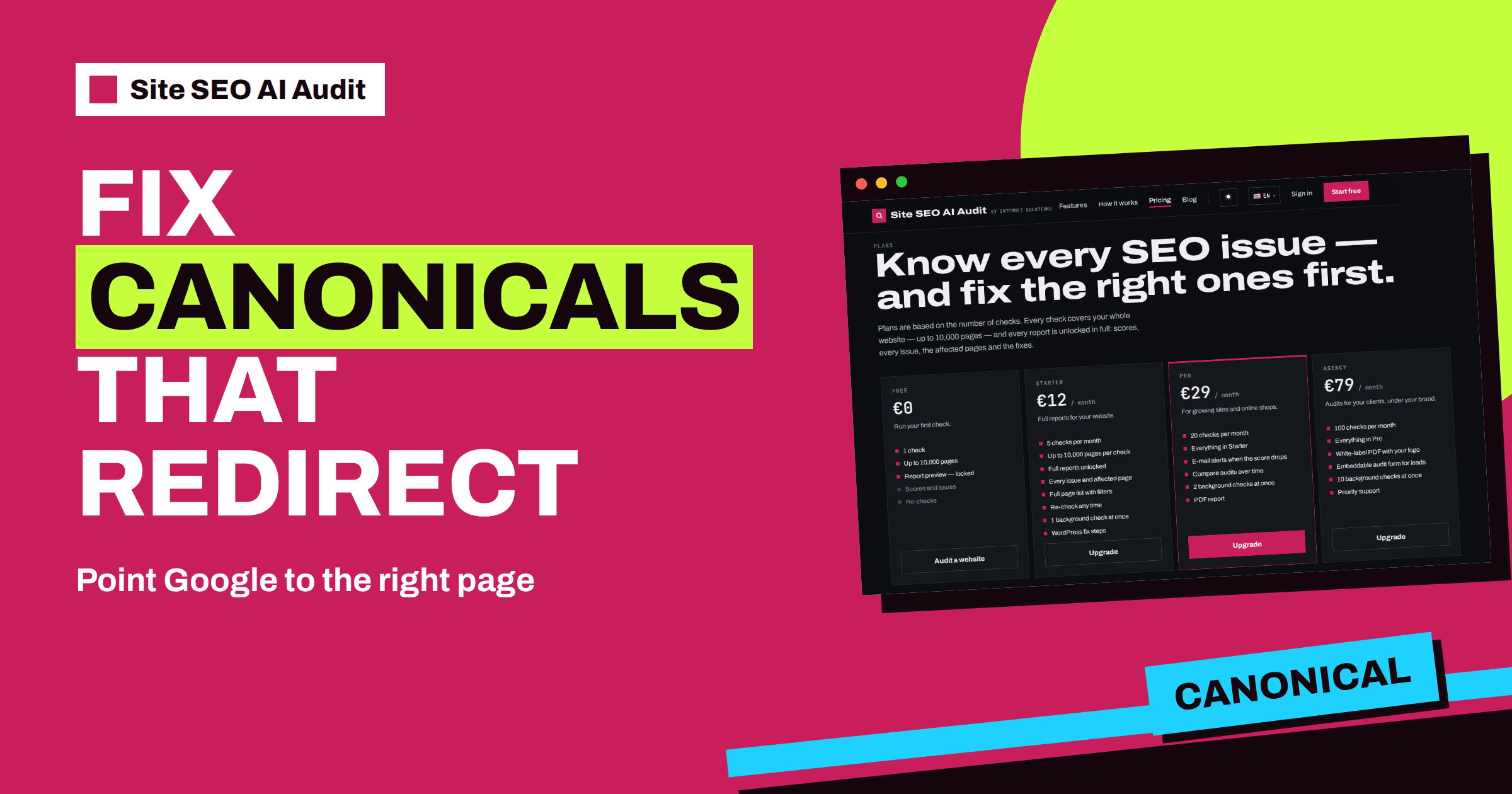
Because this issue follows change, tie your checks to change. Run a new check after every migration, redesign, plugin switch or change of address format. A check takes minutes for a small site and up to about twenty minutes for a very large one, so it fits easily after a release. Plans count checks per month, as the pricing page shows: Starter has five, Pro twenty and Agency one hundred, which is plenty for checks after each release on one or several sites.
It also helps to add a line to your release checklist: “open three random pages, view source, confirm that the canonical is the page itself and returns 200”. Developers can add the same test to their pipeline, as described in the guide to automated SEO tests. Pro adds e-mail alerts when the score drops, which is a useful second line of defence when a release slips through.
Finally, keep the sitemap clean. A sitemap should list the canonical addresses only. If the report also shows “Sitemap lists pages that do not work”, fix that together with the canonical issue, because both come from the same kind of address confusion.
Check that the fix worked
After the change, do not rely on your memory of what you edited. Run the check again and compare. The critical issue should be gone from the list, the Crawl and index area score should rise and the total score should climb by about the points the report showed. If a few pages remain, open one and see what is different: it may use another template, another language folder or a cached copy. Fix, wait for caches, and run again.
Give search engines time as well. After a correction, they must recrawl the pages before the new signal counts, and that can take days or weeks for a large site. The Search Console tool for inspecting an address can show which canonical Google selected, which is a good way to see the effect on a few important pages while the rest catches up.
Related reading
- Canonical Tags Explained
- Google Chose a Different Canonical
- Redirect Chains and Loops: How to Fix Them
The bottom line
A canonical that points to a redirected or broken page sends search engines to a dead end. Find the affected pages in your report, fix the template or setting behind them so every page declares a live address, and run a new check to confirm the points were won.
FAQ
Why is a redirected canonical a critical issue?
Because the page tells search engines to prefer an address that does not work. Neither page is then handled as you intended, and the signals may be lost.
How many points can this fix add?
In the sample report on the home page, it is worth nine points, the largest single fix. In your own report, the number depends on how many pages are affected.
Is a canonical to another page always wrong?
No. The notice “Canonical points to another page” only asks you to confirm that it is intended, for example for tracked or filtered addresses. The critical issue is about a target that redirects or fails.
Which plan do I need to see the affected pages?
Any paid plan. A free account runs one check and shows the report locked, while Starter, Pro and Agency unlock every issue and affected page.
How do I confirm the fix?
Run a new check with the re-check button on a paid plan. The issue should be gone, and the score should rise by about the points shown in the report.