ENEnglish
 LTLietuviškai
 DEDeutsch
 FRFrançais
 RUРусский
 ESEspañol
 PLPolski
 ITItaliano
 UKУкраїнська
 CSČeština
 PTPortuguês
 JA日本語
JA日本語 LVLatviešu valoda
 ETEesti
 HUMagyar
 IDBahasa Indonesia
 TRTürkçe
 HIहिन्दी
 ELΕλληνικά
 ARالعربية
 THไทย
THไทย VITiếng Việt
 RORomână
 MSBahasa Melayu
 BNবাংলা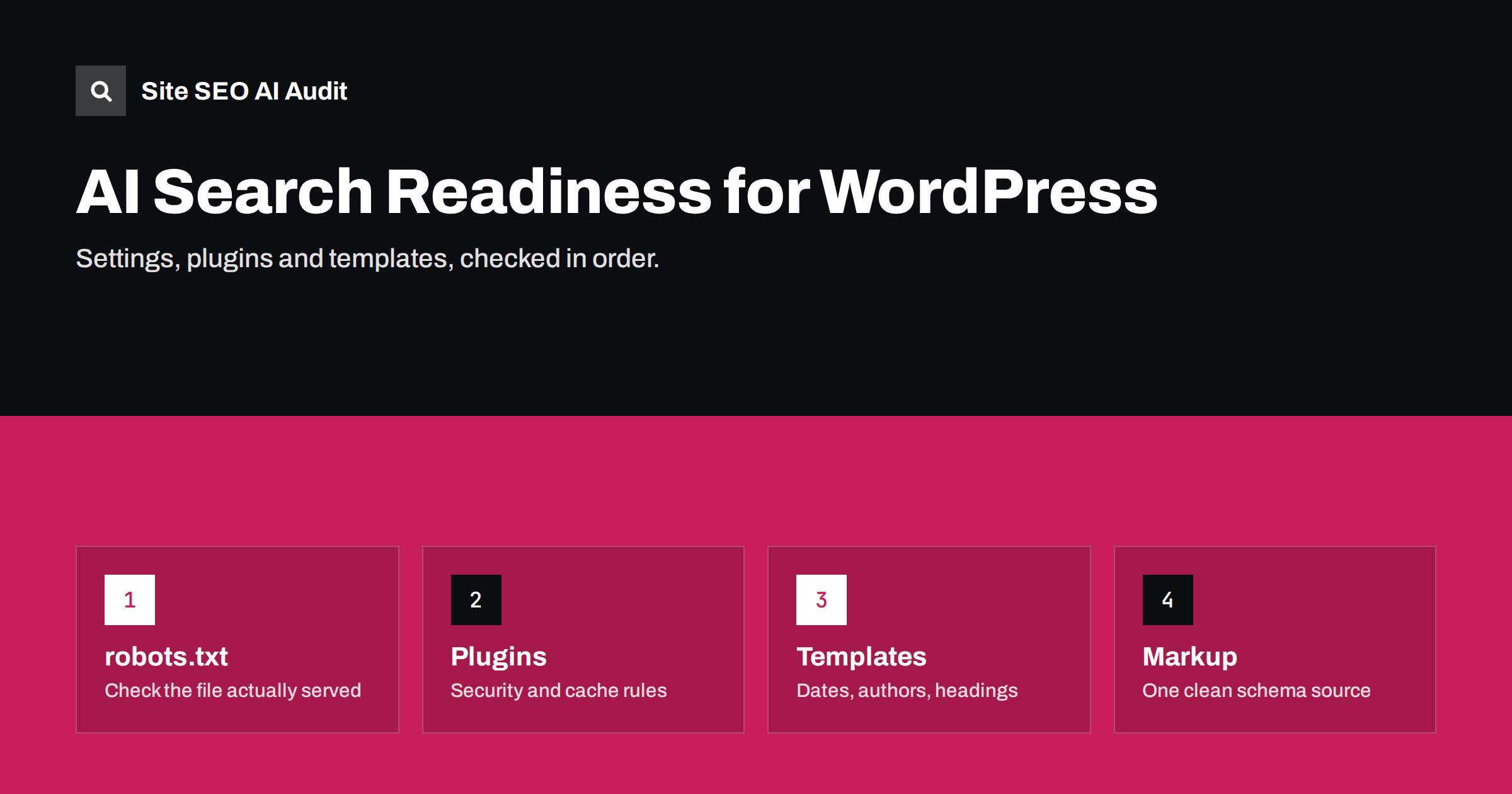
Short answer: To make a WordPress site ready for AI search, check which robots.txt is actually served and whether it allows the AI crawlers you want, make sure security, firewall and cache plugins do not block or challenge them, confirm that your theme and page builder output main content in the HTML, set up one clean source of structured data, show authors and dates on posts, and keep search engine visibility switched on. Most of this takes an afternoon in wp-admin and your SEO plugin.
Why WordPress needs a specific check
WordPress powers a large share of the web, and its core handles many technical basics well: it renders pages on the server, creates clean permalinks, generates XML sitemaps and outputs sensible HTML. Most AI visibility problems on WordPress sites come not from the core but from the layers added on top: themes, page builders, security plugins, caching plugins, SEO plugins and hosting settings. Each can change what crawlers see, often without the site owner noticing.
The steps below follow the order in which a crawler experiences your site: can it get in, can it read the page, can it understand the page, and does it trust what it finds.
Before starting, make a note of your current plugins, theme and hosting setup, and take a backup. Several steps involve changing settings that affect the whole site, and it is much easier to roll back a single change when you know what the site looked like before. If a developer or agency manages your site, share this checklist with them so that changes are made in the right place.
Step 1: check search engine visibility and robots.txt
- Visibility setting. In Settings, then Reading, make sure “Discourage search engines from indexing this site” is not ticked. This setting is often left on after a site moves from staging to production.
- Find the served robots.txt. Open yourdomain.com/robots.txt in a browser. WordPress creates a virtual file by default, SEO plugins often manage it, and a physical robots.txt file in the web root overrides both. Edit the one that is actually served.
- Review AI crawler rules. Look for groups naming GPTBot, OAI-SearchBot, ClaudeBot, PerplexityBot, Google-Extended and others. Decide which to allow, and remember that a named group replaces the wildcard rules for that bot.
- Keep the sitemap line. Make sure robots.txt references your XML sitemap.
If you are unsure which crawlers to allow, a common starting point for a business site is to allow search engines and AI search crawlers, and to make a separate, documented decision about training crawlers. Whatever you choose, write it in a short note in your internal documentation so that the next person who edits robots.txt understands why the rules are there.
Step 2: review security and firewall plugins
Security plugins protect WordPress sites from real threats, but some features catch legitimate crawlers too. In your security plugin, review:
- Bot blocking or “bad bot” lists, and whether they include AI crawler names.
- Rate limiting for crawlers, and whether limits are so low that bots receive 429 or 403 responses.
- Country blocking, which may exclude regions where crawlers operate.
- “Block fake Googlebot” style features, which should verify real crawlers rather than blocking by name.
- Challenge or CAPTCHA pages applied to all visitors.
Also check hosting-level protection and your CDN, if you use one. After changes, look at your access logs for AI user agents and the status codes they receive.
If your host manages security for you, ask support directly whether AI crawlers such as OAI-SearchBot and PerplexityBot are blocked or rate-limited at server level. Hosting-level rules are invisible in wp-admin, and many site owners only learn about them from their logs.
Step 3: check caching and performance plugins
Caching plugins usually help crawlers by serving fast HTML, but a few settings can cause problems:
- Delayed or lazy-loaded content: some optimisation features delay JavaScript or lazy-load whole sections. If main text only appears after interaction, crawlers that do not render may miss it.
- Stale cache: make sure caches are cleared when content changes, so crawlers do not receive outdated prices or text.
- Separate mobile cache or redirects: check that bots receive the same content as users.
- Minification errors: occasionally break structured data or HTML; validate after enabling.
Also consider cookie consent tools. Some consent banners block the page or hide content until the visitor makes a choice. Crawlers cannot click, so check that the main content remains in the HTML behind the banner.
Step 4: make sure content is in the HTML
Classic WordPress themes render content on the server. Page builders, sliders, tabs, accordions and third-party widgets can change that. To check:
- Open a post, a page, a product and a category page, and view the page source (not the inspector).
- Search for a sentence from the main content. It should be there.
- Check that headings, prices, specifications and FAQs appear as text.
- Check that navigation links are real links with URLs.
- For headless WordPress with a JavaScript front end, confirm that public pages are server-rendered or statically generated.
Where content is missing, look for builder settings that load sections by AJAX, or replace script-loaded widgets with native blocks.
Step 5: one clean source of structured data
Themes, SEO plugins, WooCommerce and schema plugins can all output JSON-LD. Several sources often produce duplicate or conflicting markup. Choose one main source, usually your SEO plugin, and:
- Set the site representation to organisation or person, with the correct name, logo and social profiles.
- Choose sensible default schema types for posts and pages.
- Disable duplicate schema output in the theme if it offers an option.
- Validate a sample page of each template with a structured data testing tool.
WooCommerce shops deserve an extra check. WooCommerce outputs its own product markup, and some SEO plugins extend or replace it. Make sure prices, currency and availability in the markup match what shoppers see, especially for variable products and sale prices.
Step 6: authors, dates and trust signals
| Element | Where to set it in WordPress | Why it matters |
|---|---|---|
| Author name and bio | Users, then Profile; theme author box | Shows expertise and accountability |
| Published and updated dates | Theme settings or template; SEO plugin schema | Freshness signals for readers and systems |
| About and contact pages | Pages, linked in menu and footer | Clear business identity |
| Organisation details | SEO plugin site representation | Consistent entity information |
| Category and tag descriptions | Posts, then Categories or Tags | Context for archive pages |
Some minimal themes hide dates and authors. If yours does, look for a theme option or add them through a child theme rather than editing the parent theme directly.
Fill in category and tag descriptions too. Archive pages with a short, useful introduction give readers and crawlers context, while empty archives are thin pages that add little.
Step 7: sitemaps, llms.txt and ongoing checks
Confirm that your XML sitemap, usually generated by WordPress core or your SEO plugin, lists only indexable, canonical URLs, and submit it in Google Search Console and Bing Webmaster Tools. If you decide to publish an llms.txt file, add it as a static file in the web root or through your SEO plugin, curate the links and check it loads as plain text. Then set a routine: after each plugin or theme update, recheck robots.txt, page source of one page per template, and structured data. Updates are the most common moment when settings change silently.
Keep a short log of what you changed and when. If AI referrals or crawl activity change later, the log makes it easy to connect cause and effect.
How Site SEO AI Audit helps
On WordPress sites, Site SEO AI Audit gives exact fix steps for every issue in wp-admin and your SEO plugin. It checks AI crawlers in robots.txt, llms.txt, content that depends on JavaScript, dates and structure, together with noindex, canonicals, sitemaps, headings, alt texts, structured data and speed. Starter and higher plans include the WordPress fix steps and re-audits, as shown on the pricing page.
Related reading
- How to Add an llms.txt File to a WordPress Site
- How to Allow or Block AI Crawlers in robots.txt
- Is Your CDN or Firewall Blocking AI Crawlers? How to Check
- Multilingual WordPress SEO: A Checklist for Translated Sites
The bottom line
WordPress gives you a solid base for AI search, but plugins, themes and hosting can undo it quietly. Check the served robots.txt and visibility setting, review security and cache plugins, confirm content is in the HTML, clean up structured data, show authors and dates, and recheck after every update. An afternoon of setup and a short routine keep your site readable for every crawler.
FAQ
Where is robots.txt in WordPress?
WordPress serves a virtual robots.txt by default, and SEO plugins often let you edit it. If a physical robots.txt file exists in the web root, it overrides the virtual one.
Can a security plugin block AI crawlers?
Yes. Bot blocklists, rate limits, country blocking and challenge pages can block or slow AI crawlers. Review these settings and check your logs for blocked requests.
Do page builders hide content from AI crawlers?
Some features do, such as sections loaded by AJAX or content revealed only after interaction. View the page source to confirm the main text is in the HTML.
Which plugin should output structured data?
Choose one main source, usually your SEO plugin, and disable duplicate output from the theme or other plugins. Duplicate markup with conflicting values causes confusion.
How often should I recheck these settings?
After every theme or major plugin update, and at least quarterly. Updates are the most common moment when robots rules, markup or rendering change without notice.