ENEnglish
 LTLietuviškai
 DEDeutsch
 FRFrançais
 RUРусский
 ESEspañol
 PLPolski
 ITItaliano
 UKУкраїнська
 CSČeština
 PTPortuguês
 JA日本語
 LVLatviešu valoda
 ETEesti
 HUMagyar
 IDBahasa Indonesia
 TRTürkçe
 HIहिन्दी
 ELΕλληνικά
 ARالعربية
 THไทย
 VITiếng Việt
 RORomână
 MSBahasa Melayu
 BNবাংলা
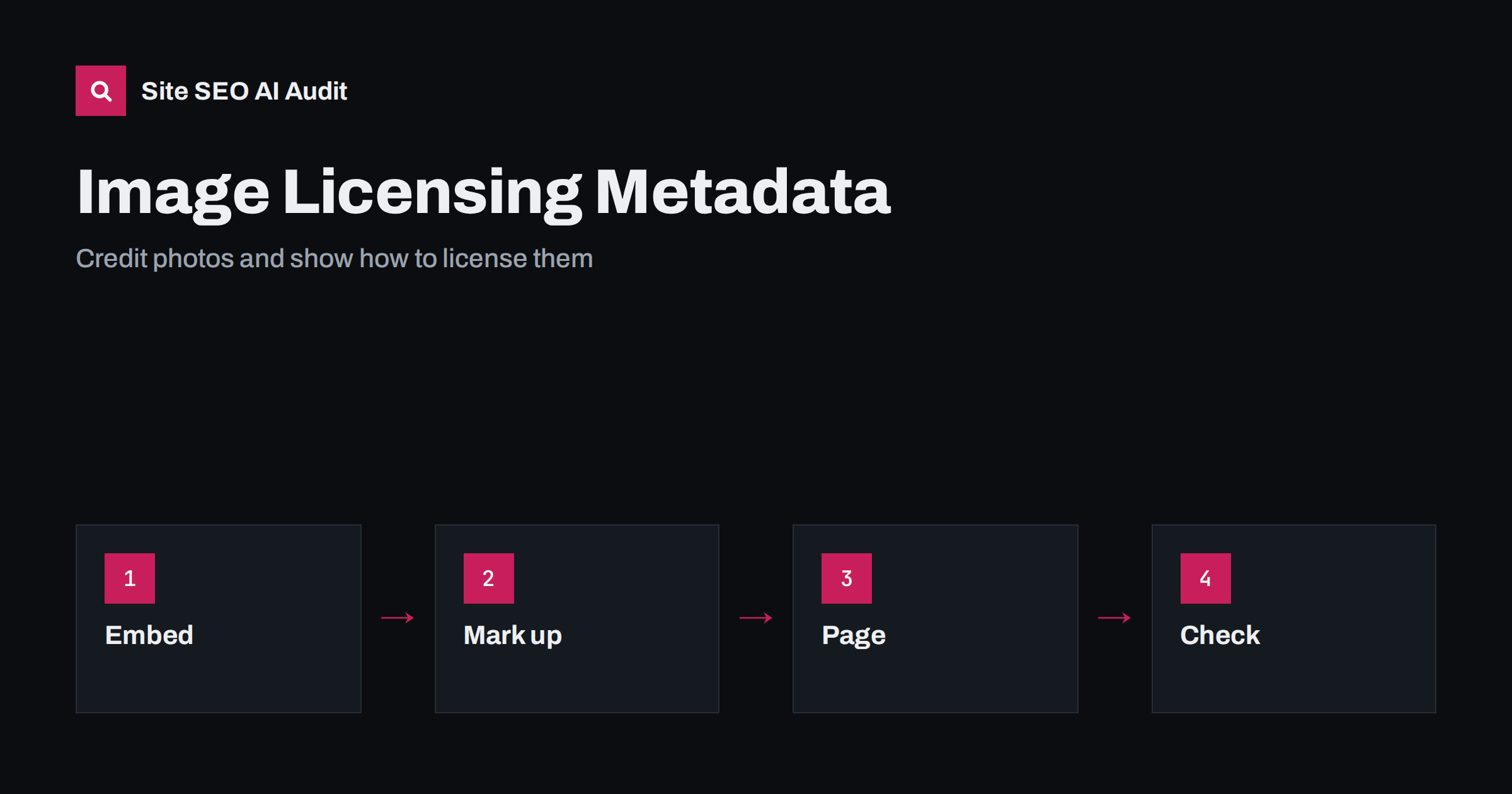
Short answer: You can tell Google who created an image and how to license it in two ways: by embedding IPTC photo metadata in the file, and by adding structured data to the page with the image licence and a link to a page that explains how to obtain it. Google may then show a licensable label and a credit in image results. These signals help rights holders, but they do not stop copying or guarantee a label.
Photographers, agencies, publishers and shops spend time and money on images, and then watch them circulate without credit. Search engines cannot resolve legal questions, but they offer ways to attach creator and licence details to images, which are shown to users in some results. This guide explains what metadata exists, how to add it, what it does and does not achieve and how to make it a part of a normal publishing workflow. The wider field is covered in the guide to image file names and captions.
Two kinds of signals
The first kind lives inside the image file. IPTC and XMP fields can store the creator, the credit line, the copyright notice, a description, keywords and a web address for licensing terms. The metadata travels with the file, so people who download it still carry the information, unless something strips it out. The second kind lives on the page: structured data that describes the image object, its creator, credit, copyright notice, licence address and an address where a licence can be acquired.
Google reads both. Its documentation on image metadata and on the image licence feature explains the fields it supports. The two approaches complement each other, and Google says that structured data on the page takes precedence when both are present and conflict, so keep them consistent.
What the licensable label does
When a page has valid licence markup, Google can show a Licensable badge on images in results. Clicking the image may show a link labelled to get the image on the site that provides the licence, which sends interested people to your terms instead of leaving them to copy the file. For shops, agencies and photographers who sell or rent images, this is a direct route to customers.
There is no guarantee. Google decides whether to show the badge, and the feature is intended for images that can actually be licensed. Do not use it for images that are not available for licence, and do not claim a licence that you do not have the right to give. Markup that does not match reality can be treated as spam.
The fields that matter in the file
If you work with image editing tools, you will find a metadata panel with these fields:
- Creator, the person who made the image.
- Credit line, the text that should accompany the image when used.
- Copyright notice, the statement of who holds the rights.
- Web statement of rights or licence address, linking to the terms.
- Description or caption, which helps with context.
Fill them in at the source, in the photo library or the editing software, before export. Many content management systems and image optimisers strip metadata to save bytes. Test the output file with a metadata viewer to see whether the fields survived, and configure the pipeline to keep them if they did not. Keep in mind that metadata can be edited or removed by anyone, so it signals ownership but does not prove it.
Structured data on the page
For the page markup, describe each licensable image as an image object, with the address of the image file, the creator, a credit line, a copyright notice, a licence address and an address where the image can be bought or licensed. The licence address points to the page with the terms, and the acquire address points to where a person can get a licence. They can be the same page if it covers both. Use JSON-LD, which is easy to maintain, and make sure it matches what is visible on the page, such as a visible credit line.
Place the markup on the page that displays the image, not on a separate page that the visitor does not see. If an image appears on several pages, add the markup on each or on the main one that is meant to represent it. The data should be tested with the tools described in the guide to structured data testing tools. For the general rules of markup, see the guide to JSON-LD and Microdata.
Write clear licence pages
The licence address must lead to a page that a person can understand. Explain what uses are allowed, what is forbidden, what it costs or how to ask, how to credit and whom to contact. A page that says contact us with no detail will frustrate visitors. If you offer several licence types, such as editorial and commercial, describe each in plain language and avoid legal jargon that needs a lawyer to read. Have a legal professional review the terms if the stakes are high; this guide is not legal advice.
Do not block the page in robots.txt or hide it behind a login. Google needs to access the licence page to process the feature. It should return a normal response and load quickly on mobile devices.
Credit and captions on the page
A visible credit line is good practice for readers and consistent with the metadata. Place it near the image, in a caption or in a block at the end of the article. Captions also help search engines understand the image and the page. They give people context, which is part of the quality signals discussed in the guide to E-E-A-T and AI search. Alt text remains separate: it describes the content of the image for people who cannot see it, and should not be stuffed with credits or keywords. The writing of alt text is covered in the guide to image alt text.
Whether to bother
Not every site needs licence markup. It is valuable for people who sell or license images, such as photographers, stock libraries, archives and museums. It is useful for publishers who want credit for original photographs and who allow limited reuse. It is less relevant for product photos of a shop, where the image exists to sell the product, though the creator and copyright fields in the file are still good hygiene. If you welcome reuse under an open licence, say so clearly, with the name of the licence and a link, so that others can comply.
Think about the trade-off. Making licences visible can bring enquiries and credit, but it also draws attention to your images. If you do not want them reused at all, say so in your terms and use other protections. Metadata alone cannot stop copying.
Workflow for a team
Set up the process so that metadata is added once, at the source. Store the original files with the fields filled in, export copies that keep them, and let the website template output the structured data from the same fields, so that the file and the page agree. Keep a log of image rights: who made each image, under what terms and when the licence expires if it is temporary. For images obtained from others, record the source and the permission, and do not add licence markup to images that you do not control.
Check the result in practice. Search for your images in Google Images with the site address and see whether the badge and credit appear. Allow time for the pages to be recrawled. Review after a redesign or a change of image pipeline, since the metadata and markup are easily lost. A mismatch between the file and the page leads to confusion about which is correct.
Here is a short example. A landscape photographer published portfolio pages with large images but had no credit or terms. Visitors copied the images to blogs without attribution. The photographer added the creator and copyright fields to every file, added licence markup to each portfolio page that pointed to a clear licensing page with prices for editorial and commercial use and wrote visible credit lines under each image. Some weeks later, the images showed a licensable label in results, and the photographer began to receive licensing requests that referred to the search result.
Another example comes from a regional newspaper that used staff photos in its articles. It embedded the credit and copyright in each file and added a credit line to every caption. It did not use licence markup, since it did not sell the images, but the credit stayed with the files when other sites downloaded them, which helped to trace unauthorised reuse. It is a modest measure that costs almost nothing once it is part of the workflow.
Site SEO AI Audit crawls your pages and checks image alt texts, structured data validity, page speed and page weight, which are the on-page parts of image SEO. It does not read IPTC fields inside files or confirm licence badges in results. The first audit of up to 200 pages is free, and the pricing page lists plans for larger sites.
Related reading
The bottom line
Embed creator and rights fields in image files, add matching licence markup and a clear terms page, and use it only for images you can actually license.
KKK
Does image metadata stop people copying my photos?
No. It signals ownership and licensing but cannot prevent copying or prove rights.
Will Google always show the licensable badge?
No. Valid markup makes images eligible, and Google decides whether to display the label.
Do I need both file metadata and structured data?
They complement each other. Keep them consistent, since the page markup takes precedence if they conflict.
Can my image optimiser remove metadata?
Yes, many tools strip it. Test the output files and configure the tool to keep rights fields.
Is licence markup useful for a shop?
Rarely. It suits people who license images, though creator and copyright fields in files remain good practice.