ENEnglish
 LTLietuviškai
 DEDeutsch
 FRFrançais
 RUРусский
 ESEspañol
 PLPolski
 ITItaliano
 UKУкраїнська
 CSČeština
 PTPortuguês
 JA日本語
JA日本語 LVLatviešu valoda
 ETEesti
 HUMagyar
 IDBahasa Indonesia
 TRTürkçe
 HIहिन्दी
 ELΕλληνικά
 ARالعربية
 THไทย
THไทย VITiếng Việt
 RORomână
 MSBahasa Melayu
 BNবাংলা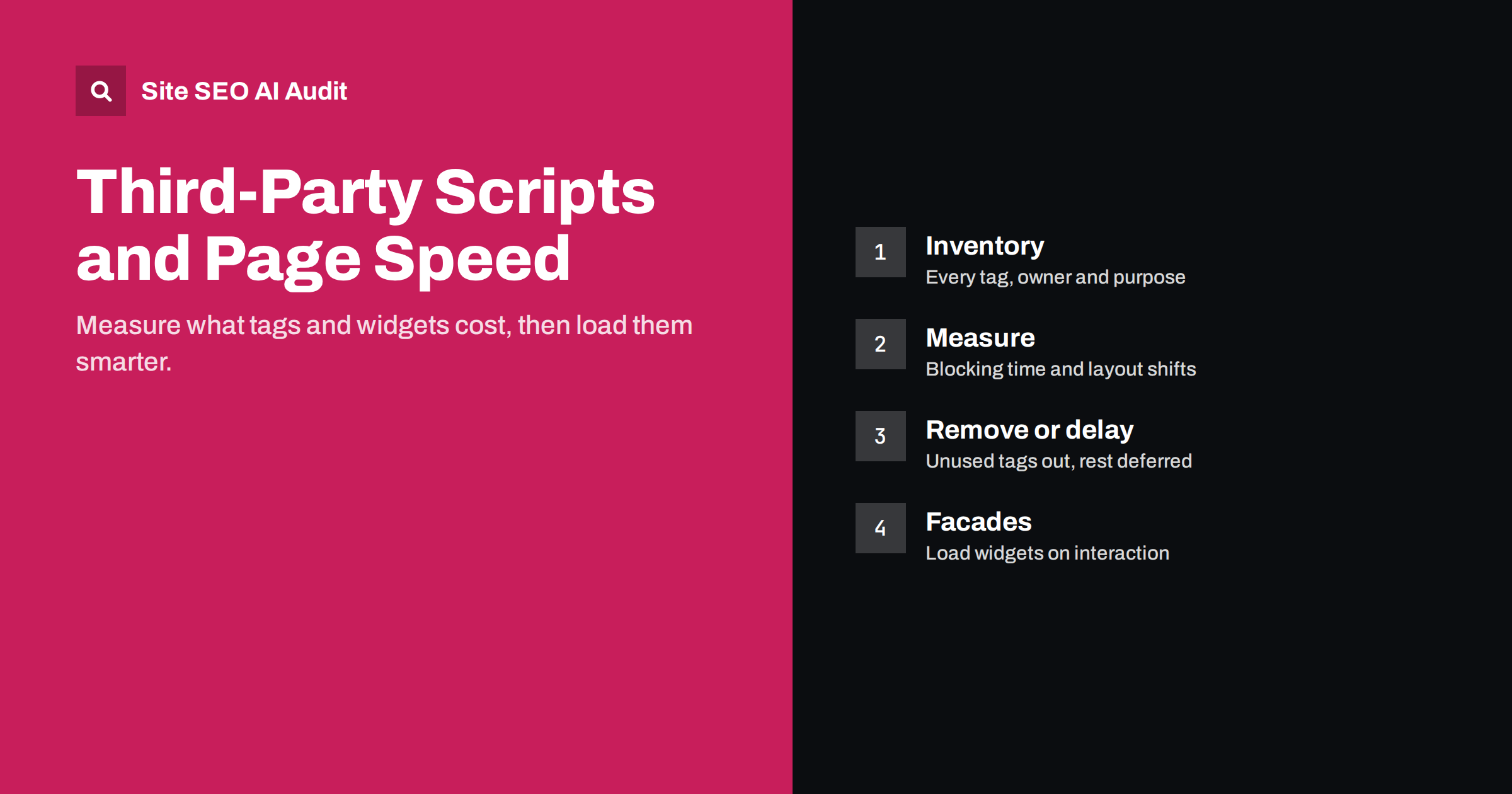
Short answer: Third-party scripts such as analytics, tag managers, chat widgets, A/B testing tools, ads and social embeds often cause more slowness than a site’s own code. They compete for the browser’s main thread, delay rendering, add network connections and inject content that shifts the layout. Start with an inventory of every script, measure its cost, remove what nobody uses, load the rest with async or defer or after user interaction, and use lightweight facades for heavy widgets.
What counts as a third-party script
A third-party script is code loaded from a domain you do not control, or code written by another company that runs on your pages. Typical examples on business websites:
- Analytics and tag managers.
- Advertising and remarketing pixels.
- Live chat and customer support widgets.
- A/B testing and personalisation tools.
- Heatmaps and session recording.
- Cookie consent platforms.
- Embedded videos, maps, social media posts and review widgets.
- Web fonts, icon libraries and JavaScript libraries loaded from public CDNs.
Each one is usually added for a good reason, often by a different person or team. Over the years they accumulate. It is common to find tags for tools that were cancelled long ago, or two analytics setups measuring the same thing.
How third-party code slows pages down
The damage happens in several ways, and each affects a different part of the user experience and the Core Web Vitals, which our guide Core Web Vitals explained describes in plain words.
- Main-thread work. JavaScript has to be downloaded, parsed and executed. While a large script runs, the browser cannot respond to taps and clicks, which hurts Interaction to Next Paint. See how to improve INP.
- Render blocking. A synchronous script in the head stops the browser from rendering until it has been fetched and executed, delaying Largest Contentful Paint. The general fixes are covered in render-blocking resources.
- Layout shifts. Banners, chat bubbles, ad slots and review widgets that appear after the page has rendered push content around, which raises Cumulative Layout Shift.
- Extra connections. Each new domain needs a DNS lookup, a connection and a TLS handshake before anything downloads. On mobile networks this adds noticeable delay.
- Chains of scripts. One tag often loads further scripts, which load more. A single line in a tag manager can end up pulling in a dozen files.
- Anti-flicker snippets. Some A/B testing tools hide the whole page until the experiment script has loaded. If the script is slow, visitors stare at a blank screen.
Step 1: Build an inventory
You cannot manage what you have not listed. Open your main page types, such as the home page, a product or service page, a blog post and checkout, and record every external script. The Network tab in browser developer tools, filtered by domain, shows them all.
For each script, note:
- What it is and which tool it belongs to.
- Who in the company owns it and still uses its data.
- On which pages it loads, and on which pages it is actually needed.
- How it is loaded: directly in the HTML, through a tag manager, or by another script.
- Whether it is required before consent, after consent or only on interaction.
This list alone often reveals quick wins: tools nobody logs into any more, duplicate tracking, and widgets that load on every page but are used on one.
Step 2: Measure the cost of each script
Several free methods show how much each third party costs:
- Lighthouse in Chrome developer tools lists third-party usage with transfer size and main-thread blocking time per provider.
- The Performance panel records a page load and shows long tasks. Hover over them to see which script caused them.
- Request blocking in developer tools lets you block a domain and reload the page. Comparing the load with and without a script is the most convincing way to show its real impact.
- Field data from the Chrome User Experience Report, shown in PageSpeed Insights and Search Console, tells you whether real visitors experience slow pages, which lab tests alone cannot.
Test on a mid-range mobile profile with network throttling. On a fast laptop most scripts look harmless; on a typical phone the difference is often dramatic.
Step 3: Remove, then reduce
The fastest script is the one you do not load. Work through your inventory in this order:
- Remove unused tools. Cancelled subscriptions, old pixels and forgotten experiments should go first.
- Remove duplicates. One analytics setup, one tag manager, one heatmap tool.
- Limit scripts to the pages that need them. A booking widget belongs on the booking page, not on every blog post.
- Replace heavy tools with lighter ones where the value does not justify the cost.
Then look at how the remaining scripts load. The table summarises the main options.
| Technique | What it does | Good for |
|---|---|---|
async |
Downloads in parallel, runs as soon as ready | Independent scripts such as analytics |
defer |
Downloads in parallel, runs after HTML is parsed | Scripts that need the page structure |
| Load after interaction or idle | Waits for scroll, click or idle time | Chat, heatmaps, non-essential widgets |
| Facade | Shows a static placeholder, loads the real widget on click | Video players, maps, chat bubbles |
| Self-hosting | Serves the file from your own domain | Fonts and libraries whose licence allows it |
| Preconnect | Opens a connection early | One or two critical third-party origins |
Step 4: Handle widgets and embeds carefully
Widgets deserve special attention because they affect both speed and layout.
- Chat widgets: show a simple button that looks like the chat bubble and load the full chat script when the visitor clicks it or after a delay.
- Video and map embeds: use a thumbnail or static map image with a link or play button, and load the iframe on interaction. Make sure you do not lazy-load an embed that is the main visible element.
- Review and social widgets: reserve space with a fixed height or aspect ratio so the page does not jump when they appear. Our guide to fixing CLS explains how.
- Cookie banners: keep them light and position them as an overlay rather than inserting them at the top of the content, which shifts everything down.
Step 5: Put governance on the tag manager
Tag managers make it easy for anyone to add scripts without a developer. That flexibility is also how sites slowly fill up with tags. Simple rules keep it under control:
- Every tag has a named owner and a short description of its purpose.
- New tags are tested for speed impact before they go live.
- Tags fire only on the pages and events where they are needed.
- Review the container every quarter and delete what is no longer used.
- Keep a changelog, so that a sudden speed drop can be traced to a specific change.
Does this affect SEO?
Page experience, including Core Web Vitals, is one of many signals search engines use, and it rarely outweighs relevance and content quality. But third-party scripts can also have more direct effects. Content injected only by a third-party script may not be seen by crawlers that do not execute it, which is a common issue for review widgets and AI crawlers. Slow, unstable pages also lose visitors before they convert, whatever their ranking. Faster pages are worth having for users first; any search benefit comes on top.
How Site SEO AI Audit helps
Site SEO AI Audit measures speed as one of its seven areas. It uses Google PageSpeed data, LCP and CLS, checks server response on every page, compression and page weight, and ranks fixes by how many points they add to your score. That shows which templates are slowest and whether a script clean-up actually improved them on the next audit. The AI visibility area also flags content that needs JavaScript to appear. You can start with a free audit of your website.
Related reading
- How to Fix a Slow Largest Contentful Paint (LCP)
- Page Weight and Compression: How to Make Pages Lighter
- Why AI Crawlers Miss JavaScript Content and How to Fix It
The bottom line
Third-party scripts are often the heaviest part of a page and the least managed. List every script with its owner and purpose, measure what each one costs on a real mobile profile, remove what is unused, load the rest asynchronously or on interaction, use facades for heavy widgets and reserve space for anything that appears late. Then keep the tag manager under simple governance so the problem does not return.
KKK
How do I find which third-party scripts slow my site?
Run Lighthouse in Chrome developer tools and look at the third-party summary, then record a page load in the Performance panel to see long tasks. Blocking a domain and reloading the page shows its real impact.
Does Google Tag Manager slow down my site?
The container itself is relatively light, but every tag inside it adds work. Most slowness comes from the tags it loads, so review and limit them rather than removing the tag manager.
Is async or defer better for third-party scripts?
Use async for independent scripts that do not depend on the page structure, such as analytics. Use defer for scripts that need the HTML to be parsed first or must run in order.
What is a facade for a widget?
A facade is a lightweight placeholder, such as an image with a play or chat button, that looks like the widget. The real script loads only when the visitor interacts with it.
Do third-party scripts affect Core Web Vitals?
Yes. They can delay Largest Contentful Paint, block the main thread and hurt Interaction to Next Paint, and cause layout shifts when widgets appear late.