ENEnglish
 LTLietuviškai
 DEDeutsch
 FRFrançais
 RUРусский
 ESEspañol
 PLPolski
 ITItaliano
 UKУкраїнська
 CSČeština
 PTPortuguês
 JA日本語
 LVLatviešu valoda
 ETEesti
 HUMagyar
 IDBahasa Indonesia
 TRTürkçe
 HIहिन्दी
 ELΕλληνικά
 ARالعربية
 THไทย
 VITiếng Việt
 RORomână
 MSBahasa Melayu
 BNবাংলা
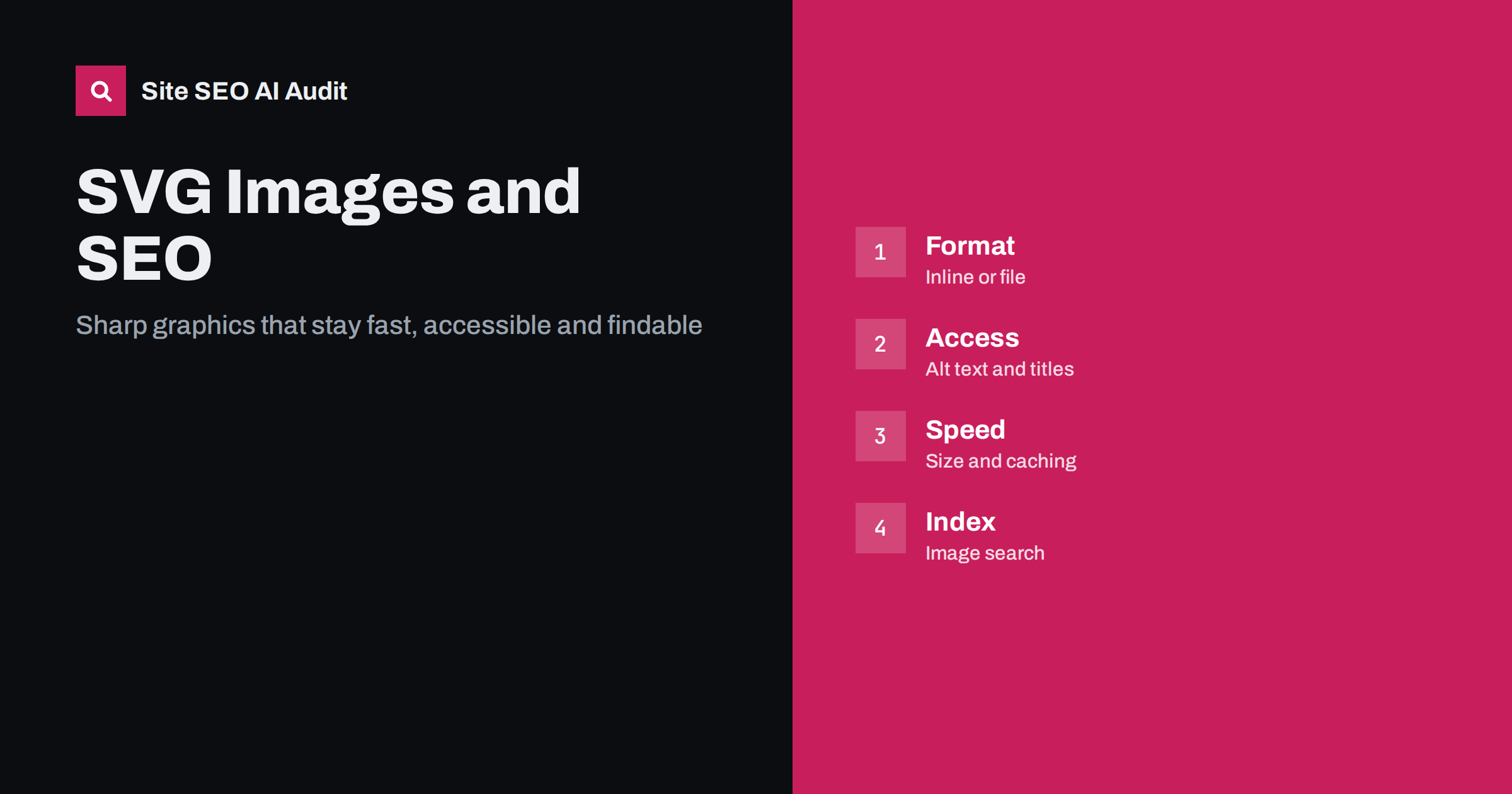
Short answer: SVG is a vector image format that stays sharp at any size and is usually small, which makes it ideal for logos, icons and simple illustrations. For SEO, treat an SVG like any other image: serve it as a file with descriptive alt text when it carries meaning, mark decorative graphics as decorative, keep the file small and cached, make sure crawlers can fetch it and avoid inline code that bloats every page. Photographs and complex artwork are better as WebP or AVIF.
SVG, short for Scalable Vector Graphics, describes an image with text instructions for shapes, paths and colours instead of a grid of pixels. That has clear benefits for websites: the same file looks crisp on a phone and a large monitor, it can be styled with CSS, and a simple graphic is often only a few kilobytes. It also raises questions. Can search engines index SVG files? Should the graphic be inline in the HTML or loaded as a file? How do you describe it for people who cannot see it? This guide answers those questions and lists the mistakes that cause trouble. For other formats, see the comparison in the guide to WebP and AVIF.
When SVG is the right format
Use SVG for logos, icons, diagrams, simple charts and illustrations with flat shapes. These images have few colours and clear edges, so a vector description is smaller and sharper than a bitmap. Avoid SVG for photographs and for artwork with complex textures, soft gradients and thousands of paths. A traced photograph saved as SVG can be larger than a compressed JPEG and slow to draw, because the browser has to process every shape.
A practical rule is to open the file and check its size. If a supposedly simple icon is hundreds of kilobytes, it contains too many points, embedded bitmaps or editor metadata. Export it again with simpler paths, or choose a raster format instead.
Inline SVG or an image file
There are three common ways to place an SVG. You can reference the file in an image tag, use it as a CSS background or paste the code directly into the HTML. Each has consequences.
A file referenced in an image tag is the simplest option for content images. It can be cached by the browser across pages, it supports alt text in the usual way and it can be discovered and indexed as an image. A CSS background works for decoration, but search engines do not treat background images as content, so it is not suitable for graphics that carry meaning.
Inline SVG lets you style parts of the graphic with CSS and animate it, and it avoids an extra request. The cost is that the code is repeated in every page that includes it, which increases the size of the HTML and cannot be cached separately. For a small icon used once, inline is fine. For a large illustration repeated across hundreds of templates, a file is better. Some sites use a sprite, a single file with many icons referenced by identifier, to combine the benefits.
Describing SVG for people and machines
Accessibility and SEO overlap here. When an SVG conveys information, such as a chart or a logo that is the only brand mention in a header, it needs a text alternative. For a file in an image tag, use the alt attribute with a short, specific description, following the advice in the image alt text guide. For inline SVG, add a title element inside the graphic, link it with an accessible name and use the appropriate role, so that assistive technology announces it.
If the graphic is decorative, such as a divider or an icon next to a text label that already says the same thing, mark it as decorative with an empty alt attribute or hide it from assistive technology. This keeps screen readers quiet and avoids filling the page with meaningless descriptions. For complex diagrams, describe the main message in the surrounding text, because a long alt attribute is not a substitute for readable content. The wider benefits are described in the guide to web accessibility and SEO.
Indexing SVG in image search
Major search engines can index SVG files as images, but they treat them like other images: they need a crawlable address, a page that embeds them and context. To help discovery, include the SVG in an image tag on an indexable page, surround it with relevant text and use a descriptive file name such as warehouse-layout-diagram.svg. Do not block the folder in robots.txt. If you use an image sitemap, SVG files can be listed like other formats, as described in the guide to image and video sitemaps.
Text inside an SVG may be readable to some systems, but do not rely on it. If an important message appears only as text within a graphic, repeat it in the page content. Logos usually do not need to rank in image search, but they should be consistent and reachable, particularly if you reference the logo in organization markup.
Keep files small and cached
SVG is text, so it compresses very well. Serve it with gzip or Brotli compression, which often reduces it by more than half. Remove editor metadata, comments, hidden layers and unused definitions with an optimisation tool, and round numbers to a sensible precision. Check that the server sends the correct content type for SVG and sets a long cache lifetime for versioned file names. The general principles are the same as in the guide to reducing page weight.
Set explicit width and height, or a viewBox with CSS sizing, so that the browser can reserve space before the file loads. Without this, an SVG can cause layout shifts when it appears, which hurts the user experience and Core Web Vitals. Avoid loading large decorative SVG files above the fold unless they are essential, and do not animate heavy graphics on low-powered devices without a fallback.
Security and safe handling
An SVG file can contain scripts and external references, because it is a form of markup. That does not matter for graphics you create, but it is important when users can upload images. Never accept uploaded SVG files without sanitising them, since a malicious file could run script when opened directly. Many content management systems disable SVG uploads by default for this reason. If you enable them, use a trusted plugin that cleans the code and restrict who may upload.
Also check that third-party SVG files do not call other domains. External references slow the page, may fail and can create privacy concerns. Keep your own graphics self-contained where possible.
How to test your SVG setup
Testing takes a few minutes. First, open the SVG address directly in a browser and confirm it loads with a successful status code and the right content type. Second, view the page source and check how the graphic is included: as a file, a background or inline code. Third, run an accessibility check or use a screen reader briefly to hear how important graphics are announced. Fourth, look at the network panel to see the transferred size of each SVG and whether compression and caching headers are present.
Finally, search for a distinctive file name in the image search of a search engine a few weeks after publishing, and check the page in the URL inspection tool to see whether the image is found. If a critical graphic is missing, look for blocked folders, scripts that insert the image only after interaction and pages that are not indexable. Record the results so that you can repeat the test after a redesign, when icon systems are often replaced and old problems come back.
Common mistakes
The same problems appear again and again. Missing dimensions that cause layout shifts. Giant files exported from design tools with embedded bitmaps. Inline copies of the same icon repeated dozens of times in one page. Alt text that says “image” or repeats the file name. Informational charts with no text alternative and no explanation nearby. Logos with a white box baked into the file that looks wrong on dark backgrounds. And SVG files blocked by a security rule on the server so that they never display.
Audit templates rather than individual pages. A single header or footer template with an oversized SVG affects every URL on the site.
Site SEO AI Audit crawls your website and checks status codes, titles, descriptions, image alt text, broken links, structured data and page speed, which helps you find images that fail to load or lack descriptions across templates. It does not edit or optimise SVG files for you. The first audit of up to 200 pages is free, and larger sites can see the pricing page.
Related reading
The bottom line
Use SVG for simple graphics, describe it properly, keep it small and cache it, and use other formats for photographs.
FAQ
Can Google index SVG files?
Yes, SVG files can be indexed as images when they are crawlable and embedded on an indexable page with relevant context.
Is inline SVG bad for SEO?
No, but it increases the HTML size and cannot be cached separately, so use it for small graphics and use files for large or repeated ones.
Does an SVG need alt text?
If it carries meaning, yes. If it is purely decorative, mark it as decorative so assistive technology skips it.
Should I use SVG for photographs?
No. Photographs are better as WebP, AVIF or JPEG, because a traced vector version is usually larger and slower.
Is it safe to allow SVG uploads?
Only with sanitising, because an SVG can contain scripts. Many systems disable uploads until a trusted cleaning tool is added.