ENEnglish
 LTLietuviškai
 DEDeutsch
 FRFrançais
 RUРусский
 ESEspañol
 PLPolski
 ITItaliano
 UKУкраїнська
 CSČeština
 PTPortuguês
 JA日本語
JA日本語 LVLatviešu valoda
 ETEesti
 HUMagyar
 IDBahasa Indonesia
 TRTürkçe
 HIहिन्दी
 ELΕλληνικά
 ARالعربية
 THไทย
THไทย VITiếng Việt
 RORomână
 MSBahasa Melayu
 BNবাংলা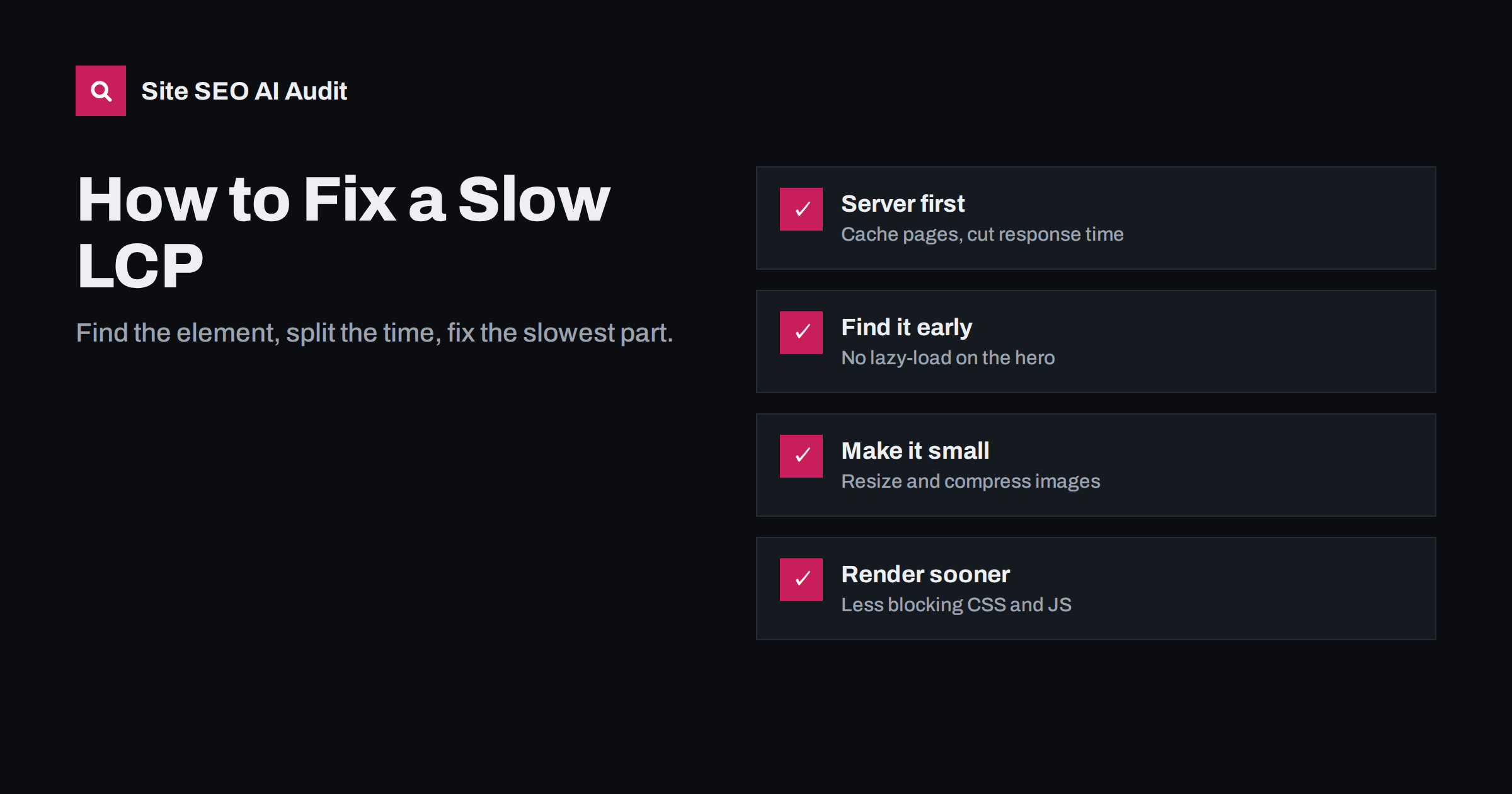
Short answer: to fix a slow Largest Contentful Paint, first identify which element is the LCP on your key templates, then break its time into four parts: server response, resource load delay, resource load time and render delay. Fix the largest part first. Most slow LCPs come from uncached server responses, a hero image that is too large or discovered too late, and render-blocking CSS or JavaScript.
What LCP measures and the target
Largest Contentful Paint is the time from when a visitor starts loading the page until the largest image or text block in the viewport is rendered. It is the Core Web Vital for loading. A good LCP is 2.5 seconds or less for at least 75% of real visits, measured separately on mobile and desktop. Between 2.5 and 4 seconds needs improvement, and over 4 seconds is poor.
The LCP element is usually one of these:
- a hero or banner image;
- the main product photo;
- a featured image at the top of an article;
- a large heading or the first paragraph when there is no big image;
- a video poster image.
Because it differs by template and even by screen size, the first step is always to find out which element it is.
Step 1: find the LCP element
- PageSpeed Insights shows the LCP element in its diagnostics for the lab test.
- Chrome DevTools: record a load in the Performance panel and look for the LCP marker; it highlights the element.
- Real user monitoring, if you have it, reports the LCP element per page for real visitors, which matters because mobile and desktop may differ.
Check each important template: home, category or listing, product or service, and article. Write down the LCP element for each on mobile.
Step 2: split LCP into its four parts
LCP time can be broken into four sub-parts, a framework explained in detail on web.dev’s LCP optimisation guide:
| Sub-part | What it is | Typical cause when slow |
|---|---|---|
| Time to first byte (TTFB) | Until the first byte of HTML arrives | No page cache, slow hosting, redirects |
| Resource load delay | From TTFB until the LCP resource starts downloading | Image found late: lazy-loaded, CSS background, JS-injected |
| Resource load duration | Download time of the LCP resource | Large file, old format, no CDN |
| Element render delay | From download finished until it is painted | Render-blocking CSS/JS, fonts, client-side rendering |
For a text LCP element, there is no resource to load, so the time is mostly TTFB plus render delay. Look at which part takes the most time and start there. Optimising image size when the real problem is a two-second server response will barely change the result.
Fix 1: reduce server response time
A slow time to first byte delays everything else. Typical improvements:
- Full-page caching. On WordPress, a caching plugin or server-level cache serves pre-built HTML instead of running PHP and database queries on every request. This is often the single biggest LCP improvement for WordPress sites.
- A CDN that caches HTML close to visitors, not only images.
- Better hosting when the server is overloaded, or when shared hosting limits CPU.
- Faster database queries: remove plugins that run heavy queries on every page, and clean up bloated options tables.
- No redirects before the page: links, ads and campaigns should point to the final URL, because each redirect adds a round trip.
Fix 2: make the LCP resource discoverable early
The browser can only download the hero image once it knows about it. Delays happen when:
- The image is lazy-loaded. Remove
loading="lazy"from the LCP image. WordPress automatically skips lazy loading for the first image in most cases, but themes and plugins can override that. - The image is a CSS background. Background images are discovered only after the CSS is downloaded and parsed. Use a normal
<img>element for hero images where possible. - The image is inserted by JavaScript, for example in a slider. Output the first slide as plain HTML.
You can also help the browser prioritise it: add fetchpriority="high" to the LCP image, or preload it with <link rel="preload" as="image"> when it is discovered late for reasons you cannot change. Do not preload many images; it dilutes the priority.
Fix 3: make the LCP resource small
- Resize images to the size they are displayed at. A 4000-pixel photo shown at 800 pixels wide wastes most of its bytes.
- Use responsive images with
srcsetandsizes, so mobile devices download smaller versions. WordPress generates these automatically for images inserted through the editor. - Use modern formats like WebP or AVIF, which are typically much smaller than JPEG or PNG at similar quality.
- Compress with a sensible quality setting.
- Serve from a CDN with long cache lifetimes.
- Avoid huge sliders that load several full-size images when only one is visible.
Fix 4: reduce render delay
Even after the image or text has arrived, the browser may be blocked from painting it:
- Render-blocking CSS. Large stylesheets in the head must be downloaded and parsed before anything is shown. Remove unused CSS, split critical styles, and avoid loading entire frameworks for a few components.
- Render-blocking JavaScript. Scripts in the head without
deferorasyncstop rendering. Defer non-critical scripts. - Web fonts. If the LCP element is text, a font that has not loaded yet can delay it. Use
font-display: swaporoptional, preload the main font file and limit the number of weights. - Client-side rendering. If the page content is built by a JavaScript framework in the browser, the LCP waits for the script to download and run. Server-side rendering or static generation helps a lot.
- Anti-flicker snippets from A/B testing tools that hide the page until the test script loads. They can add a significant delay to LCP.
A practical order of work
- Measure field LCP per template in Search Console and PageSpeed Insights.
- Identify the LCP element on mobile for each template.
- Check TTFB. If it is above roughly 800 milliseconds, fix caching and hosting first.
- Make sure the LCP image is not lazy-loaded, is in the HTML and has high priority.
- Resize, compress and convert the LCP image.
- Defer non-critical scripts and trim render-blocking CSS.
- Retest in the lab, deploy, and watch field data improve over the next four weeks.
Well-meant changes that make LCP worse
Some popular optimisations backfire when applied without checking the LCP element:
- Lazy loading everything. Optimisation plugins that add lazy loading to all images, including the first one, delay the main image on every page.
- Preloading too much. Preloading several fonts, scripts and images at once makes them compete with the LCP resource instead of helping it.
- Delaying all JavaScript until interaction when the page content itself is rendered by JavaScript. The content then waits for a scroll or tap.
- Replacing the hero image with a video or animated background, which is often much heavier than the image it replaced.
- Adding a third-party consent or personalisation script that hides the page until it has run.
After every optimisation, test the LCP element again. The goal is not a higher lab score in general, but a faster appearance of the one element that matters.
LCP on WordPress: quick checks
- Is a page cache active, and are logged-out visitors actually getting cached pages? Check response headers.
- Does the theme load a slider or page builder on every page, even where it is not used?
- Is the featured image of posts output with
loading="lazy"? Some themes add it to every image. - Are image optimisation and WebP conversion active for existing images, not only new uploads?
- How many plugins add scripts and styles to the front end? Each one adds to render delay.
How Site SEO AI Audit helps with LCP
The speed and Core Web Vitals area of the audit uses Google PageSpeed data, including LCP and CLS, and adds the crawler’s own measurements from every page: server response time, compression and page weight. That makes it easy to see whether a slow LCP comes from the server, which affects every page, or from heavy pages in one section. On WordPress sites the fix steps point to the relevant settings. You can start with a free audit to see which templates are slow.
Related reading
- Core Web Vitals explained: LCP, INP and CLS in plain words
- Redirect chains and loops: how to find and fix them
- Image alt text: how to write it for SEO and accessibility
The bottom line
Fixing LCP is detective work. Find the LCP element, measure which of the four parts takes the most time, and fix that first. Page caching, an early-discovered and properly sized hero image, and fewer render-blocking resources solve most cases.
DUK
What is a good LCP score?
2.5 seconds or less for at least 75% of real page loads is considered good. Between 2.5 and 4 seconds needs improvement, and more than 4 seconds is poor.
Should I lazy-load my hero image?
No. Lazy loading delays the image until the browser has laid out the page, which slows LCP. Lazy-load images below the fold, and load the main visible image normally, ideally with high fetch priority.
Why is my LCP element a text block?
When there is no large image in the first screen, the largest element is often a heading or paragraph. In that case, server response time, render-blocking resources and font loading are the main factors to improve.
Does a CDN improve LCP?
Usually, yes. A CDN shortens the distance to visitors for images and static files, and if it caches HTML it also reduces time to first byte. It will not fix render-blocking scripts or oversized images on its own.
How long until LCP improvements show in Search Console?
Field data covers the previous 28 days, so improvements appear gradually over about four weeks. Use lab tests to confirm the fix works immediately after deploying it.