ENEnglish
 LTLietuviškai
 DEDeutsch
 FRFrançais
 RUРусский
 ESEspañol
 PLPolski
 ITItaliano
 UKУкраїнська
 CSČeština
 PTPortuguês
 JA日本語
JA日本語 LVLatviešu valoda
 ETEesti
 HUMagyar
 IDBahasa Indonesia
 TRTürkçe
 HIहिन्दी
 ELΕλληνικά
 ARالعربية
 THไทย
THไทย VITiếng Việt
 RORomână
 MSBahasa Melayu
 BNবাংলা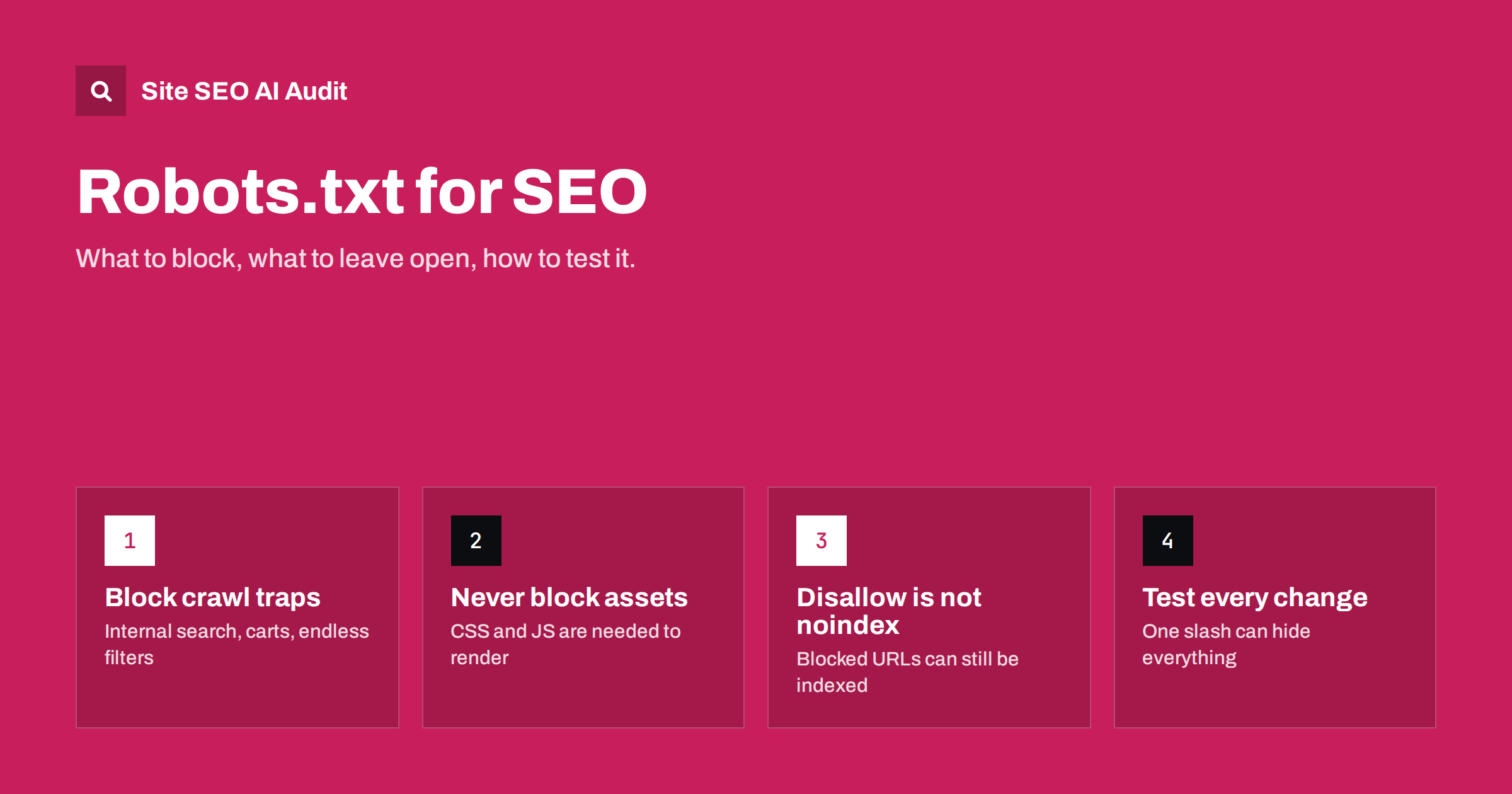
Short answer: robots.txt tells crawlers which URL paths they may request; it does not remove pages from search results. Use it to keep crawlers out of low-value, endless areas such as internal search, carts and filter combinations, and never use it to block CSS, JavaScript or pages you want indexed. To keep a page out of the index, allow crawling and use a noindex tag instead.
What robots.txt actually does
robots.txt is a plain text file that lives at the root of a host, for example /robots.txt on your main domain. Before a well-behaved crawler requests pages from that host, it reads the file and follows the rules that apply to it. The format is standardised as the Robots Exclusion Protocol in RFC 9309, and major search engines follow it.
Three details matter more than people expect:
- It is per host and per protocol. A file on
www.example.comdoes not apply toshop.example.comor to the non-www host. Each subdomain needs its own file. - It controls crawling, not indexing. A blocked URL can still appear in search results if other pages link to it. The search engine just cannot see what is on it, so the result usually shows no description.
- It is public and voluntary. Anyone can read it, and bad bots ignore it. Never use it to hide private areas; use authentication for that.
How the rules are matched
A robots.txt file is made of groups. Each group starts with one or more User-agent lines and continues with Allow and Disallow rules. A crawler picks the single group whose user-agent matches it most specifically and ignores the rest. This surprises many site owners: if you add a group for Googlebot, Googlebot stops reading the User-agent: * group entirely, so any rule you want to apply to both must be repeated.
Within a group, the rule with the longest matching path wins. When an Allow and a Disallow match with the same length, the less restrictive rule, Allow, is used. Two wildcards are supported by the major engines:
*matches any sequence of characters, soDisallow: /*?sort=blocks any URL containing?sort=.$anchors the end of the URL, soDisallow: /*.pdf$blocks URLs ending in.pdfbut not/file.pdf?download=1.
Paths are case-sensitive. Disallow: /Admin/ does not block /admin/. An empty Disallow: line means nothing is blocked, while Disallow: / blocks the whole host. That single slash is the most expensive character in technical SEO.
What you should usually block
The best reason to block a path is that it creates a huge number of URLs with little or no unique value. Crawlers spend time on those URLs instead of your real pages. Typical candidates are:
- Internal site search results, such as
/?s=on WordPress or/search?q=on other platforms. Every query creates a new URL. - Cart, checkout and account pages, which are personal and useless to searchers.
- Sorting and view parameters like
?sort=price,?view=gridor?per_page=100, which duplicate category pages in a different order. - Uncontrolled filter combinations in shops, where colour, size, brand and price filters multiply into millions of URLs. Block the combinations you do not want indexed, and keep the valuable filtered pages open with clean URLs.
- Endless calendar or date archives that generate a page for every day into the future.
- Tracking and session parameters if your platform exposes them in links.
Before blocking anything, check whether any of those URLs receive search traffic today. If a filtered category page brings visitors, blocking it will eventually cost you that traffic.
What you should never block
Most robots.txt disasters come from blocking something that looked technical but was needed. Keep these open:
- CSS, JavaScript and image files. Search engines render pages much like a browser. If they cannot load your stylesheets and scripts, they may see a broken layout or miss content. Old WordPress advice to block
/wp-includes/or/wp-content/is harmful today. - Pages you want removed from the index. This sounds backwards, but if you block a page, the crawler cannot see its noindex tag, so the page can stay indexed. Remove the block, add noindex, wait for the page to drop out, and only then consider blocking it.
- Canonical target pages and redirecting URLs you are cleaning up. Crawlers need to fetch a URL to see its canonical tag or its redirect.
- Your XML sitemap. It should be fetchable, and it is good practice to reference it with a
Sitemap:line.
WordPress sites need one more exception. /wp-admin/admin-ajax.php is used by many themes and plugins on the front end, which is why the default WordPress virtual robots.txt blocks /wp-admin/ but allows that one file.
A safe starting template
For a typical company website or blog on WordPress, a short file is usually best. Shorter files have fewer ways to go wrong.
User-agent: *
Disallow: /wp-admin/
Allow: /wp-admin/admin-ajax.php
Disallow: /?s=
Disallow: /search/

Sitemap: /sitemap_index.xml
Note that the Svetainės medis line should contain the full absolute address of your sitemap on your own domain; the relative path above is only a placeholder for this example. For a shop, add lines for cart, checkout, account and the sort or filter parameters you have decided to exclude. Resist the urge to copy a long file from another site: rules that made sense for their URL structure can block important sections of yours.
Common mistakes and how to spot them
These are the errors that appear again and again in site audits:
| Mistake | What happens | Fix |
|---|---|---|
Disallow: / left from a staging site |
The whole site stops being crawled; rankings fade over days or weeks | Replace with the production file and request recrawl of key pages |
| Blocking CSS or JS folders | Pages render incorrectly for crawlers; mobile checks can fail | Remove the rules for asset folders |
| Blocking pages that carry noindex | Pages stay indexed because the tag is never seen | Unblock until they drop out |
| Separate Googlebot group missing common rules | Googlebot ignores the * group and crawls everything |
Repeat shared rules in every group |
| Wrong case or missing leading slash | The rule silently matches nothing | Copy paths exactly from real URLs |
| Server returns 5xx for robots.txt | Crawlers may pause crawling the whole site | Make sure the file returns 200 or a clean 404 |
The last row deserves attention. If robots.txt returns a 404, crawlers assume there are no restrictions. If it returns a server error for a long time, Google treats the site as fully blocked for a while to avoid causing harm. A misconfigured firewall or CDN that blocks the robots.txt request can therefore stall crawling of every page.
How to test robots.txt before and after a change
A robots.txt change affects every URL on the host, so treat it like a code deployment:
- Save the current file. Keep a copy with the date so you can roll back in seconds.
- List the URLs that must stay crawlable. Home page, main categories, top articles, top products, CSS and JS files.
- Test those URLs against the new rules. Search Console’s robots.txt report shows which version Google fetched and any parsing problems, and the URL Inspection tool tells you whether a specific URL is blocked. Several open-source parsers can test rules locally too.
- Deploy and fetch the live file. Open
/robots.txtin a browser and confirm the content, the 200 status and that no CDN or cache serves an old version. - Crawl the site. A full crawl that respects robots.txt shows you exactly which pages became unreachable. Compare the count of crawlable pages with the previous crawl.
Google’s own documentation on robots.txt is the best reference for how its crawlers interpret edge cases.
robots.txt versus noindex versus authentication
These three tools solve different problems, and choosing the wrong one is the root of most confusion:
- robots.txt saves crawl time on URLs you do not care about. It does not guarantee the URL stays out of results.
- noindex (a meta robots tag or an
X-Robots-Tagheader) removes a page from the index, but only if crawlers can fetch the page and see it. - Authentication (a login or IP restriction) is the only reliable way to keep content private, including staging sites.
A staging site protected only by Disallow: / can still leak into search results through links. A staging site behind a password cannot.
How Site SEO AI Audit checks robots.txt
Our crawler, SEOAuditBot, reads your robots.txt before it requests any page and follows it, the same way a search engine would. The crawl and index area of the audit reports robots.txt problems together with related signals such as noindex pages, canonicals and sitemap URLs, so you can see when a blocked URL is also listed in your sitemap or linked from your navigation. The AI visibility area also shows whether AI crawlers are blocked. Each issue is weighted by how many pages it affects, and WordPress sites get the exact steps in wp-admin and the SEO plugin. You can run a free audit of your site to see what a crawler can and cannot reach.
Related reading
- Noindex vs Disallow: How to Keep Pages Out of Search
- Index Bloat: How to Find and Clean Up Unwanted Indexed URLs
- CDN and SEO: Setup Choices That Help or Hurt Search
The bottom line
Keep robots.txt short. Block only areas that generate endless, worthless URLs, keep every asset and every page you care about open, and never rely on it to remove or hide pages. Test each change against a list of must-crawl URLs, check the live file after deployment, and crawl the site to confirm nothing important disappeared.
DUK
Does robots.txt remove a page from Google?
No. robots.txt only stops crawling. A blocked page can still be indexed if other pages link to it, usually shown without a description. To remove a page, allow crawling and add a noindex tag, or delete the page and return a 404 or 410.
Where must the robots.txt file be placed?
It must be at the root of the host, such as /robots.txt on your main domain. A file in a subfolder is ignored. Each subdomain and each protocol and host combination needs its own file.
Should I block wp-admin in robots.txt?
Blocking /wp-admin/ is fine and is the WordPress default, but keep /wp-admin/admin-ajax.php allowed because many themes and plugins use it on public pages. Do not block /wp-content/ or /wp-includes/, because they hold the CSS, JavaScript and images needed to render your pages.
How long does it take for robots.txt changes to apply?
Google generally caches robots.txt for up to about a day, so changes are usually picked up within 24 hours. Recrawling and reindexing the affected pages takes longer and depends on how often those pages are normally crawled.
What happens if my site has no robots.txt?
If the file returns a 404, crawlers assume they may crawl everything. That is fine for many small sites. Problems start when the file returns a server error, because crawlers may then slow down or pause crawling.