ENEnglish
 LTLietuviškai
 DEDeutsch
 FRFrançais
 RUРусский
 ESEspañol
 PLPolski
 ITItaliano
 UKУкраїнська
 CSČeština
 PTPortuguês
 JA日本語
JA日本語 LVLatviešu valoda
 ETEesti
 HUMagyar
 IDBahasa Indonesia
 TRTürkçe
 HIहिन्दी
 ELΕλληνικά
 ARالعربية
 THไทย
THไทย VITiếng Việt
 RORomână
 MSBahasa Melayu
 BNবাংলা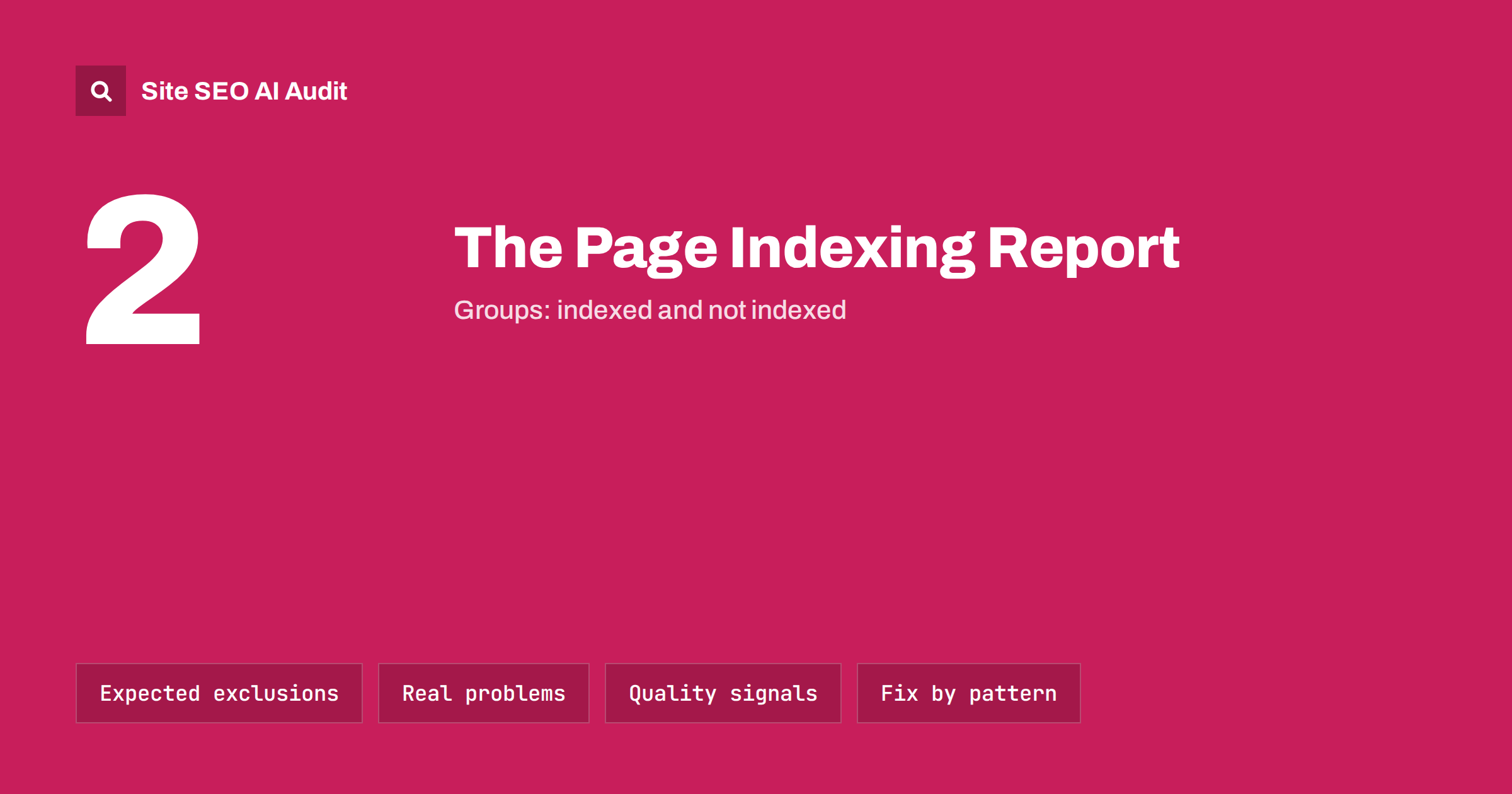
Short answer: Search Console’s page indexing report splits known URLs into indexed and not indexed, and lists a reason for every non-indexed group. Many reasons are normal and expected, such as redirects, alternate pages with a proper canonical and pages you excluded with noindex. The ones that deserve attention are important pages that are blocked, returning errors, marked as soft 404, or crawled or discovered but not indexed. Work through the report by URL pattern, not URL by URL.
How the report is organised
The report, found under Indexing, Pages, shows a chart of indexed and not-indexed pages over time, followed by a table of reasons why pages are not indexed. Clicking a reason shows example URLs, up to 1,000 per reason, and lets you inspect them or validate a fix. You can filter the report to URLs from a specific sitemap, which is the best way to focus on pages you actually want indexed. Google’s own page indexing report documentation lists every reason.
Two things to keep in mind:
- “Not indexed” is not the same as “problem”. Every site has URLs that should not be indexed.
- The data is delayed and sampled. It updates every few days and shows examples, not always every URL.
A useful way to read the report is to ask two questions for every reason: “Did I intend this?” and “Does it affect pages I care about?” If the answer to the first is yes and to the second is no, move on. If you did not intend it, or it touches important pages, that reason goes on your fix list. This simple filter turns a long, alarming table into a handful of real tasks.
Statuses that are usually fine
| Reason | Meaning | Action |
|---|---|---|
| Page with redirect | The URL redirects elsewhere | None, unless an important URL redirects by mistake |
| Alternate page with proper canonical tag | Duplicate points to its canonical, which Google accepted | None; confirms canonicals work |
| Excluded by ‘noindex’ tag | Page carries noindex | Check the list contains only pages you intended |
| Not found (404) | URL returns 404 | Fine for deleted pages; fix internal links to them |
| Blocked by robots.txt | Crawling is disallowed | Fine for intended blocks; check nothing important is listed |
“Fine” still means “check once”. A sudden jump in “Excluded by ‘noindex’ tag” or “Blocked by robots.txt” after a release is one of the clearest signs of an accidental site-wide block.
Statuses that usually need action
Server error (5xx)
Google got a server error when crawling. Check server logs for the timestamps, look for timeouts, resource limits, firewall rules or application errors, and fix the cause. Repeated 5xx errors also slow down crawling of the whole site.
Redirect error
The redirect could not be followed: a loop, a chain that is too long, a redirect to an empty or invalid URL, or a URL that is too long. Test the URL with curl -sIL and fix the rule.
Soft 404
The page returns 200 but looks like an error or is nearly empty. Either return a real 404 or 410, add real content, or fix rendering if the content exists but did not load for Googlebot.
Blocked due to unauthorized request (401) or access forbidden (403)
Google was refused access. That is correct for private areas; on public pages, look for security plugins, bot protection or leftover password protection.
Duplicate without user-selected canonical
Google found duplicates and chose a canonical because you did not specify one. Add self-referencing canonicals to the preferred pages and canonicals on duplicates pointing to them.
Duplicate, Google chose different canonical than user
Your canonical was overridden. Usually other signals contradict it: internal links, sitemap entries or redirects pointing to another version. Align them, or reconsider whether your chosen canonical is really the best page.
Indexed, though blocked by robots.txt
This warning appears among indexed pages: Google indexed the URL from links without being able to crawl it. If the page should be indexed, remove the robots.txt block so Google can read it. If it should not, remove the block too, add noindex and let Google recrawl it; only then block again if needed.
Page indexed without content
Google indexed the URL but could not read its content, often because the page relies on a format or rendering path Google could not process, or because the server returned an empty body to the crawler. Inspect the URL, check the rendered HTML and compare the raw response for Googlebot with what browsers receive.
The two “not indexed” statuses that confuse everyone
Crawled – currently not indexed means Google fetched the page and decided not to index it for now. It is usually about value relative to other pages, duplication or rendering problems, not a technical block. Improve, merge or remove such pages, and make sure important ones are well linked.
Discovered – currently not indexed means Google knows the URL but has not crawled it yet, often because it expected your server could not handle more requests or considered the URL low priority. Improve server speed, reduce the number of low-value URLs you expose and strengthen internal links.
Both are normal in small numbers. They become important when key pages appear in them or the counts grow steadily.
How to work through the report
- Filter by your sitemap. Start with “All submitted pages”, because those are the URLs you want indexed. Non-indexed URLs there are the priority.
- Export each reason and group URLs by pattern: products, categories, articles, tags, parameters, pagination.
- Decide per pattern whether those URLs should be indexed. If not, remove them from the sitemap and internal links rather than trying to get them indexed.
- Inspect a few URLs per pattern with URL Inspection to see the Google-selected canonical, crawl date, rendered HTML and any blocked resources.
- Fix at the template or server level.
- Validate the fix from the reason’s detail page. Validation rechecks affected URLs over days or weeks.
- Watch the trend chart, not individual numbers, and annotate releases so you can connect changes to causes.
Reading the trend chart
- Indexed pages falling suddenly: look for noindex, robots.txt, canonical or server changes around that date.
- Not indexed rising steadily: often new URL patterns from filters, parameters or imports.
- Both rising together: Google is discovering more of the site; check whether the new URLs are ones you want.
- Stable indexed count with growing content: new pages may not be reaching the index; check crawl priority and quality.
A simple monthly routine
For most sites, fifteen minutes a month with this report is enough to catch problems early:
- Look at the chart for the last three months and note any sudden change in indexed or not-indexed pages.
- Filter to submitted pages and check whether the number of submitted but not-indexed URLs grew.
- Open any reason whose count jumped and look at the example URLs. Are they a new pattern?
- Spot-check two or three important pages with URL Inspection, even if nothing looks wrong.
- Check running validations and whether any failed.
- Write down what you found and any change you made, with the date.
After redesigns, migrations and major plugin changes, do the same check weekly for a month.
Limits of the report
The report shows what Google has processed, with a delay and with example lists capped at 1,000 URLs per reason. It does not show pages Google has never discovered, and it does not tell you how many of your pages have technical problems that have not yet affected indexing. That is why it works best combined with a full crawl of your site and with URL Inspection for individual checks.
How Site SEO AI Audit complements the report
Search Console shows the outcome in Google; an audit crawl shows the causes on your site. SEOAuditBot reports noindex pages, canonical problems, redirect chains, error pages, thin and duplicate content, orphan and deep pages, and sitemap URLs that should not be there, each with the list of affected URLs and weighted by how much of the site they touch. Comparing the two often explains a status in minutes. You can start with a free audit.
Related reading
- Crawled – currently not indexed: causes and real fixes
- Discovered – currently not indexed: why and how to fix it
- Soft 404 errors: what they are and how to fix them
- Sitemap errors in Search Console: what they mean and fixes
The bottom line
The page indexing report is a diagnosis tool, not a to-do list. Many non-indexed statuses are expected. Focus on submitted URLs that are not indexed, group them by pattern, decide which should be indexed, fix causes at template level, validate, and watch the trend over time.
BUJ
Is it bad to have many non-indexed pages?
Not necessarily. Redirects, canonicalised duplicates, noindexed pages and removed URLs are all expected. It matters when pages you want indexed appear in the non-indexed reasons.
What does “Alternate page with proper canonical tag” mean?
The URL is a duplicate that correctly points to another canonical URL, and Google accepted it. It usually needs no action and confirms your canonical setup works.
How long does “Validate fix” take?
Validation rechecks the affected URLs as Google recrawls them, which can take from a few days to several weeks depending on the number of URLs and how often they are crawled.
Why does the report show fewer URLs than my site has?
The report only covers URLs Google knows about, and example lists are capped at 1,000 per reason. Pages Google has never discovered do not appear at all.
Should I request indexing for every non-indexed page?
No. Requesting indexing is for a small number of important URLs after meaningful changes. For large groups, fix the underlying cause and let normal crawling pick up the changes.