ENEnglish
 LTLietuviškai
 DEDeutsch
 FRFrançais
 RUРусский
 ESEspañol
 PLPolski
 ITItaliano
 UKУкраїнська
 CSČeština
 PTPortuguês
 JA日本語
JA日本語 LVLatviešu valoda
 ETEesti
 HUMagyar
 IDBahasa Indonesia
 TRTürkçe
 HIहिन्दी
 ELΕλληνικά
 ARالعربية
 THไทย
THไทย VITiếng Việt
 RORomână
 MSBahasa Melayu
 BNবাংলা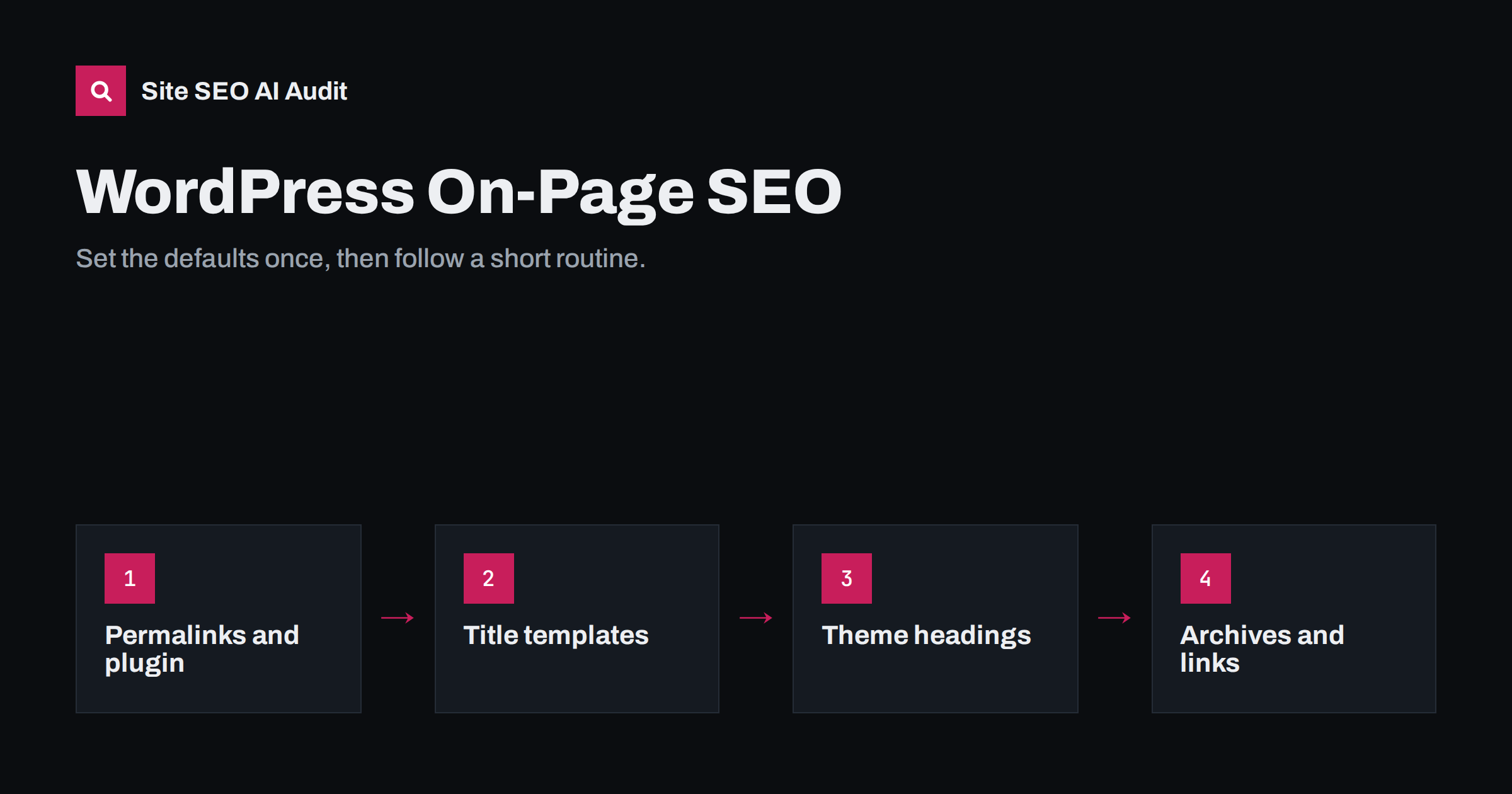
Short answer: On-page SEO in WordPress comes down to a few settings and habits: clean permalinks, an SEO plugin to control titles and meta descriptions per page, one H1 per page from the theme, descriptive headings in the block editor, alt text on every meaningful image, sensible handling of category and tag archives, and internal links between related posts. Set the site-wide defaults once, then check each new page with a short routine.
What WordPress does and does not do for you
WordPress handles several SEO basics out of the box. It generates clean HTML, outputs a title tag from the post title and site name, creates readable URLs once permalinks are set, and gives every post a place in categories, tags and archives. For a simple site, that is a decent starting point.
But core WordPress leaves important gaps:
- There is no field for a separate SEO title or meta description.
- Category, tag, author and date archives are all created and indexable by default, which on many sites produces thin duplicate pages.
- Whether the page title becomes the H1, and whether the logo is also an H1, depends entirely on the theme.
- Images can be uploaded without alt text, and the editor does not insist on it.
- Nothing links new posts from older ones automatically.
Most sites fill these gaps with an SEO plugin plus a few habits. The rest of this guide goes through them in order.
Site-wide settings to get right once
- Permalinks. Under Settings, then Permalinks, choose “Post name”. It produces URLs such as
/title-tag-writing-guide/. On an established site, changing this later affects every URL and needs redirects, so treat it as a migration. - Site title and tagline. Under Settings, then General. The site title is often appended to page titles, so keep it short. Many themes show the tagline in places you would not expect; make it descriptive or leave it empty.
- Search engine visibility. Under Settings, then Reading, the option “Discourage search engines from indexing this site” must be unticked on a live site. It is often left on after development.
- An SEO plugin. Install one well-maintained SEO plugin, not two. Two plugins may both output titles, descriptions, canonicals and structured data, creating duplicates and conflicts.
Title and description templates in your SEO plugin
SEO plugins let you set default title and description patterns for each content type, using variables such as the post title, category name, site name and page number. Getting these right prevents most duplicate and missing titles:
| Content type | Sensible title pattern | Description default |
|---|---|---|
| Posts | Post title, separator, site name | The excerpt, if you write excerpts as summaries |
| Pages | Page title, separator, site name | Write per page for important pages |
| Categories | Category name, separator, site name | The category description |
| Birkas | Tag name, separator, site name | The tag description, or noindex if tags are thin |
| Paginated archives | Add the page number variable | Same as page 1 |
| Products (WooCommerce) | Product name, separator, site name | Short description, or write per product |
Then override the defaults for the pages that matter most: home page, main services or categories, and top articles. Each gets a hand-written title of roughly 50 to 60 characters and a unique description.
Headings: the theme and the block editor
Check how your theme outputs headings. View a post and a page, then inspect the HTML or use a browser extension that shows the heading outline:
- The post or page title should be the only H1.
- The site logo or name should not be an H1 on every page.
- Sidebar and footer widget titles should not be H1s, and ideally not a cluttering stack of H2s.
- Archive pages should show the category or tag name as the H1, not a generic “Archives”.
Inside the content, use Heading blocks for sections, starting at H2. The block editor’s list view shows all headings and their levels, which makes it easy to spot a stray H1 or a skipped level. Page builders deserve extra care: their heading widgets let editors choose any level for styling, which is how pages end up with several H1s.
Images and the media library
- Alt text: add it in the media library or the image block settings. Alt text set in the media library is used when the image is inserted later; images already placed in posts keep the alt text they had when inserted, so fix those in the post itself.
- File names: rename files before uploading. WordPress keeps the original file name in the URL.
- Size: WordPress creates several sizes of each image and serves responsive versions, but it cannot fix a huge original. Resize and compress before uploading, or use a reputable image optimization plugin.
- Attachment pages: WordPress can create a separate page for every uploaded image. Many SEO plugins redirect these to the image or parent post; check that yours does, since attachment pages are thin.
Categories, tags and archives
WordPress archives are a common source of thin and duplicate content. Decide deliberately:
- Categories: keep a small number of meaningful categories, give each a description, and keep them indexable if they are useful hubs.
- Tags: use a small maintained set, or none. Tags with one or two posts are thin. Either give useful tags a description and enough posts, or set tag archives to noindex.
- Author archives: on single-author sites they duplicate the main blog; noindex or disable them. On multi-author sites, a proper author page with a bio can be useful.
- Date archives: rarely useful for search; noindex or disable them.
Internal linking in WordPress
The block editor makes linking easy: select text, press the link button, and search for an existing post by title. Build a habit around it:
- When writing a post, link to two to five related posts and, where relevant, a service or product page.
- After publishing, edit two or three older related posts to link to the new one.
- Use descriptive anchor text, not “click here”.
- Avoid plugins that insert dozens of automatic links; they often produce irrelevant links with repetitive anchors.
Conflicts between themes and plugins
Many WordPress SEO problems are not caused by missing settings but by two pieces of software doing the same job. Typical conflicts:
- Two title tags or descriptions. Some themes output their own meta description or open graph tags, and the SEO plugin outputs another set. Search engines then have to guess which one you meant.
- Two sets of structured data. A theme, an SEO plugin and a reviews or shop plugin may each add their own schema for the same page, sometimes with conflicting details.
- Two sitemaps. WordPress core has its own sitemap, and SEO plugins usually replace it with theirs. Make sure only one is submitted and that it lists the pages you want indexed.
- Caching old output. After changing titles or templates, a caching plugin or CDN may keep serving the old version until the cache is cleared.
The quick check is always the same: open a live page, view the source, and search for <title, name="description", rel="canonical" and application/ld+json. Each of the first three should appear exactly once. If you find duplicates, look for the setting in the theme or plugin that outputs the extra copy and switch it off there rather than editing theme files by hand.
A per-page routine before publishing
- Title set in the SEO plugin, unique and specific.
- Meta description written for important pages.
- Slug shortened to a few descriptive words.
- One H1 (the title), sections as H2s, no skipped levels.
- Images compressed, with alt text.
- Category chosen, tags limited to existing ones.
- Internal links added, both out of and into the new post.
- Preview on a phone, then check the live page source for one title and one description.
Across a whole WordPress site, a crawl finds the problems that routines miss: templates producing duplicate titles, archives full of thin pages, images without alt text and broken links. Site SEO AI Audit gives WordPress sites the exact steps for each issue in wp-admin and your SEO plugin, with fixes ranked by how many points they add. You can run the first audit free.
Related reading
- How to Optimize a Blog Post for SEO, Step by Step
- H1 Tag Best Practices: One Clear Heading Per Page
- Thin Content: How to Find and Fix Low-Value Pages
- How to Add an llms.txt File to a WordPress Site
The bottom line
WordPress gives you a solid base, but on-page SEO still needs attention. Set permalinks, visibility and one SEO plugin correctly, define title and description templates for every content type, check how your theme outputs headings, describe images, control archives, and link related posts to each other. Then follow a short routine for every new page and audit the whole site from time to time.
BUJ
Do I need an SEO plugin for WordPress?
Not strictly, but it is the easiest way to set separate titles and meta descriptions, control archive indexing and manage redirects. Use one well-maintained plugin, not two, to avoid duplicate tags.
Should I noindex tag pages in WordPress?
If most tags have only a few posts and no description, yes, or stop using tags. If you maintain a small set of useful tags with descriptions and enough posts, they can stay indexable.
Why does my WordPress page have two H1 tags?
Usually because the theme outputs the title as an H1 and the content, often from a page builder, contains another H1 heading. Change the extra heading to H2, or check theme settings for the logo.
Where do I add alt text in WordPress?
In the image block’s settings in the editor, or in the media library. Alt text added in the media library applies when the image is inserted later; images already in posts need to be updated in the post.
Is it safe to change the permalink structure?
On a new site, yes. On an established site it changes every URL, so it needs redirects from old to new URLs and careful checking. Avoid it unless the current structure causes real problems.