ENEnglish
 LTLietuviškai
 DEDeutsch
 FRFrançais
 RUРусский
 ESEspañol
 PLPolski
 ITItaliano
 UKУкраїнська
 CSČeština
 PTPortuguês
 JA日本語
 LVLatviešu valoda
 ETEesti
 HUMagyar
 IDBahasa Indonesia
 TRTürkçe
 HIहिन्दी
 ELΕλληνικά
 ARالعربية
 THไทย
 VITiếng Việt
 RORomână
 MSBahasa Melayu
 BNবাংলা
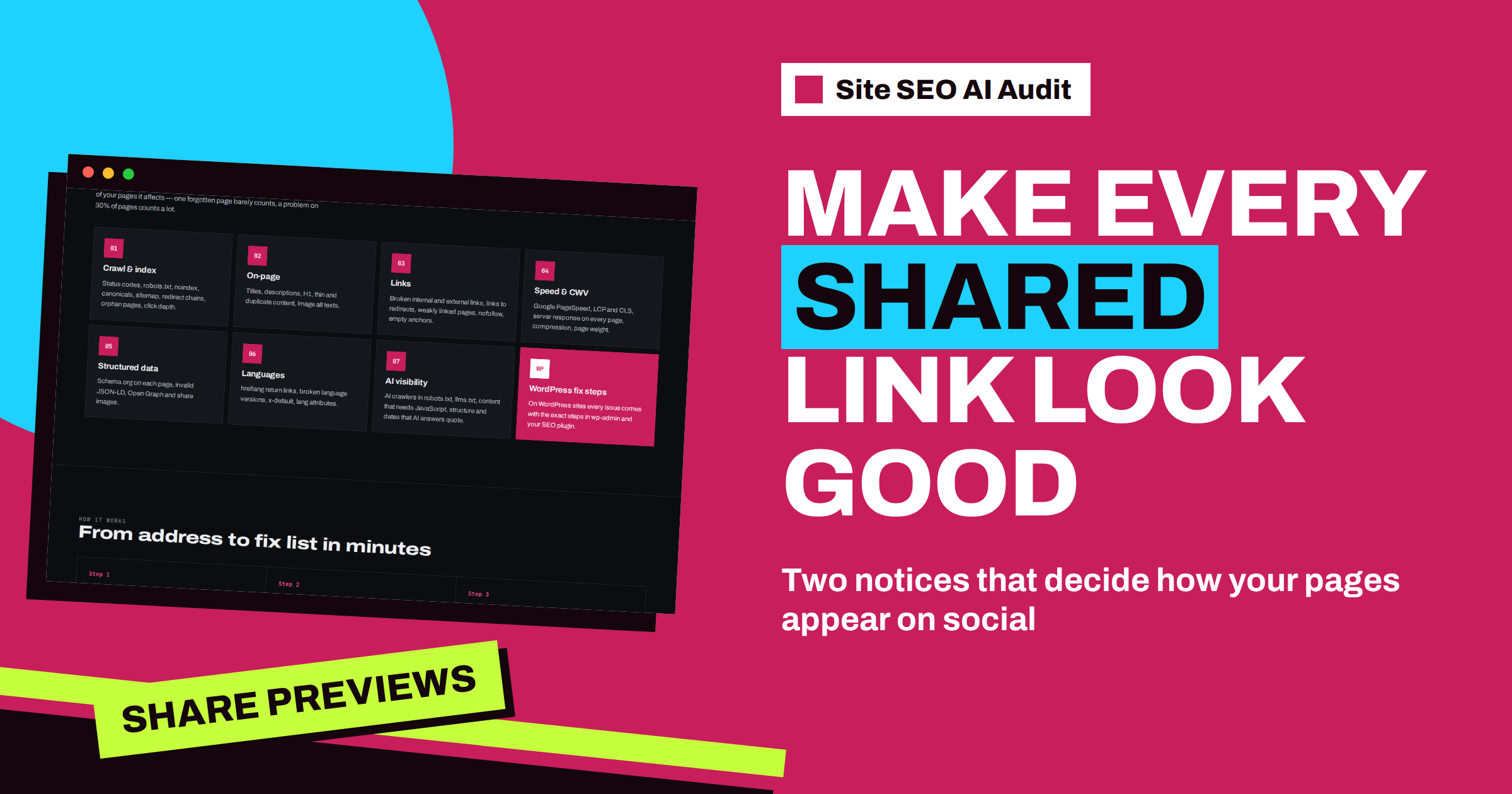
Short answer: In the Structured data area of Site SEO AI Audit, “Missing Open Graph tags” and “No share image (og:image)” are two notices about how your pages look when someone shares them. Without Open Graph tags, Facebook, LinkedIn and messengers show no proper title or image. Without a share image, the link appears with no picture and gets fewer clicks. The fix is to add og:title, og:description and og:image to every page, with an image of 1200 by 630 pixels, and then run a new check.
Most of the findings in an SEO audit are about search engines. These two are about people. When a visitor pastes your address into a chat or a social post, the platform builds a preview card from small tags in the head of your page. If the tags are missing, the card is bare or the platform guesses, and a bare card is easy to scroll past.
Both notices belong to the Structured data area of the report, which carries 10 percent of the overall score. Next to them are the findings for no structured data on the website, invalid structured data and pages without structured data. A notice weighs one point, multiplied by the share of indexable pages affected, so the score effect is small. But the effort is small too, and the result is visible every time someone shares a page. The article on the Structured data area shows the area as a whole.
What Open Graph tags are and what the report shows
Open Graph is a set of tags that tell other platforms how to describe a page. The three that matter most are og:title, og:description and og:image. They are separate from the normal title and meta description, although many SEO plugins copy the values by default. The guide to setting up Open Graph tags explains each tag and its options in more detail.
| Tag | What it controls |
|---|---|
| og:title | The headline of the preview card |
| og:description | The short text under the headline |
| og:image | The picture on the card |
“Missing Open Graph tags”
This notice appears for pages where the Open Graph tags are absent. The report explains the consequence: shared links on Facebook, LinkedIn and messengers show no proper title or image. The platform then falls back to its own guess, which may pick the wrong text, an unrelated image or nothing at all. The fix is to add og:title, og:description and og:image.
“No share image (og:image)”
This notice is narrower. The page may have some Open Graph tags but no image. Links shared on social networks then appear without a picture and get fewer clicks. The suggested fix is to set a 1200 by 630 pixel image for each page. That ratio fits the large card format that most platforms use, so the image is shown in full and not cut at the edges.
What a good share image looks like
- The right size. 1200 by 630 pixels is the size the report suggests. Larger images with the same ratio also work, but keep the file size reasonable.
- Readable at small size. Many people see the card on a phone, where it is tiny. Use a clear subject and large text, if you add text at all.
- Specific to the page. A unique image for an important page works better than the same logo on every page.
- Safe margins. Keep the important part away from the edges, because some platforms crop slightly.
- A stable address. The image should load from a normal public address, not behind a login.
Why previews are worth the effort
Think about where your links travel. A customer sends your product page to a friend in a messenger. A partner shares your article in a professional network. You post your own news on social media. In every case, the first thing the next person sees is the preview card, not your page. A card with a clear headline and a good picture invites a click. A card with a bare address or a random image from the page footer looks untrustworthy and is easy to ignore.
That is why the report treats these as notices and not as warnings: they do not stop search engines from reading your page. But they directly affect how many people arrive from shared links, which makes them one of the better returns on a small amount of work. For a site that depends on word of mouth, such as a local business, a small shop or a personal brand, the preview card is part of the first impression.
The notices are easy to read once you know what to look for. Follow four short steps, and keep the page list open next to the issue card so that you can check a few of the pages while you read.
- Open the Structured data area. Find the two notices among the other findings.
- Check how many pages are listed. If it is nearly all of them, the cause is a theme or plugin setting. If it is only some, a page type or a template is missing the tags.
- Compare with the missing-image notice. If the first notice lists a page, the second usually does as well. If only the second one lists a page, the tags exist but the image is missing.
- Open one listed page in a browser. View the source and check the head for lines starting with og:.
How to add the tags
- Use your SEO plugin or theme setting. On WordPress, most SEO plugins have a social section. Enable Open Graph output and set a default image for pages that have none.
- Set a featured image on each post and page. Many plugins use it as og:image when no other image is chosen.
- Write a specific title and description. The values can differ from the normal title if you want a more social tone, but they should still describe the page honestly.
- View the source. Open a page, view its source and look for lines that start with og: in the head.
- Preview a shared link. Paste the address in a draft post or a message to yourself, and look at the card.
- Run a new check. Starter, Pro and Agency allow re-checks. The pricing page lists the checks for each plan.
Common reasons the notices remain
- The plugin is on but a theme overrides it. Two sources print the same tags, or one blocks the other. Pick one and switch the other off.
- Only the home page was set up. The default image or template applies only to some page types.
- Archive and custom pages. Category pages, search pages and custom templates often have no Open Graph output.
- Cached output. Social platforms keep a copy of old previews. Use their debugging tools to refresh a card after a change.
Social platforms are not search engines, but they do carry your pages to new readers. The article on social media and SEO explains how the two relate.
A last tip is to test with a real share, not only with the page source. Platforms sometimes read the tags differently from what you expect, for example by taking a different image or by cutting the title short. Share the page to yourself in a private message and look at the card on a phone as well as on a computer. If you manage several websites, repeat the test on one page of each template: the home page, an article, a product or service page and a category. Those four tests cover most of your site.
A short example
A restaurant site has 18 pages. Its theme prints no Open Graph tags, and the audit lists both notices on all 18 pages. The owner turns on the social option in the SEO plugin, chooses a default image of the dining room at 1200 by 630 pixels and sets a specific featured image for the menu and booking pages. The next check shows both notices gone, and when the owner pastes the booking page into a chat, the card shows the title, the description and the photo. The change took twenty minutes.
Once both notices are gone, keep them gone. New page types, a theme switch or a plugin change can quietly remove the tags again, so look at the Structured data area after each such change. Because the checks run only when you start them, make this look part of your release routine.
Related reading
- Open Graph Tags: How to Control Link Previews Everywhere
- The Structured Data Area: JSON-LD and Open Graph Checks
- Social Media and SEO: What Helps and What Is a Myth
The bottom line
Open Graph tags and a share image decide how your page looks when it travels. Add og:title, og:description and a 1200 by 630 image to every page, then check again and see both notices disappear.
FAQ
Are Open Graph tags a ranking factor?
The audit lists them as notices about shared links. They shape how your pages look on social networks and messengers, which affects clicks from those places.
What size should the share image be?
The report suggests 1200 by 630 pixels for each page.
Do I need a different image for every page?
It is better for important pages. A good default image is acceptable for pages that do not need their own.
Why does the old preview still appear after I fixed the tags?
Social platforms keep a copy of previews. Refresh the card with the platform’s debugging tool after your change.
Can I see these notices on a free account?
A free account runs one check and shows the report locked. Starter, Pro and Agency unlock every issue and the fixes.