ENEnglish
 LTLietuviškai
 DEDeutsch
 FRFrançais
 RUРусский
 ESEspañol
 PLPolski
 ITItaliano
 UKУкраїнська
 CSČeština
 PTPortuguês
 JA日本語
JA日本語 LVLatviešu valoda
 ETEesti
 HUMagyar
 IDBahasa Indonesia
 TRTürkçe
 HIहिन्दी
 ELΕλληνικά
 ARالعربية
 THไทย
THไทย VITiếng Việt
 RORomână
 MSBahasa Melayu
 BNবাংলা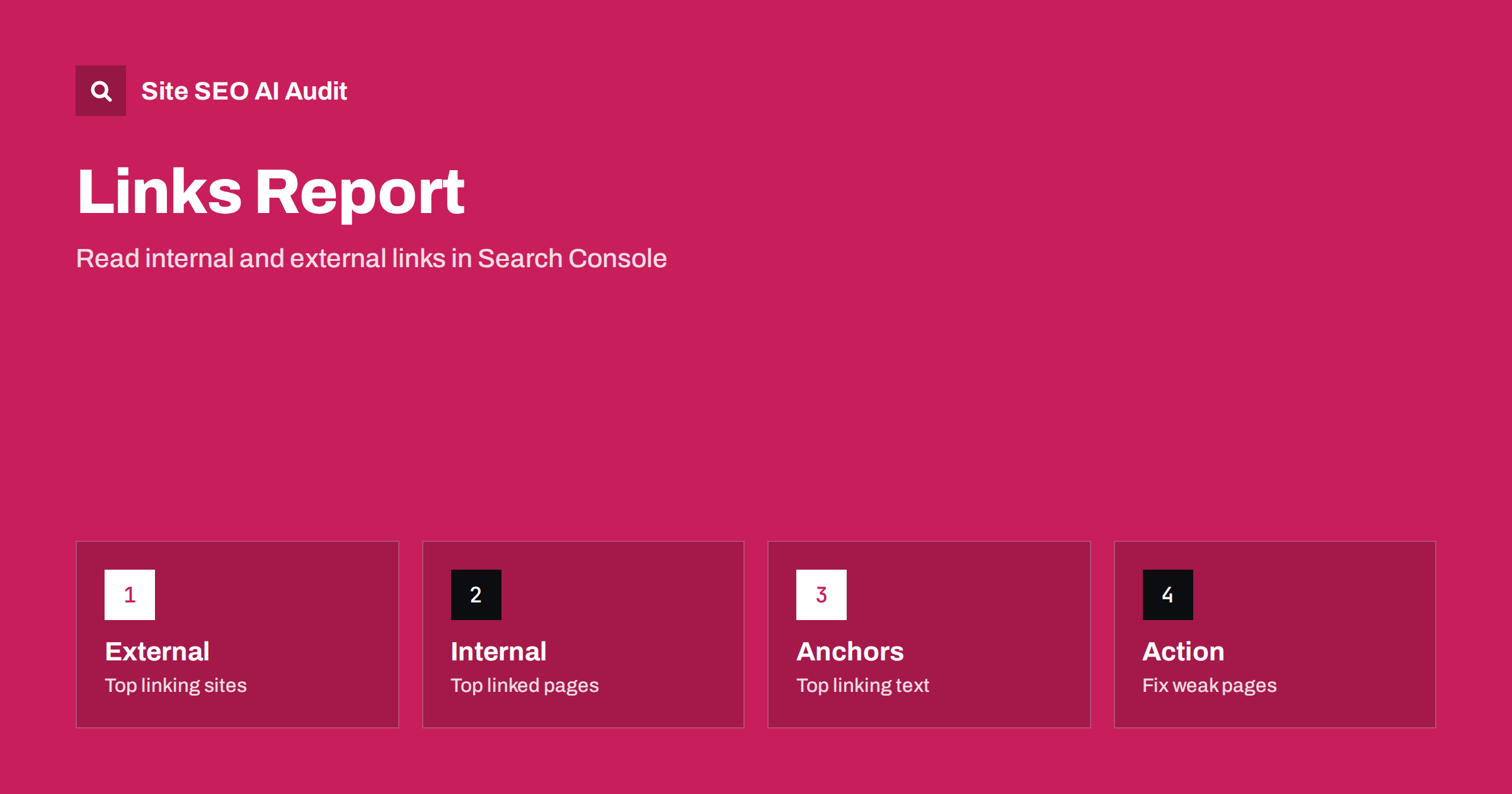
Short answer: The Links report in Google Search Console lists the pages on your site that other sites link to most, the sites that link to you most, the most common link text, and the pages on your own site that receive the most internal links. Use it to find strong pages, forgotten pages that few links reach, and odd outside links. Treat the numbers as a sample, not as a complete count.
Many site owners open Search Console to check clicks and impressions and never visit the Links report. That is a pity, because it answers questions that are hard to answer in other ways: which of your pages earn links from other websites, whether your own menus and articles point to the pages you care about, and whether the words people use in links match your topics. The report is free, it uses data collected by the search engine itself, and it can be read in a few minutes. This guide explains each part, how to read it and what to do next.
Where to find the report and what it contains
Open Search Console, choose your property and look for ลิงก์ in the left-hand menu. The page is split into two halves. The left side is about external links, which are links from other websites to yours. The right side is about internal links, which are links between pages on your own site.
Each half has a small number of tables:
- Top linked pages (external): your pages that receive the most links from other sites.
- Top linking sites: the websites that link to you most often.
- Top linking text: the most common words used as link text pointing at your site.
- Top linked pages (internal): your pages that receive the most links from other pages on your own site.
Every table has an export button, so you can download the data and sort it in a spreadsheet. The tables show the top rows only, so the export is the best way to study the long tail of your link data.
Why the numbers are a sample
The report is useful, but it is not a full link index. Search Console shows links that Google has found and chosen to report for your property. Counts can differ from other tools, and they can change from one week to the next without any change on your site. Do not use the report to prove that a link exists or does not exist, and do not compare it line by line with a third-party backlink tool. Use it for direction: which pages stand out, which sites appear again and again, and what looks strange.
Another point: the report follows the property you selected. A domain property covers all subdomains and both protocols, while a URL-prefix property covers only one address. If you manage a blog on a subdomain, check which property you are looking at before you draw conclusions. The setup steps are in the Search Console setup guide.
Reading the external links tables
Start with Top linked pages. These are the pages other sites value. For a small business, the home page usually leads, followed by a few guides, tools or product pages. Ask three questions:
- Are the pages with most links also pages you want visitors to see? If a retired page or a redirected address attracts links, make sure it still sends visitors to a good destination.
- Do the linked pages have a clear next step? A strong guide that has no link to your service page wastes its attention.
- Are the linked pages healthy? Check that they return a normal status, are indexed and load quickly.
Next, open Top linking sites. Look at the list as a human would. Do you recognise partners, customers, directories, press and communities? Or do you see sites that look unrelated or automatically generated? A few odd sites are normal on the web; every public site collects them. A sudden crowd of strange links, especially with spammy anchor text, deserves a closer look. Read the guide on link attributes such as nofollow, sponsored and ugc to understand how links you place are described, and remember that you cannot control who links to you.
Finally, view Top linking text. Healthy anchor text is varied: your brand name, the page title, plain phrases such as “this guide”, bare addresses and some topic words. If the list is dominated by exact-match commercial phrases that you never asked for, or by text in an unrelated language, investigate where the links come from. If you have bought or traded links in the past, this is where old habits show up. For better text on your own links, see anchor text best practices.
Reading the internal links table
The internal table is often more valuable, because you can act on it directly. It lists your pages by the number of internal links they receive. Sort it from the top and ask whether the order matches your priorities. In most healthy sites the home page, the main categories and the key services are near the top. If an old news item, a login page or a tag archive outranks your best service page, your site is telling search engines that the wrong pages matter most.
Now scroll to the bottom, or use the export, and look for pages with very few internal links. These are the pages most likely to be crawled rarely and to rank poorly. Compare the list with your sitemap or with the pages you care about. Pages that appear in your sitemap but have no internal links at all are orphan pages; see how to find and fix orphan pages. Pages that exist but sit many clicks from the home page are covered in the guide to click depth.
A simple method is to make a short list of your ten most important pages and check the number of internal links for each. If the number is two or three, add contextual links from related articles and from category pages. Do it with natural sentences, not by stuffing links into the footer. The full method is described in the internal linking strategy guide.
Turning the data into a plan
Reading is only useful when it ends with actions. After a first review, you should have a short list like this:
- Protect linked pages. Make sure pages with many external links are live, fast and clearly point to the next step. If you plan to move or delete one, set up a redirect to the closest equivalent first.
- Pass attention inward. Add internal links from your most linked pages to the pages that should rank, using descriptive text.
- Lift weak pages. For important pages with few internal links, add links from related content, or merge them into stronger pages if they are thin.
- Clean up links you control. Fix broken internal links and links that point through redirects; the guide on finding and fixing broken links shows how.
- Watch odd external links. If you see a pattern you do not understand, note it, monitor it and use the disavow process only when there is a real reason. Most unusual links can simply be ignored.
Keep a note of the date and of what you changed. When you review the report again a month later, you can see whether the numbers moved in the direction you expected.
Common mistakes when using the report
People often fall into the same traps. The first is treating the report as a scoreboard and chasing link counts. Links are a result of useful pages, not a goal on their own, and a small number of relevant links beats a large number of random ones. The second is comparing numbers with a different tool and concluding that one is wrong. Different tools find different links, and they count them in different ways. The third is ignoring the internal half because the external half feels more exciting. In practice, internal links are the part of the link picture that you can improve today.
A fourth trap is reading the report once and forgetting it. Links change as you publish, redesign or migrate. Check the report after a site move, after a major template change and after a big content release. If a navigation change removes a block of links, the internal table will show it.
Combine the report with an audit
The Links report shows the overall shape, but it does not tell you which links are broken, which point to redirects, or which pages have empty anchor text. A site crawl does. Site SEO AI Audit crawls your site the way a search engine does, scores it across seven areas including links, and gives you a fix list ranked by how many points each fix adds. The first audit of up to 200 pages is free, and the pricing page shows how to re-check after changes.
Related reading
- Internal Linking Strategy: A Step-by-Step Guide for SEO
- Search Console Performance Report: How to Read It
- Orphan Pages: How to Find Them and What to Do With Each
- Outbound Links and SEO: When Linking to Other Sites Helps
The bottom line
The Links report is a quick, free view of who links to you and how your own pages link to each other. Read the external side to protect the pages others value, and read the internal side to fix the pages you are neglecting. Remember that the data is a sample, look for patterns rather than exact counts, and turn each review into a short list of changes.
FAQ
Does the Links report show every link to my site?
No. It shows a sample of the links that Google has found and chosen to report. Use it for patterns and priorities, not for exact counts.
Why do my link numbers differ from other tools?
Each tool crawls the web differently and counts links in its own way. Differences are normal, so compare trends inside one tool rather than between tools.
Which part of the report should I check first?
Start with the internal links table. It shows whether your own site gives most attention to the pages you care about, and you can improve it immediately.
Should I disavow strange links I find?
Usually not. Most unusual links can be ignored. Consider the disavow process only when you have a clear pattern of paid or manipulative links that you cannot remove.
How often should I review the report?
Monthly is enough for most sites. Also check it after a redesign, a migration or any change to menus and templates.