ENEnglish
 LTLietuviškai
 DEDeutsch
 FRFrançais
 RUРусский
 ESEspañol
 PLPolski
 ITItaliano
 UKУкраїнська
 CSČeština
 PTPortuguês
 JA日本語
JA日本語 LVLatviešu valoda
 ETEesti
 HUMagyar
 IDBahasa Indonesia
 TRTürkçe
 HIहिन्दी
 ELΕλληνικά
 ARالعربية
 THไทย
THไทย VITiếng Việt
 RORomână
 MSBahasa Melayu
 BNবাংলা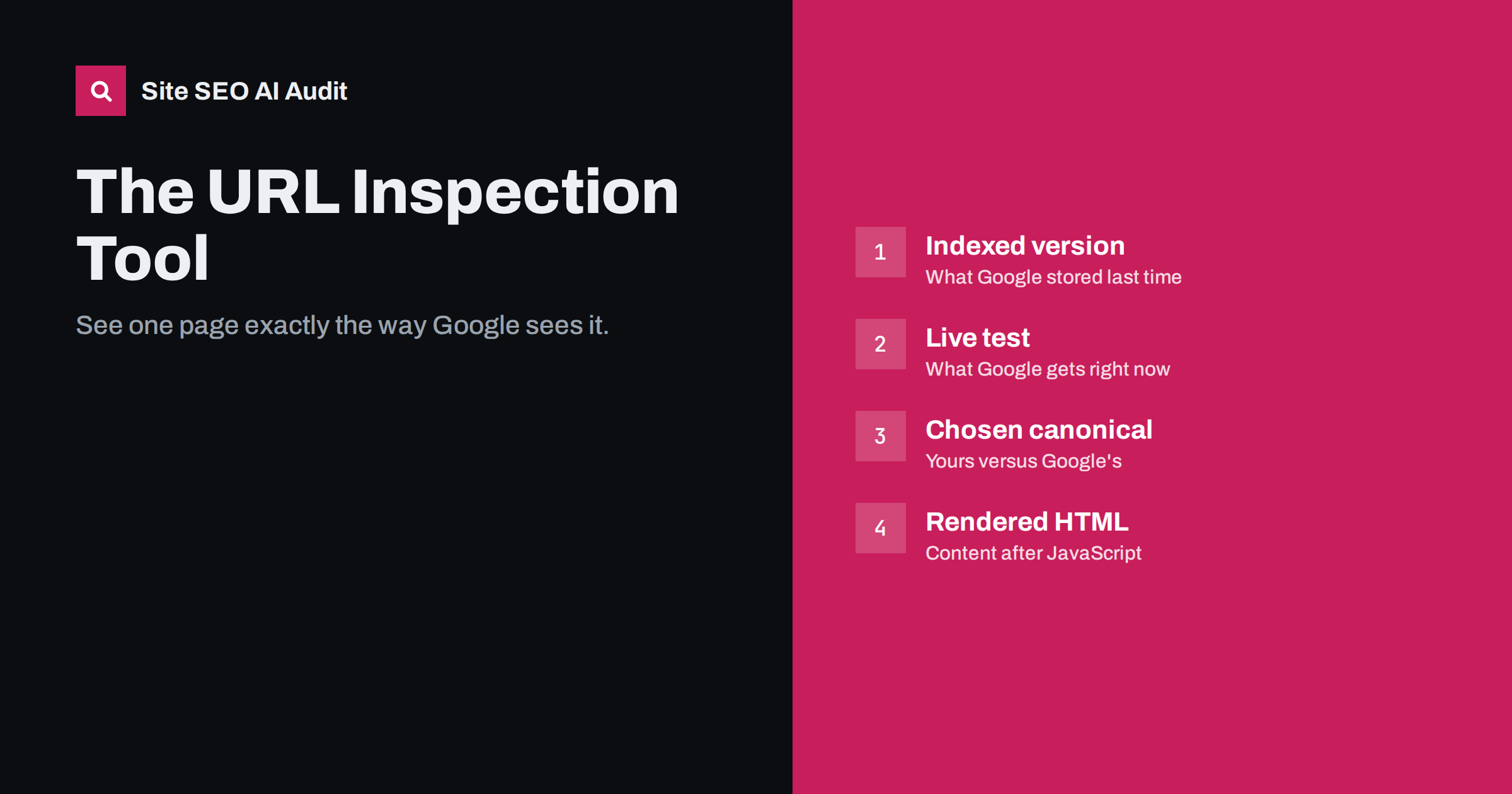
Short answer: URL Inspection in Google Search Console shows how Google sees one specific URL: whether it is indexed, when it was last crawled, which canonical Google chose, whether crawling and indexing are allowed, and, with a live test, the rendered HTML, a screenshot, JavaScript console messages and blocked resources. Use it to debug individual pages and confirm fixes, and use “Request indexing” sparingly for important pages after meaningful changes.
What the tool is for
Most Search Console reports show patterns across many URLs. URL Inspection goes the other way: it shows everything Google knows about a single URL. That makes it the best tool for answering questions like “Why is this page not in Google?”, “Does Google see the content my JavaScript loads?”, or “Did my fix work?”. Google describes the tool in its help page on URL Inspection.
You can inspect any URL in a property you have verified, by typing it into the search bar at the top of Search Console or by clicking the inspect icon next to URLs in other reports.
Make sure you inspect the exact URL, including protocol, host and trailing slash. Inspecting http://example.com/page when the real page is https://www.example.com/page/ will show information about the redirecting variant, not the page itself. When in doubt, copy the URL from the address bar after the page has fully loaded, or from the canonical tag in its source. If you use a Domain property, all protocol and host variants can be inspected in one place, which makes comparing them easier.
Two views: indexed version and live test
This distinction is the most important thing to understand about the tool:
| Indexed version (default) | Live test | |
|---|---|---|
| Shows | What Google stored at its last crawl | What Google gets from the URL right now |
| Indexing status | Yes: indexed or not, and why | Only whether the page could be indexed |
| Google-selected canonical | Yes | No |
| Rendered HTML and screenshot | HTML of the crawled page | Yes, including screenshot |
| Use for | Understanding current search status | Checking a fix before requesting indexing |
A common mistake is to fix a page, inspect it and see the old problem, because the default view shows the last crawl. Run the live test to see the current state.
Reading the indexed result
The main panel says whether the URL is on Google. Expanding the details shows:
- Discovery: sitemaps that list the URL and referring pages where Google found it. Useful for tracing where unwanted URLs come from.
- Crawl: last crawl date, the crawler used (usually Googlebot smartphone), whether crawling was allowed by robots.txt, whether the page could be fetched, and whether indexing was allowed.
- Indexing: the user-declared canonical and the Google-selected canonical.
- Enhancements: detected structured data types and any errors, plus other enhancements Google reports on.
If the Google-selected canonical differs from yours, the page itself is not what Google shows in results; the other URL is. That is often the real answer to “why does this page not rank”.
Using the live test
Click “Test live URL” to have Google fetch the page right now. After a short wait you get:
- whether the URL is available to Google, and the reason if not;
- the rendered HTML after JavaScript has run;
- a screenshot of the rendered page;
- page resources that could not be loaded, with the reason, such as blocked by robots.txt or other error;
- JavaScript console messages, which reveal script errors;
- the HTTP response headers.
This is the closest you can get to seeing through Googlebot’s eyes. If content is missing from the rendered HTML, Google cannot index it, no matter what the browser shows you.
Common questions it answers
Why is my page not indexed?
Check the coverage reason: noindex detected, blocked by robots.txt, crawled but not indexed, discovered but not crawled, duplicate with a different canonical, soft 404, or a fetch error. Each points to a different fix.
Does Google see my JavaScript content?
Run a live test and search the rendered HTML for a sentence from the content in question. If it is missing, check blocked resources and console errors.
Is my structured data detected?
The enhancements section lists detected types for the crawled version; the live test shows current detection. For detailed validation, use the Rich Results Test as well.
Where did Google find this odd URL?
The discovery section lists referring pages and sitemaps. That often reveals an internal link or plugin generating unwanted URLs.
Which version of my site is Google crawling?
The crawl section shows the user agent. For nearly all sites, it is Googlebot smartphone, which means your mobile page is what matters.
Request indexing: when it helps
After a live test, you can click “Request indexing”. It asks Google to crawl the URL soon. It is useful for:
- a new important page you want discovered quickly;
- a key page after you fixed a noindex, canonical or rendering problem;
- a page with significantly updated content.
It has limits:
- there is a daily quota per property, so it is not meant for bulk use;
- it requests crawling, not guaranteed indexing; quality and duplication decisions still apply;
- requesting the same unchanged URL repeatedly does not help.
For many URLs, use sitemaps with accurate lastmod dates and good internal linking instead.
Typical findings, and what they mean
Certain results come up again and again when inspecting pages. Recognising them saves time:
- “URL is not on Google: Excluded by ‘noindex’ tag” on a page you want indexed. Look for a noindex in the HTML source and in the response headers; a plugin setting, a theme option or a server rule is usually responsible.
- Google-selected canonical is the HTTP or non-www version. Redirects or canonicals are inconsistent; check that every variant redirects in one hop to the version you want.
- Google-selected canonical is a different page on your site. The two pages are too similar, or internal links and sitemaps favour the other one. Differentiate or merge them.
- Screenshot shows a cookie wall or an empty layout. Content depends on a consent choice or on scripts that failed. Make the main content available without interaction.
- Blocked resources list includes CSS or JavaScript files from your own domain. robots.txt rules are too broad; allow those paths.
- Last crawl was months ago for an important page. The page is weakly linked or low priority; improve internal links and make sure it is in the sitemap.
- Referring page is an old tag archive or a parameter URL. Unwanted URLs are being generated by templates; fix the link at its source.
A debugging routine for one page
- Inspect the URL and read the indexed status and reason.
- Compare the user-declared and Google-selected canonical.
- Check crawl allowed, fetch status and indexing allowed.
- Run the live test; check the screenshot, rendered HTML, blocked resources and console messages.
- Compare with a
curlrequest to see the raw HTML and headers your server sends. - Fix the cause on the site, test live again, then request indexing if the page is important.
- Recheck the indexed version after a few days.
Limits of URL Inspection
- It works one URL at a time; for site-wide problems you need reports and crawls.
- It only covers properties you have verified.
- The live test does not check whether the page would rank or how Google judges its quality.
- Rendering in the live test can differ slightly from the rendering done for indexing, for example in timing, though it is a close approximation.
How Site SEO AI Audit complements it
URL Inspection shows one page in depth; an audit shows every page in breadth. SEOAuditBot crawls your whole site and reports noindex pages, canonical problems, error and redirect statuses, missing or invalid structured data and content that needs JavaScript to appear, each with the affected URLs. Use the audit to find which pages or templates have a problem, then URL Inspection to confirm how Google sees a representative page. You can start with a free audit.
Related reading
- Search Console page indexing report: every status explained
- JavaScript SEO basics: how search engines render your pages
- Crawled – currently not indexed: causes and real fixes
- Canonical tags explained: how to set them and fix errors
The bottom line
URL Inspection is the most direct way to see a page as Google sees it. Read the indexed version for current status and chosen canonical, run the live test for rendered HTML, screenshot and blocked resources, fix what you find on the site, and request indexing only for important pages after real changes.
SSS
What is the difference between the indexed result and the live test?
The indexed result shows what Google stored at its last crawl, including the chosen canonical. The live test fetches the page now and shows whether it could be indexed in its current state, with rendered HTML and a screenshot.
Does requesting indexing guarantee the page will be indexed?
No. It asks Google to crawl the page soon. Whether it is indexed still depends on quality, duplication and other signals.
How many URLs can I request indexing for?
There is a daily limit per property. The feature is meant for a small number of important URLs; use sitemaps and internal links for larger numbers.
Why does the screenshot look different from my browser?
Google renders the page as a mobile crawler without cookies or stored state. Consent banners, blocked resources, failed API calls or scripts that depend on user interaction can make the rendered page differ.
Can I inspect pages on sites I do not own?
No, URL Inspection works only for verified properties. For other sites, the Rich Results Test can show rendered HTML for any public URL.