ENEnglish
 LTLietuviškai
 DEDeutsch
 FRFrançais
 RUРусский
 ESEspañol
 PLPolski
 ITItaliano
 UKУкраїнська
 CSČeština
 PTPortuguês
 JA日本語
JA日本語 LVLatviešu valoda
 ETEesti
 HUMagyar
 IDBahasa Indonesia
 TRTürkçe
 HIहिन्दी
 ELΕλληνικά
 ARالعربية
 THไทย
THไทย VITiếng Việt
 RORomână
 MSBahasa Melayu
 BNবাংলা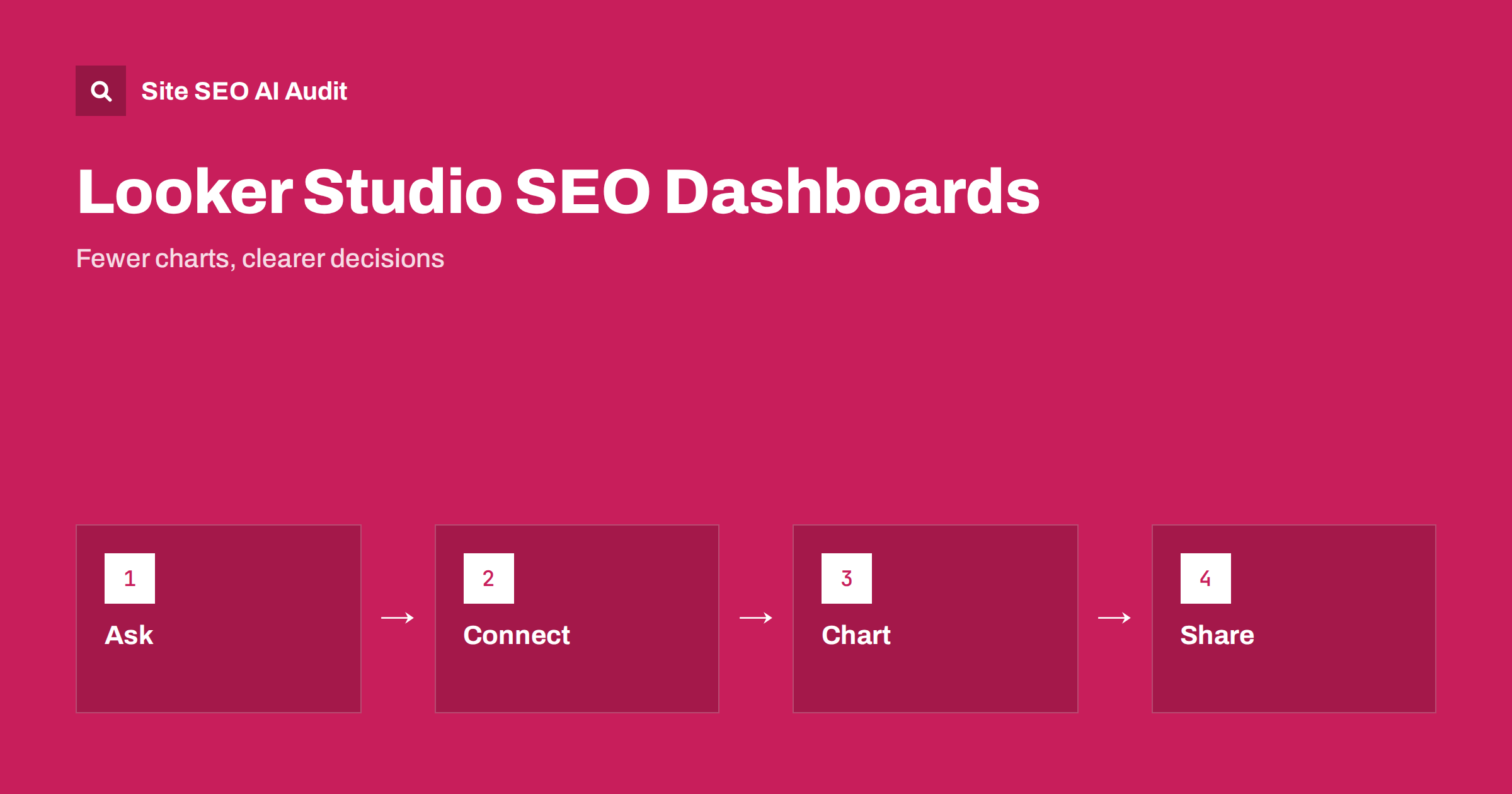
Short answer: A useful SEO dashboard in Looker Studio starts with the questions your team asks, not with every available chart. Connect Search Console for impressions, clicks and queries, connect analytics for sessions and conversions, add a source for technical issues such as audit exports, and show trends over time with clear date ranges, segments for brand and non-brand searches and short notes that explain changes. Keep it to one or two pages, check the data sources regularly and review it on a fixed schedule.
Many dashboards are built once and then ignored. They contain thirty charts, mix numbers from different tools that never match and require an expert to interpret. A good dashboard is the opposite: it is short, it answers the questions that decide what to do next and everyone who sees it reads the same story. Looker Studio is a popular free tool for building such reports because it connects to many data sources and can be shared with a link. This guide explains how to plan, build and maintain a dashboard that people use. If the numbers from different tools differ, read why GA4 and Search Console never match before you start.
Start with the questions
Before you open the tool, write down the five questions that the dashboard must answer. For an owner of a small site, these may be: is organic traffic growing, which pages and queries drive it, are we visible for the topics that matter, did the last change help, and are there technical problems to fix? For an agency report, the questions may include results by section or market. Each question points to a chart or a table. If a chart does not answer a question, leave it out. Decide also who will read the dashboard and how often, because a monthly client report needs different detail from a weekly working view.
Choose and connect the right sources
Most SEO dashboards use three kinds of source. Search Console shows how the site appears in search: impressions, clicks, click-through rate and average position by query, page, country and device. An analytics tool shows what visitors do on the site: sessions from organic search, engagement and conversions. A third source can hold technical or content data, such as an export of audit results or a spreadsheet of priority pages. Connect each source with a proper connector or a regular export, and record where each number comes from. Remember that Search Console and analytics measure different things, and label charts so that nobody compares them directly.
Build a summary page for decisions
The first page should fit on one screen. Put four to six key figures at the top: organic clicks, impressions, click-through rate, organic sessions and conversions, each with a comparison to the previous period or the same period last year. Below them, show one trend chart for clicks and impressions over time, a table of the top pages and a table of the top queries. Add a filter for the date range and a filter for country or device if relevant. Resist the urge to add extra visuals, since each one reduces attention for the others. Keep the colours and labels consistent and use plain names such as organic clicks instead of tool jargon.
Segment brand and non-brand searches
A single total hides the most important distinction in search data. Brand searches come from people who already know you, and they depend on marketing, reputation and offline activity. Non-brand searches come from people who found you through your content, and they show the real strength of your SEO. Create a field that marks queries containing your brand name and common misspellings, and show the two groups separately. Many sites find that growth in total clicks comes only from brand terms, or that a drop is limited to non-brand terms. The idea is explained in branded versus non-branded search.
Show content and page-group performance
Dashboards become more useful when pages are grouped. Create page groups by site section, such as blog, product, category, location and help pages, using the path in the address. Compare the groups by clicks, impressions and conversions, and look at new pages separately to see how quickly they gain visibility. For a site with several languages or markets, group by language folder or by country. Group views show where to invest and where to repair, and they are much easier to discuss than long lists of single pages. The reading of the underlying report is in the Search Console performance report.
Add technical health and indexing
Traffic is a result; technical health is a cause. Add a page for the signals that warn you early: the number of indexed pages, pages with errors, server errors in the crawl stats, the share of pages that pass the Core Web Vitals checks and counts of key issues from your latest audit, such as broken links, redirect chains or missing titles. Update these with a regular export if there is no direct connector. Show them as small trends and not as long lists, and keep a link to the detailed report for people who want to dig in. The matching routine is described in technical SEO monitoring.
Avoid misleading charts
Charts can mislead when they cut axes, compare unequal periods or include partial days. Use the same period length when comparing, exclude the current incomplete day or week, and show absolute numbers beside percentages. Be careful with average position, which blends very different queries into one number; use it for individual queries or page groups, not as a site-wide goal. Sampling, data limits and delays also exist in the sources, so recent days can change later. Add a short note on each chart about what it shows and its limits. Annotations for site changes, campaigns and updates make a trend line much easier to understand.
Share it and set a routine
Share the report through a link with the right permissions, and for clients or managers consider a scheduled email with a summary. Agree on a routine: for example, a ten-minute weekly check by the person who maintains the site, and a monthly review with the team where you look at what changed and decide on actions. Write the decisions down next to the dashboard, because the value of a report is the action that follows it. Check data sources every month for broken connections or changed definitions, and remove charts that nobody uses. A smaller dashboard that people read is better than a complete one that they ignore. More ideas for client reporting are in SEO reporting for clients.
Be careful with privacy and access. A dashboard may expose query data, page-level data and conversion figures, so share it only with people who need it and review access when roles change. If you use data from several clients or sites, keep each in its own report and do not mix their data. Respect the consent settings on the site, since analytics data may be incomplete where visitors refuse tracking, and say so in the report notes so that nobody mistakes missing data for lost traffic.
Finally, keep a simple change log next to the dashboard. Each time you publish a major page, change a template, fix a technical problem or run a campaign, add the date and a one-line description. When a trend moves, the log is the first place to look, and over time it builds a record of which actions made a difference.
A short example shows how the pieces fit. A small online shop wants to know whether its guides help sales. Its dashboard has a summary page with organic clicks, organic sessions and orders from organic search, a trend chart with notes for the dates when new guides were published, and a table that groups pages into guides, categories and products. After three months, the group view shows that guide pages bring many impressions but few orders, while category pages bring fewer visits but most orders. The team adds links from guides to the matching categories, watches the group figures and checks the result in the next monthly review. The dashboard did not make the decision, but it made the question clear and the result visible.
When you hand a dashboard to someone else, add a short page that explains the definitions: what each metric means, where the data comes from, how often it updates and what the known limits are. A glossary of five or six lines prevents most misunderstandings. Also record the owner, so that broken connections or changed properties are fixed quickly and the report stays trustworthy.
Site SEO AI Audit crawls your site and reports issues across crawling, indexing, on-page elements, links, speed, structured data, languages and AI visibility, together with an overall score, so its results can feed the technical page of your dashboard. It is not a dashboard builder and it does not replace Search Console or analytics. The first audit of up to 200 pages is free; larger sites can see the pricing page.
Related reading
- Search Console Setup Guide
- Exporting Search Console Data
- SEO Testing: Measure the Effect of a Change
- Rank Tracking and Position Differences
The bottom line
Start from questions, connect Search Console and analytics, split brand from non-brand, group pages, add technical health, annotate changes and review on a fixed schedule so the dashboard drives action.
FAQ
Is Looker Studio free?
The core tool is free to use. Some third-party connectors and data warehouse queries may have their own costs.
Which sources should an SEO dashboard use?
Search Console for visibility, analytics for visits and conversions, and a technical source such as audit exports. Label them clearly because they measure different things.
How many charts should a dashboard have?
As few as answer your questions, often one summary page plus one or two supporting pages. Remove charts that nobody uses.
Why do my dashboard numbers differ from the tools?
Date ranges, filters, sampling, data limits and different definitions cause differences. Document each metric and its source.
How often should I review the dashboard?
A short weekly check by the site owner and a monthly review with the team, with decisions written down.