ENEnglish
 LTLietuviškai
 DEDeutsch
 FRFrançais
 RUРусский
 ESEspañol
 PLPolski
 ITItaliano
 UKУкраїнська
 CSČeština
 PTPortuguês
 JA日本語
JA日本語 LVLatviešu valoda
 ETEesti
 HUMagyar
 IDBahasa Indonesia
 TRTürkçe
 HIहिन्दी
 ELΕλληνικά
 ARالعربية
 THไทย
THไทย VITiếng Việt
 RORomână
 MSBahasa Melayu
 BNবাংলা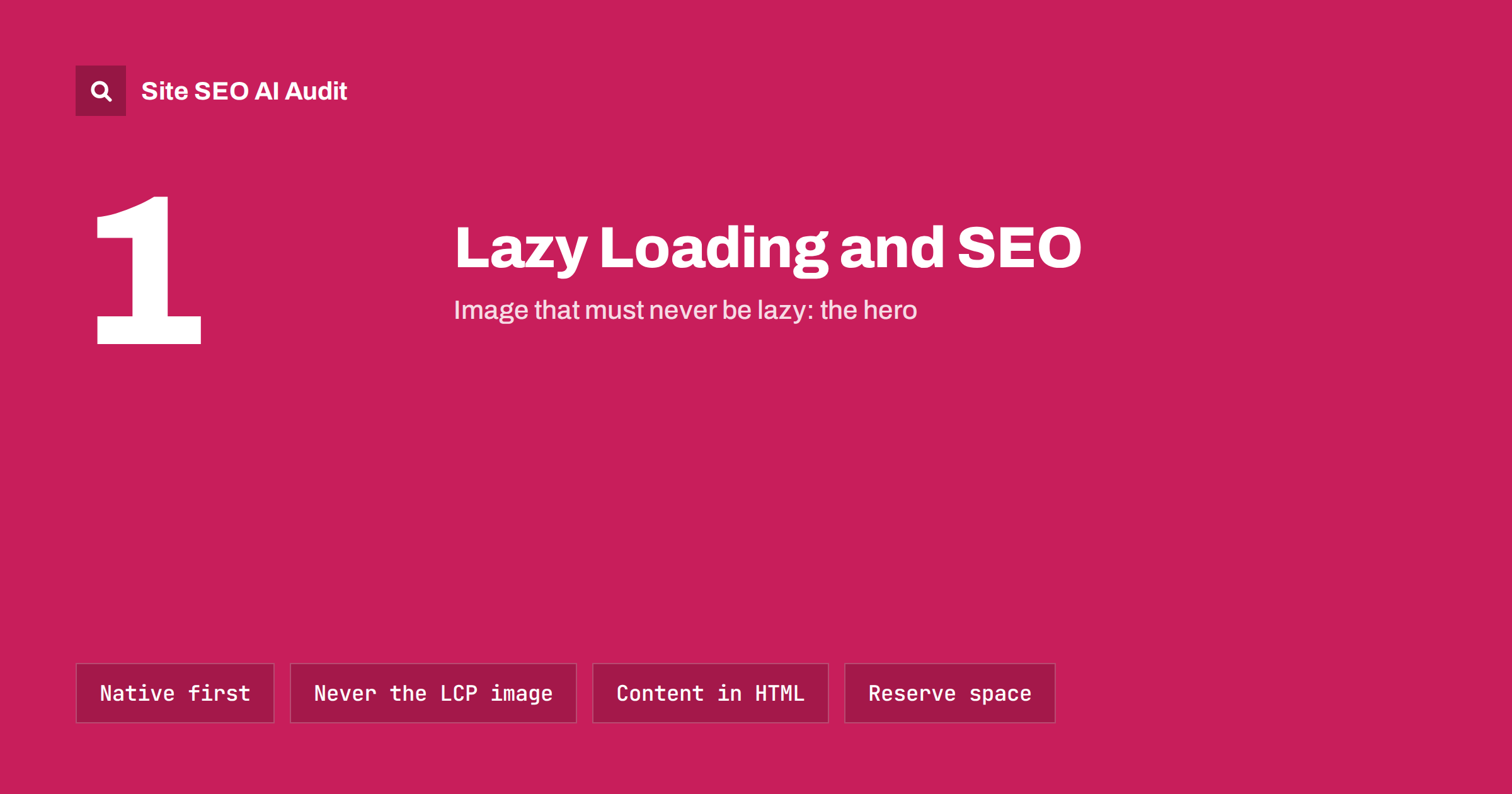
Short answer: lazy loading delays offscreen images, videos and iframes until the visitor scrolls near them, which reduces page weight and speeds up the first view. Use the native loading="lazy" attribute for images and iframes below the fold, never lazy-load the main image in the first screen, give every lazy element width and height, and make sure important text and links are in the HTML rather than loaded only on scroll or click, because crawlers do not scroll or click.
What lazy loading is
A long page may contain dozens of images, several embedded videos and maybe a map. Without lazy loading, the browser downloads all of them as soon as the page loads, even though the visitor sees only the first screen. Lazy loading postpones offscreen resources until they are about to come into view.
There are two ways to do it:
- Native lazy loading: the
loading="lazy"attribute on<img>and<iframe>elements. The browser decides when to load them. It is supported by all modern browsers and needs no JavaScript. - JavaScript lazy loading: a script watches scrolling, usually with the IntersectionObserver API, and swaps in the real source when an element approaches the viewport. This was common before native support and is still used by some themes and plugins.
Google’s guidance on fixing lazy-loaded content explains how to make sure crawlers can still see what is loaded this way.
Why it matters for speed and SEO
Done well, lazy loading improves page speed, especially on image-heavy pages such as blogs, galleries and category pages. Fewer bytes compete with the important resources at the top of the page, which helps Largest Contentful Paint and reduces data use on mobile connections.
The savings can be substantial. A long article with a dozen large images, or a category page with dozens of product photos, may download many times more image data than the visitor ever sees if they read only the top part. On mobile connections, that difference is felt directly in how quickly the page becomes usable.
Done badly, it causes three SEO problems:
- Slower LCP when the main image in the first screen is lazy-loaded and starts downloading late.
- Invisible content when text, images or links are loaded only after a scroll or click event that crawlers never trigger.
- Layout shift when lazy images appear without reserved space and push content around.
Deciding what to lazy-load
The rule of thumb is simple: lazy-load media the visitor cannot see yet, and load everything that defines the page immediately. The difficulty lies in the details, because “the first screen” differs between a small phone and a wide desktop monitor, and because themes often apply one setting to every image on every template.
What to lazy-load
- Images below the first screen: article images further down, product thumbnails in long grids, gallery items.
- Embedded videos and maps below the fold, ideally as a lightweight preview that loads the full player on click.
- Iframes such as social embeds, review widgets and booking tools further down the page.
- Comment sections and related-content blocks at the bottom, provided their important links are still available to crawlers.
What not to lazy-load
- The LCP element: the hero image, the main product photo or the featured image of an article. Load it normally, ideally with
fetchpriority="high". - Anything in the first screen on common mobile and desktop sizes, such as the logo and above-the-fold images.
- Primary text content, such as product descriptions, article bodies, reviews you want indexed or FAQ answers.
- Navigation and important internal links, which crawlers need to discover pages.
- 構造化データ, which should be in the initial HTML.
WordPress adds loading="lazy" to images automatically and, since version 5.9, skips the first content image to protect LCP. Themes, page builders and optimisation plugins can override that logic, so check the main image on each template.
How crawlers handle lazy loading
Search engines render pages, but they do not scroll or interact like visitors. Google renders pages with a tall viewport, so native lazy loading and IntersectionObserver-based loading usually work: elements within that tall viewport are treated as visible and load. Problems arise with:
- scripts that load content only on
scrollevents rather than on visibility; - content that needs a click, such as “load more” buttons or tabs that fetch data;
- images whose real URL is stored in a custom attribute such as
data-srcwith no fallback, when the script fails to run; - infinite scroll without paginated URLs, where items beyond the first batch never load for crawlers.
For images that matter for image search, a <noscript> fallback or native lazy loading with a real src attribute is the safest approach.
Lazy loading on category pages and shops
Category and listing pages are where lazy loading brings the biggest savings and the most risk. A grid of 48 products means 48 images, most of them far below the fold. Lazy-loading those thumbnails is sensible. A few details make the difference:
- Load the first row normally. The first few thumbnails are often visible immediately, and one of them may even be the LCP element on mobile.
- Keep product names, prices and links in the HTML for every item in the grid, even if the images load later. Crawlers need the links to reach product pages.
- Give thumbnails fixed dimensions so the grid does not jump as images arrive.
- Back “load more” and infinite scroll with paginated URLs, so items beyond the first batch are reachable without scripts.
- Watch image quality settings: some lazy loading plugins swap in very low-resolution placeholders that are never replaced if the script fails.
After changing lazy loading settings on a shop, check a category page on a real phone over a mobile connection. It is the fastest way to notice layout jumps, missing images and delayed first rows.
Native vs JavaScript lazy loading
Native (loading="lazy") |
JavaScript libraries | |
|---|---|---|
| Setup | One attribute | Script plus custom attributes |
| Real image URL in HTML | Yes, in src |
Often only in data-src |
| Works without JavaScript | Yes | No, unless a fallback is added |
| Crawler compatibility | Very good | Depends on implementation |
| Fine control of thresholds | Browser decides | Configurable |
For most sites, native lazy loading is simpler and safer. JavaScript libraries are only worth it for special cases like background images or complex galleries.
Avoiding layout shift
A lazy-loaded image that arrives without reserved space pushes the content below it down, which increases Cumulative Layout Shift. Always include width and height attributes or a CSS aspect-ratio on lazy images and iframes, and use placeholders with the same dimensions for embeds.
How to test lazy loading
- Identify the LCP element on each template with PageSpeed Insights or DevTools and confirm it has no
loading="lazy". - View the raw HTML with
curl: do images have real URLs insrc, and is the main text present? - Use URL Inspection’s live test: check the rendered HTML and screenshot to see whether lazy content appears.
- Disable JavaScript in the browser: images and content that disappear depend on scripts.
- Scroll with DevTools open and watch the Network panel to confirm images load as expected and layout stays stable.
Common mistakes
- Lazy-loading every image, including the hero, through an optimisation plugin setting.
- Using both native and JavaScript lazy loading on the same images, causing delays or duplicate requests.
- Loading product descriptions or reviews only when a tab is clicked.
- Lazy images without dimensions.
- Infinite scroll without crawlable paginated URLs.
- Lazy-loading the logo or header images, which makes the page look broken for a moment on every visit.
- Forgetting to retest after switching theme or optimisation plugin, both of which often come with their own lazy loading settings.
How Site SEO AI Audit helps
The speed and Core Web Vitals area of the audit brings in Google PageSpeed data, including LCP and CLS, which are the two metrics most affected by poor lazy loading, and measures page weight on every crawled page. The AI visibility area flags content that needs JavaScript to appear, which is where script-based lazy loading usually hides text and links. Each issue lists the affected pages. You can compare plans or start with a free audit.
Related reading
- How to fix a slow Largest Contentful Paint (LCP)
- How to fix Cumulative Layout Shift (CLS) on your site
- JavaScript SEO basics: how search engines render your pages
- Page weight and compression: how to make pages lighter
The bottom line
Lazy loading is a simple, effective speed technique when it is limited to offscreen media. Use native lazy loading, never apply it to the main image in the first screen, reserve space for every lazy element, and keep important text and links in the initial HTML so crawlers see them without scrolling or clicking.
FAQ
Is lazy loading good for SEO?
Yes, when applied to offscreen images and embeds. It reduces page weight and can improve loading speed. It becomes harmful when the main image or important content is lazy-loaded.
Should I lazy-load the hero image?
No. The hero image is often the Largest Contentful Paint element, and lazy-loading it delays LCP. Load it normally and consider giving it high fetch priority.
Can Google see lazy-loaded images?
Generally yes, with native lazy loading or visibility-based scripts, because Google renders pages with a tall viewport. Content that only loads on scroll events or clicks may not be seen.
Does WordPress lazy-load images automatically?
Yes. WordPress adds loading=”lazy” to images and iframes and skips the first content image by default. Themes and plugins can change this, so check your main templates.
Does lazy loading cause layout shift?
It can, if images load without reserved space. Adding width and height attributes or a CSS aspect ratio to lazy images prevents the shift.