ENEnglish
 LTLietuviškai
 DEDeutsch
 FRFrançais
 RUРусский
 ESEspañol
 PLPolski
 ITItaliano
 UKУкраїнська
 CSČeština
 PTPortuguês
 JA日本語
 LVLatviešu valoda
 ETEesti
 HUMagyar
 IDBahasa Indonesia
 TRTürkçe
 HIहिन्दी
 ELΕλληνικά
 ARالعربية
 THไทย
 VITiếng Việt
 RORomână
 MSBahasa Melayu
 BNবাংলা
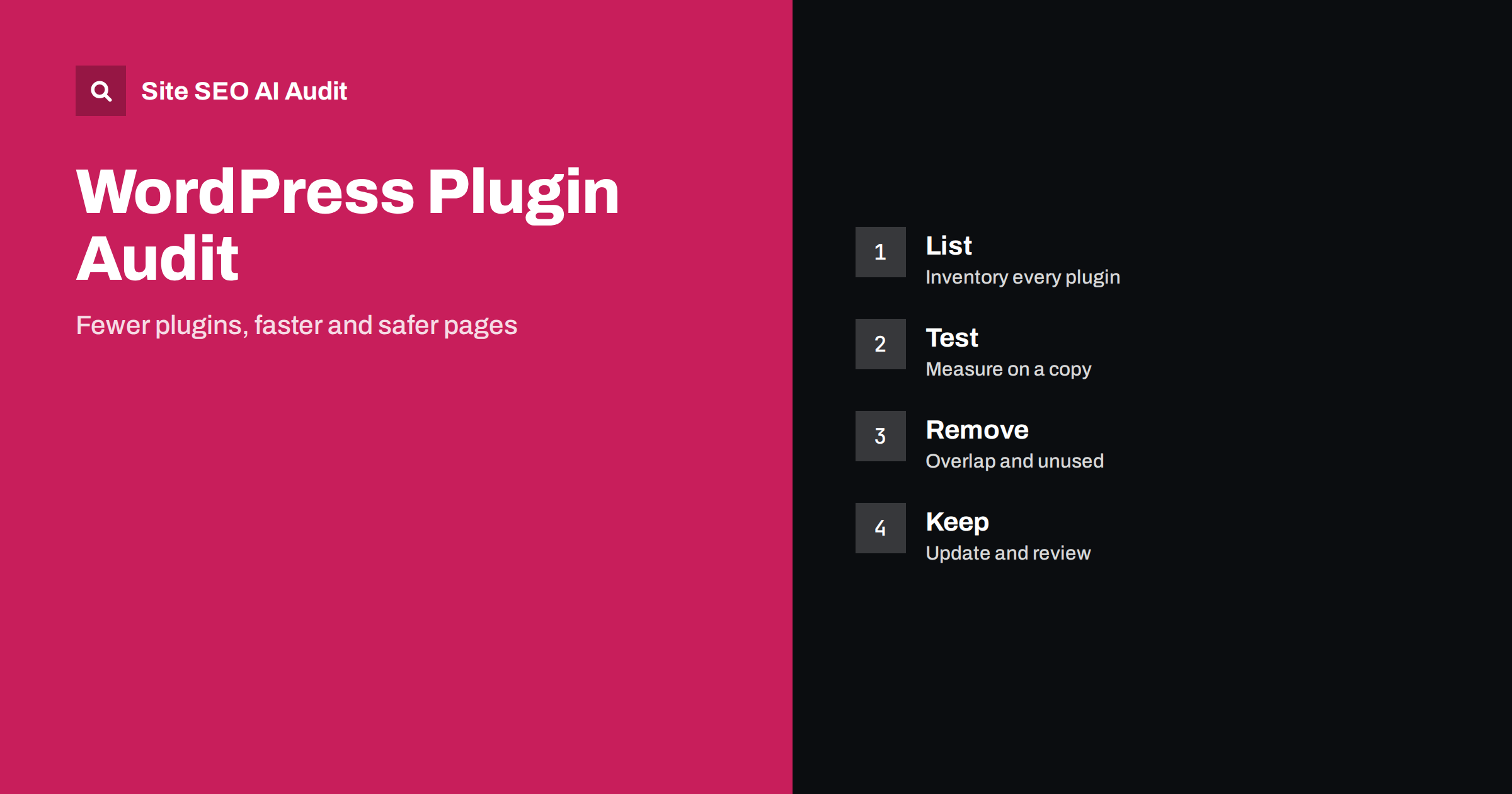
Short answer: A WordPress plugin audit is a review of every installed plugin to decide whether it is needed, safe, maintained and fast. List each plugin with its purpose, check what it adds to the front end and to SEO settings, test the effect on speed and on key templates on a copy of the site, remove unused or overlapping plugins, update the rest and keep a record. The number of plugins matters less than what each one does, but unneeded ones add risk, weight and confusion.
Plugins are the strength of WordPress and also its most common source of trouble. A site that began with five plugins often has thirty after a few years, installed for a campaign, a test, a fix or a designer’s whim. Some are still essential, some are forgotten and a few quietly add scripts to every page, create extra addresses or change titles and canonical tags. This guide shows how to audit them in a way that protects rankings and speed. For the wider setting of the platform, see the guide to WordPress on-page SEO.
Why plugins matter for SEO
A plugin can affect search in several ways. It can add scripts and styles that delay rendering and weaken the metrics in the guide to Core Web Vitals. It can create pages, such as attachment pages, archives or extra feeds, that waste crawling, see the guide to WordPress crawl waste. It can write meta tags, canonical tags, redirects and structured data, in some cases in conflict with another plugin. It can slow the server with heavy queries and affect response time, covered in the guide to server response time. And an outdated plugin can open a security hole that leads to hacked pages, as in the guide to hacked site SEO spam.
Fewer plugins do not guarantee a fast site, and many well-made plugins have a small effect. The goal is to know what each one does.
Step one: make an inventory
Open the plugin list and write down every plugin, including the inactive ones and the must-use plugins that may be hidden from the normal screen. For each plugin, record its name, version, last update, purpose, the person who requested it, where it is used on the site and whether it adds anything to the visible pages. Mark whether it is essential, useful or unknown. Add the theme and any code that was pasted into the theme files, because the same functions may be doing the work.
Also note the paid plugins and their licence dates, so that expired licences do not leave a plugin without updates. A shared spreadsheet is enough, and it becomes the permanent record for the site.
Step two: check health and maintenance
For each plugin, check when it was last updated, whether it is compatible with your version of WordPress and PHP, how many sites use it and whether the author responds to problems. A plugin that has not been updated for a long time may still work, but it deserves a closer look and a plan for replacing it. Remove plugins that were abandoned, removed from the official directory or flagged for security issues.
Check the changelogs for the notes about performance and security, and read the support forum for recurring complaints. If a plugin does something that could be done by a few lines in the theme or by a setting in the host, consider whether the plugin is worth its cost.
Step three: look for overlaps and conflicts
Overlap is the most common SEO problem. Two plugins that both write meta tags, schema or sitemaps can produce duplicate or conflicting output. Typical examples are two SEO plugins active at the same time, a theme that adds its own structured data in addition to a plugin, several redirect tools, more than one cache or optimisation plugin and several tools that add analytics or tag code. Look at the page source of a few typical pages, and check for repeated title tags, double canonical tags, several descriptions or duplicate schema, using the guide to fixing structured data errors.
Choose one tool for each job: one for SEO meta data, one for caching, one for forms, one for redirects. When you merge functions, move the settings first, check the output and only then remove the older plugin. Understand what the plugin has already written into the content, such as shortcodes, that will leave visible text behind when removed.
Step four: measure the effect on a copy
Do not test on the live site. Make a staging copy, protected from search engines, as explained in the guide to indexed staging sites. Measure a set of typical pages, such as the home page, an article, a category and a product or service page, before any change. Record the load time, the size of the page, the number of requests and the Core Web Vitals in lab and field data, as described in the guide to lab and field data.
Deactivate one plugin at a time, or one group, and measure again. Look at the scripts and styles that disappear, the change in the number of requests and any broken layout. The aim is to find out which plugins cost the most and what you get in return. Many tools show which plugin loads which file, and the network panel of the browser shows the same.
Pay special attention to plugins that add features visitors never asked for: floating widgets, pop-ups, animated headers, social feeds and chat tools. They often load large scripts from other servers, and each one may also change how the page is laid out. Ask whether the feature earns its cost in speed, and if it does, whether it can be loaded only after the main content, or only on the pages where it is used. See the guide to pop-ups and interstitials for the rules that apply to intrusive elements.
Step five: remove, replace or keep
For each plugin choose one of three outcomes. Remove it if it is unused, duplicated or has no clear value. Replace it if it is useful but slow, outdated or insecure. Keep it if it is needed and well maintained, and then restrict where it loads, for example by loading a form script only on the contact page. Deactivating is not enough for plugins that you will never use again: delete them after a backup, because inactive plugins can still carry vulnerabilities. Take care with plugins that created data in the database, and read their notes on clean-up.
When a plugin controls redirects, canonical tags or the sitemap, check these outputs before and after the change. Compare the list of addresses in the sitemap and the redirects with the earlier crawl. See the guide to redirects on Apache, Nginx and WordPress.
Step six: check the result on the live site
Make the changes on the live site at a quiet time, after a full backup. Check the main templates on desktop and on a phone, test forms, search, the shop and checkout and look at the page source for titles, canonical tags and structured data. Submit a fresh crawl and compare it with the earlier one, looking for new errors, missing pages and changes in titles. Watch Search Console and analytics over the next weeks for sudden changes, and keep the earlier backup in case of trouble.
Keep it tidy over time
Set a rule that each new plugin must have an owner, a purpose and a test. Review the list every quarter, and after each major WordPress release. Turn on updates for security fixes, and test major updates on the staging copy. Record changes in a log, as in the guide to an SEO changelog. A short list of approved plugins helps agencies and developers to work in the same way.
Here is a short example. A small business site had 38 plugins, three of which were different slider tools and two of which created structured data. A review on a staging copy showed that two sliders loaded their scripts on every page although they were used on one. After removing the unused ones, merging the markup into one plugin and loading the remaining script only where needed, the pages were noticeably lighter and the duplicate schema warnings disappeared.
Site SEO AI Audit crawls your website and checks status codes, titles, descriptions, canonical tags, broken links, structured data, page speed and AI visibility settings, which helps you see the effect of plugin changes on the pages that visitors and crawlers receive. It does not read your plugin list or the files on your server. The first audit of up to 200 pages is free, and larger sites can see the pricing page.
Related reading
The bottom line
Know what every plugin does, test before removing and keep one tool for each job.
FAQ
How many plugins is too many?
There is no fixed number. A few heavy plugins can cost more than many light ones, so judge each by what it loads and does.
Is it enough to deactivate a plugin?
For a plugin you no longer need, delete it after a backup. Inactive plugins can still hold security risks.
Can two SEO plugins run together?
It is not advisable. They often write duplicate titles, canonical tags and schema. Use one and migrate settings carefully.
Should I test on the live site?
No. Use a staging copy that is blocked from search engines, and make live changes after a backup.
How often should I audit plugins?
Quarterly is a good rhythm, and also after major updates, redesigns or a change of provider.