ENEnglish
 LTLietuviškai
 DEDeutsch
 FRFrançais
 RUРусский
 ESEspañol
 PLPolski
 ITItaliano
 UKУкраїнська
 CSČeština
 PTPortuguês
 JA日本語
JA日本語 LVLatviešu valoda
 ETEesti
 HUMagyar
 IDBahasa Indonesia
 TRTürkçe
 HIहिन्दी
 ELΕλληνικά
 ARالعربية
 THไทย
THไทย VITiếng Việt
 RORomână
 MSBahasa Melayu
 BNবাংলা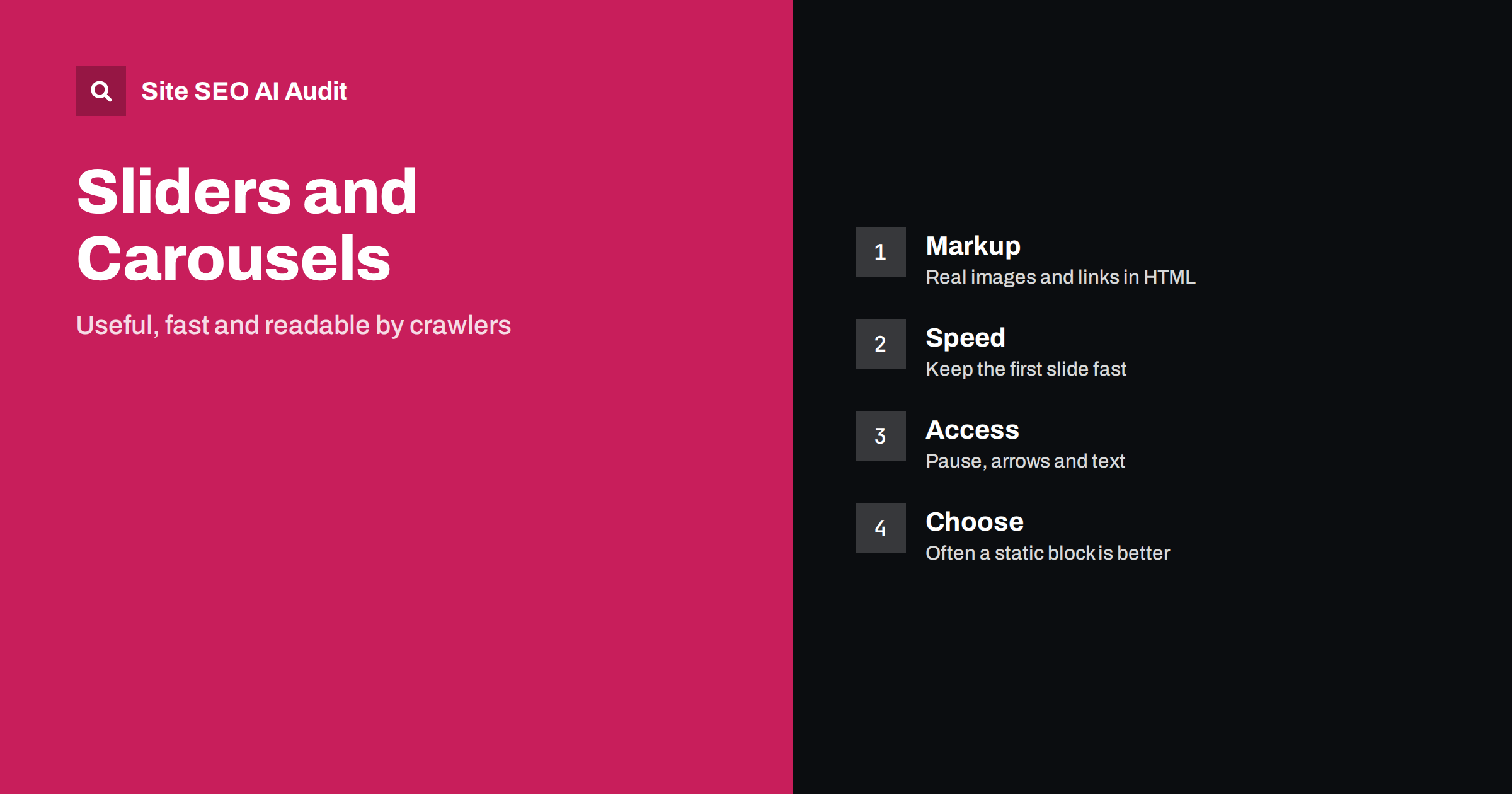
Short answer: A slider or carousel is not harmful to search by itself, but it often causes problems: the first image loads slowly, content sits in scripts that crawlers cannot read, slides rotate before people can read them and key messages are hidden behind clicks. If you use one, build it from real HTML images and links, keep the first slide light, offer controls and text, and ask whether a single static block would work better.
Sliders were popular on home pages for many years, and they remain common in templates, product galleries and testimonial sections. They solve a design problem, which is how to show several items in limited space, but they create several technical and usability problems. This guide explains how search engines see carousels, how they affect speed measures such as Largest Contentful Paint, and how to build or choose them well.
How search engines see a carousel
Search engines can usually read slider content when the images, text and links are present in the page HTML when it loads. Problems arise when the slides are created by a script only after interaction, or when images are set as background styles instead of image elements, which removes the alt text and may prevent image search from using them. A crawler does not click arrows. If a slide appears only after a click that loads new content, treat it as hidden. Test the page with a tool that shows the rendered HTML to confirm that every slide and link is present.
Speed and the first slide
The first image in a slider is often the largest visible element on the page, so it is the one that sets the Largest Contentful Paint time. Many sliders delay loading it until a script has started, which makes the page feel slow. Serve the first slide directly in the HTML, size it correctly, compress it and use a modern format, and do not lazy-load it. Load later slides when needed, so that the page does not download ten large images at once. The guide to lazy loading explains what to load early and what to defer.
Layout shifts and jumping content
Carousels that do not reserve space can push content down when they load, which causes layout shift. Set fixed dimensions or an aspect ratio so that the browser knows how much room to leave. Make sure that slides of different heights do not make the page jump when they change. Avoid animations that move text across the screen while people try to read. If the slider uses a library, check that it does not add large scripts that block rendering and hurt interaction speed, a problem covered in the guide to Interaction to Next Paint.
Usability: do people see slide two?
Studies of web behaviour have repeatedly shown that most visitors pay attention to the first slide and few interact with the rest. Messages placed on later slides are often missed, so put the most important message first, or avoid hiding it in a rotation. Automatic rotation is a particular problem: text changes before the reader finishes, and people with attention or reading difficulties may be unable to follow it. Allow people to pause, to move back and forward, and to see which slide they are on. If you must rotate, slow the pace and stop the rotation on hover and focus.
Accessibility requirements
An accessible carousel has buttons that can be reached with a keyboard, clear labels such as previous and next, visible focus, and a way to stop motion. Each image needs alt text that fits its purpose, and decorative images should have an empty alternative. Announce changes politely for screen readers, but do not interrupt reading. Make sure that touch gestures have button alternatives. Good accessibility and good SEO overlap, as discussed in the guide to web accessibility and SEO, since both depend on clean markup and meaningful text.
Headings, text and links in slides
Slides often contain a headline and a button. Use real text for these instead of putting words inside the image, because text inside an image cannot be read, resized or translated. Avoid giving each slide a first-level heading; the page should have one main heading, and slides can use lower levels or plain paragraphs. Use descriptive link text for buttons, not repeated phrases such as click here or learn more, which tell a crawler and a screen reader nothing. If every slide links to a different important page, make sure those pages are also reachable through the normal navigation.
When a static block is better
If the purpose is to promote one main message, a single well-designed hero section is faster, easier to read and easier to measure. If the purpose is to show several products or services, a grid of cards lets people see everything at once, and every link is visible to crawlers. Carousels suit content that is truly sequential, such as photo galleries and product images, or narrow mobile spaces where a swipe feels natural. Ask what would happen if you replaced the slider with a single block, and test the change with real data on engagement and conversions.
Image galleries and product carousels
Product pages often use carousels for photos, and these need extra care. Provide a main image in the HTML, give each photo a descriptive file name and alt text, and make sure that thumbnails are real images and not only scripts. Let visitors open a larger view, but keep the enlarged image on the same page or on a crawlable address. Add structured data for the product with the main image, and keep the images in a sitemap if there are many. The article on image file names and captions explains how to describe photos.
Test on a slow phone connection. A carousel that looks smooth on a fast office computer can be painfully slow on a mid-range phone, where scripts take longer to run and large images take longer to download. Measure the Largest Contentful Paint and interaction times with real user data where possible, and compare the page with and without the slider.
If your platform or theme provides the slider, check its settings before you replace it. Many themes include options to disable autoplay, to load images lazily after the first, to limit the number of slides and to use responsive image sizes. Using these options often removes most of the problems without rebuilding anything.
A practical way to decide is to run a small test. Take a page with a slider and list every message in it: the offers, the headlines, the links. Check in your analytics how many people click each slide, and note how many visitors reach the later ones. In many cases, nearly all clicks go to the first slide or to the navigation menu. If the data agrees, replace the slider with the first message, move the others into fixed sections further down the page, and compare speed and conversions over a few weeks. If the data shows that people use the slider, keep it and improve its loading and controls instead.
Also think about mobile visitors, who are the majority on many sites. On a small screen, a slider takes up much of the first view, and swiping can conflict with scrolling. Make the swipe area clear, avoid capturing vertical scrolling, and use images cropped for the phone instead of scaled-down desktop banners. Serve smaller image files to small screens through responsive image attributes, as explained in the guide to responsive images, so that a phone does not download an image three times larger than it can display.
Be careful with text in slider images and with promotional claims that change often. If each slide is a banner with words baked into it, translations, updates and accessibility all become harder, and search engines see only a picture. Keep the words as live text over the image, or in the HTML near it. When offers expire, remove them promptly, since a slide that advertises an ended promotion damages trust and creates links to pages you may later remove.
Think about testimonials and logo sliders too. A row of customer quotes that rotates automatically hides most quotes from visitors and may hide them from crawlers if they load later. Show a few quotes in full as text, with the name and role of each person, and add a link to a page with more. A strip of partner logos should have a text alternative with the company name, and a link only where it helps the visitor. These sections are common in templates and rarely receive attention, yet they affect weight and clarity just as much as the main banner.
Site SEO AI Audit crawls your site and checks images, alt text, headings, page weight, broken links and speed indicators, so you can see whether slider images are readable and not too heavy. It does not test your slider’s keyboard controls. The first audit of up to 200 pages is free; larger sites can see the pricing page.
Related reading
The bottom line
Build sliders from real HTML images and text, keep the first slide fast and stable, give users control and clear labels, and replace the slider with a static block when it adds little.
FAQ
Do sliders hurt SEO?
Not by themselves, but slow loading, hidden content and poor markup can hurt search and usability.
Can Google read images inside a slider?
Yes, if they are real image elements in the HTML with alt text, and not only background images set by script.
Should I use autoplay?
Preferably not. If you do, give people controls and pause it on hover and focus.
Should the first slide be lazy-loaded?
No. Load it directly, because it is often the largest visible element.
What can replace a carousel?
A single hero section or a grid of cards, which shows content at once and is easier to crawl.