ENEnglish
 LTLietuviškai
 DEDeutsch
 FRFrançais
 RUРусский
 ESEspañol
 PLPolski
 ITItaliano
 UKУкраїнська
 CSČeština
 PTPortuguês
 JA日本語
JA日本語 LVLatviešu valoda
 ETEesti
 HUMagyar
 IDBahasa Indonesia
 TRTürkçe
 HIहिन्दी
 ELΕλληνικά
 ARالعربية
 THไทย
THไทย VITiếng Việt
 RORomână
 MSBahasa Melayu
 BNবাংলা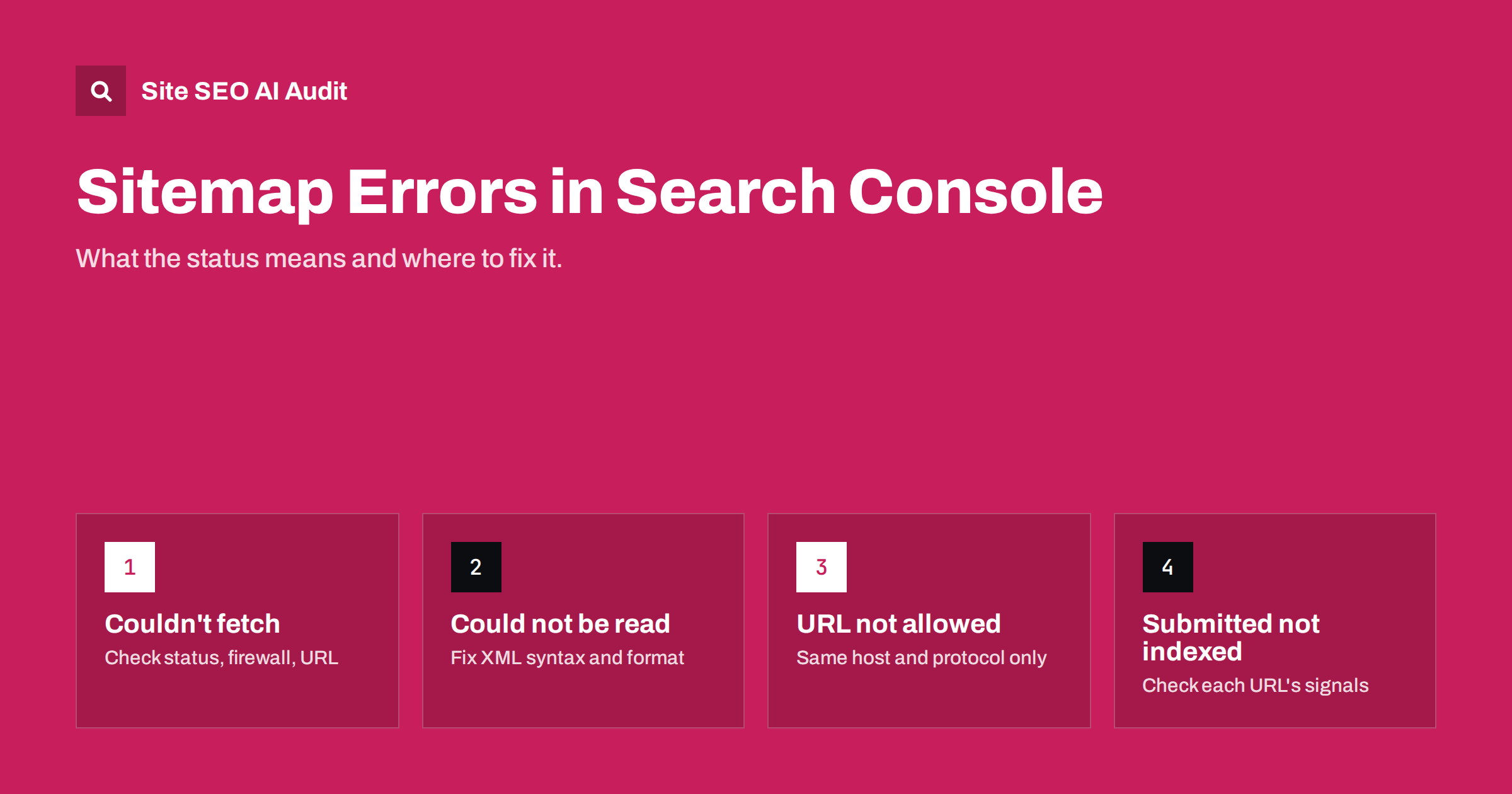
Short answer: most Search Console sitemap errors come from four causes: Google cannot fetch the file (wrong URL, error status, firewall or redirect), the file is not valid XML or not a sitemap, it contains URLs outside the property’s host or protocol, or it is too large. Open the sitemap URL yourself, check the status code and content type, validate the XML, make sure every URL uses the same host and protocol as the property, and resubmit.
Where to find sitemap errors
In Search Console, the Sitemaps report under Indexing lists each submitted sitemap with its status, the date it was last read and the number of discovered URLs. Statuses you will see:
- Success: the sitemap was read and processed.
- Has errors: it was read, but some part could not be processed; click it for details.
- Couldn’t fetch: Google could not retrieve the file at all.
It is worth checking this report after every major change to the site, not only when something goes wrong. A sitemap that silently stopped being read months ago is a common discovery in audits, usually after a plugin switch or server move. Google’s help page on the Sitemaps report lists the individual error messages. The most common ones and their fixes follow.
The most common error messages
Each message points to a different layer of the problem: the network and server, the file format, the URLs inside the file, or the size of the file. Identifying the layer first saves time, because the fixes live in different places, from firewall settings to the sitemap generator.
“Couldn’t fetch”
This is the most frequent and most confusing status. It can mean a real fetch problem, but it also appears briefly for newly submitted sitemaps that have not been processed yet. Wait a day before worrying. If it persists, check:
- The exact URL. Open it in a private browser window. A typo, a missing trailing slash or the wrong file name (
sitemap.xmlvssitemap_index.xmlvswp-sitemap.xml) is common. - The status code.
curl -sIon the sitemap URL should return 200. A 404, 403, 5xx or redirect is the problem. - Firewalls and bot protection. Security plugins, CDN bot rules or rate limits sometimes block Googlebot while allowing browsers.
- robots.txt. The sitemap file must not be disallowed.
- Authentication. A password-protected staging setting left on the sitemap path blocks it.
- Timeouts. Very large sitemaps generated on the fly can take too long; cache or pre-generate them.
“Sitemap could not be read” and parsing errors
Google fetched something, but it was not a valid sitemap. Causes:
- HTML instead of XML. The URL returns a web page, often a 404 page with a 200 status, a login page or a maintenance page.
- Output before the XML declaration. A blank line, PHP warning or byte order mark before
<?xmlbreaks parsing. On WordPress, this is often caused by a plugin or theme file with trailing whitespace. - Invalid characters. Unescaped ampersands in URLs must be written as
&; control characters are not allowed. - Wrong namespace or structure, such as missing
urlsetor using sitemap index tags in a URL sitemap. - Wrong compression. A file named
.gzthat is not gzipped, or a gzipped file served with headers that confuse clients.
Open the raw file with curl rather than a browser, since browsers hide leading whitespace and render XML nicely even when it is broken. An XML validator will point to the exact line.
“URL not allowed” and host mismatches
A sitemap may only contain URLs from the host and protocol it covers. In a URL-prefix property for https://www.example.com/, URLs starting with http:// or https://example.com/ are not allowed. Typical causes are a site URL setting still on HTTP after an HTTPS move, or a sitemap generator that uses a different host than the live site. Fix the site URL setting or generator so every URL matches the canonical host and protocol exactly. A Domain property in Search Console covers all protocols and subdomains, but the sitemap should still list only canonical URLs.
Size and count errors
A single sitemap file may contain at most 50,000 URLs and be at most 50 MB uncompressed. Exceeding either produces an error. Split large sitemaps into several files and list them in a sitemap index. Most CMS plugins already paginate sitemaps automatically; custom generators may not.
Sitemap index problems
- An index file may only list sitemaps, not page URLs.
- Nested indexes, an index listing other indexes, are not supported.
- Every child sitemap must be fetchable; one broken child shows up as an error on the index.
- Child sitemaps must be on the same host as the index, unless cross-site submission is set up.
A five-minute troubleshooting routine
Whatever the message, the same short routine finds the cause in most cases:
- Copy the exact submitted URL from the Sitemaps report, not from memory or from your plugin settings.
- Fetch it with headers:
curl -sIshows the status code, any redirect location and the content type. You want 200 and an XML content type such asapplication/xmlortext/xml. - Fetch the body:
curl -s URL | head -5shows whether the file starts with the XML declaration and aurlsetorsitemapindexelement, with nothing before it. - Pick three URLs from inside the file and check that they use the same protocol and host as the property and return 200.
- Test as Googlebot: use URL Inspection’s live test on the sitemap URL, which shows whether Google can fetch it from its side, including any blocking by robots.txt or your firewall.
If all five checks pass and the status still shows an error after resubmitting, give it a day or two; the report updates with a delay. If the problem appeared suddenly, compare with recent changes: a plugin update, a new security rule, a CDN setting or a server move are the usual suspects.
Common errors at a glance
| Message | Usual cause | Fix |
|---|---|---|
| Couldn’t fetch | Wrong URL, error status, firewall, new submission | Check URL and status, allow Googlebot, wait a day |
| Sitemap could not be read | HTML page or broken XML | Serve valid XML with correct content type |
| Parsing error / invalid XML | Whitespace, unescaped characters | Remove output before XML, escape URLs |
| URL not allowed | Different host or protocol | Match property host and protocol |
| Sitemap is too large | Over 50,000 URLs or 50 MB | Split and use a sitemap index |
| Invalid date | Wrong lastmod format | Use W3C datetime format, e.g. 2026-09-01 |
When the sitemap works but URLs are not indexed
A sitemap with status “Success” can still have many submitted URLs that are not indexed. That is not a sitemap error; it is an indexing question for each URL. Filter the page indexing report by the sitemap to see reasons. Frequent causes:
- URLs that redirect, return 404 or are noindexed, which should not be in the sitemap at all;
- URLs whose canonical points elsewhere;
- thin or duplicate pages that Google chose not to index;
- new URLs that have been discovered but not yet crawled.
Cleaning the sitemap so it lists only canonical, indexable, 200 URLs makes the report much easier to interpret.
WordPress sitemap specifics
- WordPress core generates
/wp-sitemap.xml; SEO plugins usually replace it with their own, often/sitemap_index.xml. Submit the one that actually exists and remove old submissions. - Caching plugins can cache a broken or outdated sitemap. Exclude sitemap URLs from page caching or purge after changes.
- Security plugins may block the sitemap for unknown user agents.
- After changing permalink settings, save them again to refresh rewrite rules if the sitemap returns 404.
How Site SEO AI Audit checks sitemaps
SEOAuditBot reads your sitemap the way a search engine does and checks every URL in it. The crawl and index area reports sitemap URLs that redirect, return errors or are noindexed, as well as pages found in the sitemap but not linked from the site. That covers the content side of sitemap health that Search Console’s fetch statuses do not show. You can start with a free audit.
Related reading
- XML sitemap best practices: what to include and leave out
- Crawled – currently not indexed: causes and real fixes
- Discovered – currently not indexed: why and how to fix it
- hreflang in XML sitemaps vs HTML head vs HTTP headers
The bottom line
Sitemap errors are almost always mechanical: the file cannot be fetched, cannot be parsed, contains URLs from the wrong host, or is too large. Check the raw response with curl, fix the generator or server, and resubmit. Then make sure the sitemap lists only URLs you actually want indexed.
FAQ
Why does Search Console say “Couldn’t fetch” for my sitemap?
It can be a temporary status for new submissions, so wait a day. If it persists, check that the exact URL returns 200 with XML content, is not blocked by robots.txt or a firewall, and does not redirect.
Do sitemap errors hurt rankings?
Not directly. A broken sitemap only removes one discovery source. On large or new sites, though, it can slow the discovery of new pages, so fix errors promptly.
Should I remove old sitemaps from Search Console?
Yes, remove submissions for sitemaps that no longer exist, such as an old plugin’s sitemap after switching plugins. It keeps the report clean and avoids confusion.
Can my sitemap include URLs from another domain?
Normally no. A sitemap should list URLs from the same host and protocol it is served on. Cross-site sitemaps are possible only with verified ownership of both sites and specific setup.
How often does Google read my sitemap?
It varies. Google rereads sitemaps periodically, more often for sites that change frequently. Resubmitting after significant changes, or keeping lastmod dates accurate, helps it notice updates.