ENEnglish
 LTLietuviškai
 DEDeutsch
 FRFrançais
 RUРусский
 ESEspañol
 PLPolski
 ITItaliano
 UKУкраїнська
 CSČeština
 PTPortuguês
 JA日本語
 LVLatviešu valoda
 ETEesti
 HUMagyar
 IDBahasa Indonesia
 TRTürkçe
 HIहिन्दी
 ELΕλληνικά
 ARالعربية
 THไทย
 VITiếng Việt
 RORomână
 MSBahasa Melayu
 BNবাংলা
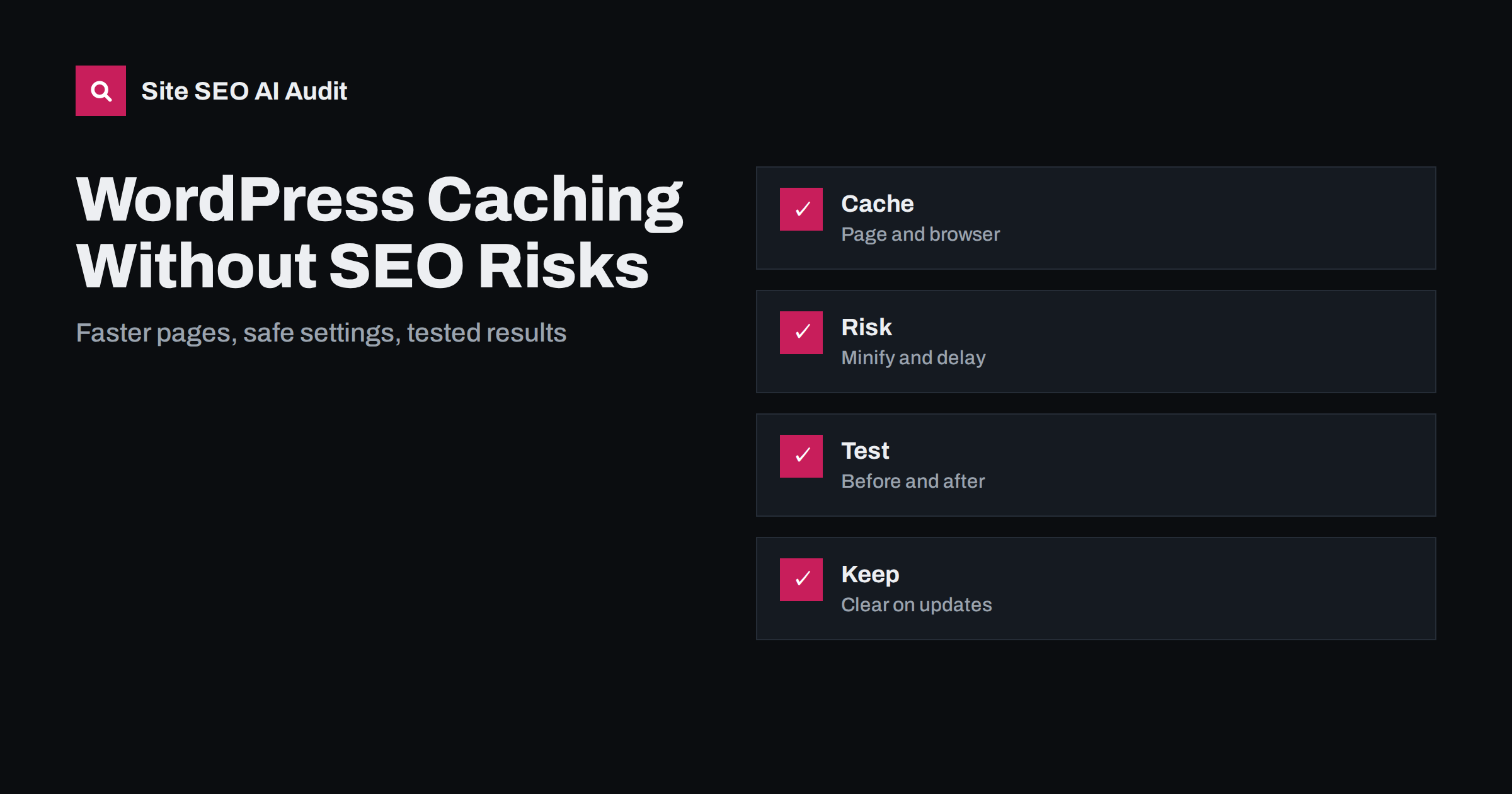
Short answer: A caching plugin makes WordPress faster by saving finished pages so the server does not rebuild them for every visit. It helps SEO through better speed and server response, but aggressive options can harm it: merged or delayed scripts can break layouts and interactions, cached pages can show outdated content, and wrong exclusions can serve one visitor’s data to another. Enable page caching first, add other options one at a time, test key pages and clear the cache after changes.
WordPress builds each page on demand: it runs PHP, queries a database and assembles a theme. On a busy or modest server that takes time, and slow responses hurt visitors and crawlers. Caching plugins solve this by keeping a ready copy. They also add many other switches, such as minification, lazy loading and delayed JavaScript, which promise higher scores in speed tools. Some of those switches are safe and some are not. This guide explains what the main options do, where SEO problems appear and a calm way to roll them out. For the metrics behind the scores, see the explanation of Core Web Vitals.
What caching does
There are several layers. Page caching stores the finished HTML so that most visitors receive a static file instead of waiting for PHP and the database. Browser caching tells the visitor’s browser to keep images, styles and scripts for a period, so repeat visits are faster. Object caching keeps the results of frequent database queries in memory. A content delivery network keeps copies at locations closer to visitors.
Each layer reduces a different cost. Page caching mainly improves the time to first byte, which affects every other timing on the page. Browser caching helps repeat visits and does not change the first one. If your server is slow, page caching usually gives the largest gain, and the plugin choice matters less than turning it on correctly.
How caching can help SEO
A faster server response lets crawlers fetch more pages in the same time and improves the first paint that visitors see. It can lift Largest Contentful Paint, which is one of the Core Web Vitals, and it makes pages more resilient during traffic spikes that would otherwise produce errors. Server errors under load can cause pages to be dropped or crawled less, as described in the guide to server errors and SEO.
Speed is not a magic ranking switch, but it supports everything else. Visitors who see content quickly stay longer and complete more tasks, and crawlers waste less time waiting.
Settings that are usually safe
Start with the options that carry little risk and a clear benefit, then stop and measure before going further.
Page caching for logged-out visitors, browser caching with sensible expiry times, compression such as gzip or Brotli and lazy loading of images below the first screen are safe on most sites. Using a modern image format, with the plugin or a separate image tool, is also low risk when the original files are kept.
Before you enable lazy loading, make sure the main image at the top of the page is not lazy loaded, because that can delay Largest Contentful Paint. Most good plugins and WordPress itself handle this, but it deserves a check on the home page and on a typical article.
Settings that need care
| Option | Possible problem | How to reduce the risk |
|---|---|---|
| Combine files | Broken styles or scripts, little gain on modern servers | Leave off unless a test shows a benefit |
| Minify JavaScript | Menus, sliders or forms stop working | Test interactions; exclude failing files |
| Delay JavaScript | Late content, tracking and chat missing, poor interaction | Exclude critical scripts; check key flows |
| Remove unused CSS | Missing styles on rarely viewed templates | Test every template type |
| Cache for logged-in users | Private content shown to the wrong person | Keep off; exclude carts and accounts |
Delaying JavaScript deserves special mention. It can raise a lab score by pushing scripts out of the loading phase, yet the page may then feel unresponsive when the visitor first taps, because all the delayed work runs at once. Check real behaviour, not only the score. The article on fixing render-blocking resources explains safer alternatives.
Content that must not be cached
Cart, checkout, account, login, search results with private parameters and any page that shows personal data must be excluded from page caching. A shop that caches the cart can show one customer another’s basket, which is a serious privacy problem and a quick way to lose trust. Good plugins exclude the main WooCommerce pages automatically, but custom plugins and forms may need manual rules.
Think also about content that changes often, such as stock levels, prices and event dates. If a cached page shows an old price or says an item is available when it is not, search engines and AI answers may repeat the wrong fact. Set a short cache lifetime for such pages, or clear them automatically when the data changes.
Clear the cache at the right moments
Whenever you publish, update or delete content, change a theme or plugin, edit menus or modify redirects, the cache should refresh the affected pages. Most plugins do this for posts automatically, but menus, widgets and global settings often require a full purge. If you use a content delivery network in addition to a plugin, purge both. Otherwise you may fix a page and still see the old version for hours.
A stale cache can look like an SEO bug: titles that do not change, canonical tags that point to old addresses, noindex tags that remain after launch. Before you blame search engines for ignoring a change, view the page source in a private window and confirm that the new version is being served.
Test before and after
Pick five or six pages that represent your templates: home, article, category, product, search and a form page. Record the server response time, Largest Contentful Paint and any errors before you start. Enable the plugin with its basic options, measure again, and then add one setting at a time. Check each page on a phone and a desktop, click the menu, submit a form, add a product to the cart and view the page with and without being logged in.
Also check what search engines get: view the rendered source, make sure the title, headings, canonical tag, structured data and links are present, and run a crawl. Site SEO AI Audit checks status codes, titles, structured data, speed and AI visibility settings across your site, which helps you catch problems introduced by a new setting. The first audit of up to 200 pages is free.
Choosing a caching plugin
There is no single best plugin, and the best choice depends on your host, theme and the kind of site you run. Compare candidates on practical points rather than feature lists. Does it offer page caching with automatic exclusion of cart and account pages? Does it purge the right pages when you publish? Is it actively maintained and compatible with your PHP and WordPress versions? Does it explain each option in plain language, with safe defaults?
Check support and documentation too. A plugin that makes it easy to switch an option off and return to a known state is worth more than one with many experimental switches. If you manage several sites, favour tools with export and import of settings, so you can apply a tested configuration repeatedly. For small sites with a good host cache, the right answer may be a very simple plugin or none at all. The goal is a fast response and reliable pages, not the largest number of enabled features.
Whatever you choose, keep a backup before changing performance settings, and make changes during a quiet period rather than just before a campaign.
Common mistakes
Using two caching plugins at once is the classic one; they conflict and produce confusing results. Another is copying a configuration from a tutorial written for a different theme or host. Hosts often provide their own cache, in which case a plugin should only add the features the host does not offer. Ask your host what is already enabled before you install anything.
A third mistake is enabling every recommended option at once, which makes it impossible to tell which one caused a problem. Change one thing, test, and write it down.
Finally, do not measure success only with a score from one tool. Look at field data over several weeks, watch for errors in Search Console and keep a note of what you changed, so you can reverse it if rankings or conversions move in the wrong direction.
Related reading
- HTTP Caching Headers and SEO
- WordPress Plugin Audit: Protect SEO and Speed
- Server Response Time and TTFB
The bottom line
Turn on page caching first, add other options one at a time, keep private pages out of the cache and test the real pages before trusting a score.
FAQ
Does a caching plugin improve rankings?
Indirectly. It improves speed and server response, which support user experience and crawling, but content and relevance still decide most rankings.
Can caching cause duplicate content?
Not by itself. Problems arise when different URLs, such as tracking parameters, are cached as separate pages without canonical tags.
Should I delay all JavaScript?
No. Delay only non-essential scripts and test interactions, because delaying everything can make the page feel unresponsive.
Do I still need a plugin if my host has a cache?
Often not for page caching. Ask the host what is enabled and use a plugin only for features you lack.
How do I know the cache is serving old content?
View the page source in a private window or check the response headers. If an old version appears after an update, purge the plugin and any CDN cache.