ENEnglish
 LTLietuviškai
 DEDeutsch
 FRFrançais
 RUРусский
 ESEspañol
 PLPolski
 ITItaliano
 UKУкраїнська
 CSČeština
 PTPortuguês
 JA日本語
 LVLatviešu valoda
 ETEesti
 HUMagyar
 IDBahasa Indonesia
 TRTürkçe
 HIहिन्दी
 ELΕλληνικά
 ARالعربية
 THไทย
 VITiếng Việt
 RORomână
 MSBahasa Melayu
 BNবাংলা
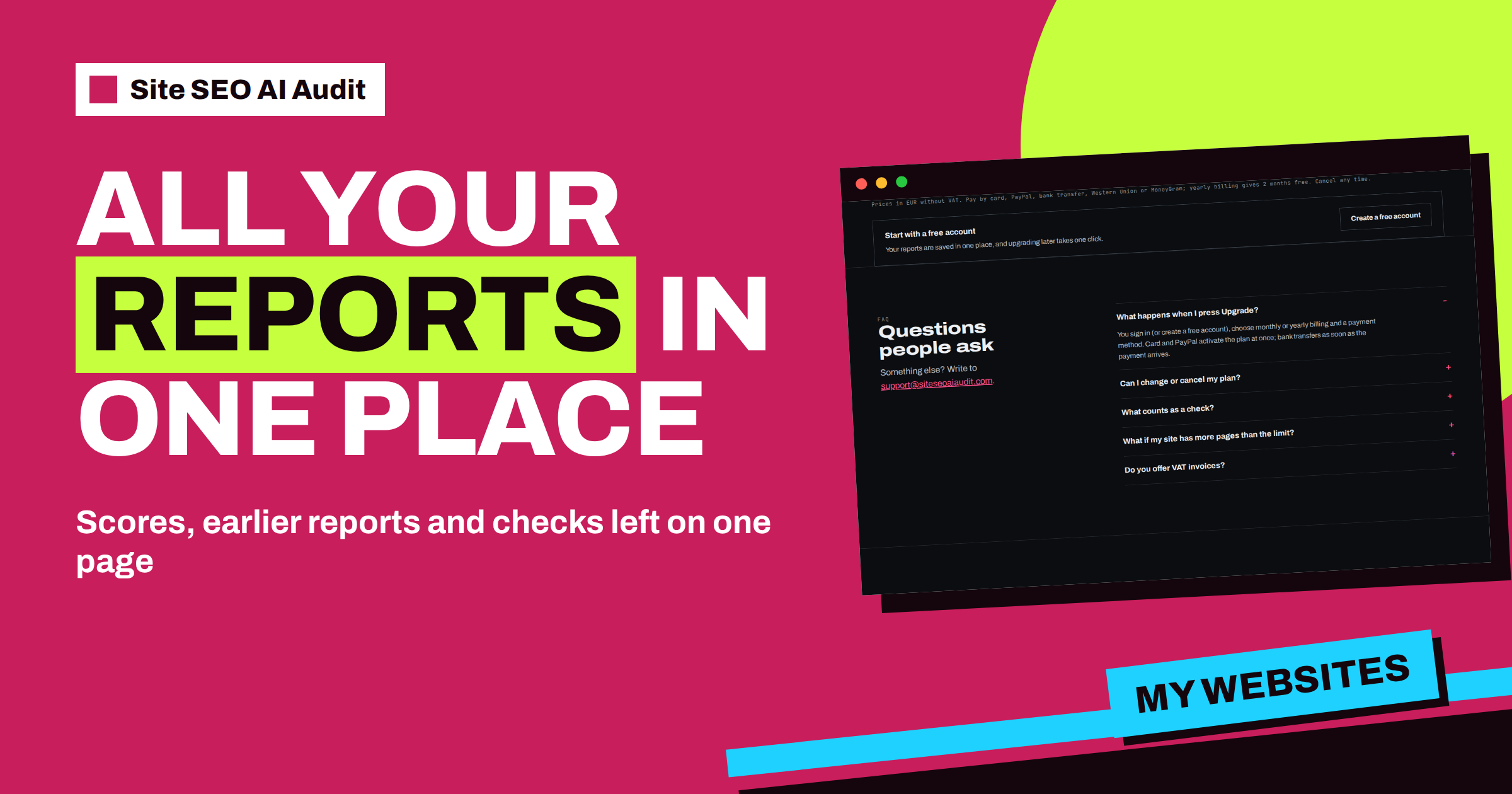
Short answer: After you sign in to Site SEO AI Audit, the My websites page is your home base. It shows four tiles with your plan limits, a field for adding a website, and a table with one row per website: score, date of the last check, number of checks and buttons to open the report, see earlier reports, cancel an unfinished check or run a re-check. On a free account the scores are locked. On a paid plan you also see how many of this month’s checks you have used.
An audit is only useful if you can find it again. People return to a report to hand a list of fixes to a developer, to compare with last week, or to see whether the score went up after a repair. Site SEO AI Audit keeps everything in one account page for that reason. This article walks through the page from top to bottom so that you know what each number means and which button to press in each situation.
The four tiles at the top
Above the list of websites, four tiles give you the facts about your plan at a glance.
- Checks used. On a paid plan the tile reads, for example, “2 / 5” with the label “checks used this month”. On a free account it shows the free check as used or not. This is the number to watch if you run checks often.
- Pages per check. The number of pages the crawler reads in one check. At the time of writing, every plan shows 10,000, as the pricing page does.
- Reports. “Full” means every report shows scores, every issue and the affected pages. “Locked” means the report is shown with a lock until you choose a plan.
- Background checks at once. How many checks of your websites can run at the same time. Starter runs one, Pro two and Agency ten, as the pricing page lists. On the free plan the tile points out that background checks belong to paid plans.
The tiles answer the questions people ask most: how many checks do I have left, and what exactly does my plan include? For the full comparison of plans and a way to choose between them, see the article on how many SEO checks you need.
Adding a website and starting a check
Below the tiles is a single field: “Add a website: yourwebsite.com”. Type the address and press Audit. The check starts, and because you are signed in, it runs in the background. A message confirms that the check has started and tells you that you can keep working, because the result will appear in My websites when it is ready. Large websites can take up to about twenty minutes, so this is exactly what you want: start the check, close the tab if you like and come back later.
If a check of the same website is already running, the page tells you instead of starting a second one. If your plan has a limit on parallel checks and you have reached it, you will be asked to wait until one finishes. These small rules protect the service for everyone and keep your own results clean.
The table: one row per website
Every website you have checked gets a row with five columns.
| Column | What it shows |
|---|---|
| Website | The address that was checked |
| Score | The SEO score out of 100, colour coded, or a lock on a free account |
| Last check | The date and time the last check finished or started |
| Checks | How many checks have been run for this website |
| Actions | Open report, Earlier reports, Cancel unfinished, Re-check |
While a check is queued or running, the score cell shows its progress instead, for example “Queued” or “Checking” with the current stage. The page refreshes itself when the check finishes, so you do not have to reload it.
What each button does
- Open report. Opens the most recent report. While a check is running, the same button reads “Open progress”.
- Earlier reports. A small menu that lists the older finished reports for the website, up to the ten most recent ones. It is the quickest way to compare today’s report with the one before the repair. The article on the repair cycle of fix, re-check and compare shows how to use it.
- Cancel unfinished. Appears only while a check is queued or running, and asks you to confirm. It stops the check you started by mistake.
- Re-check. On a paid plan, starts a new check of the same website with one click. On a free account the button is replaced by “Upgrade to re-check”.
What changes between a free account and a paid plan
A free account includes one check, with the report locked until you choose a plan. The My websites page still shows the website and the date of the check, but the score cell shows a lock. After you pay for a plan, the same report is unlocked in full: the score, the seven area scores, every issue, the affected pages and the fix steps. You do not have to run the check again to see what you already have. The article Free Account, Locked Report explains what a plan unlocks. Paid plans count checks per calendar month, and unused checks do not carry over to the next month.
If you later go back to the free plan, your reports stay in your account. That is stated in the plan FAQ on the pricing page, and it means that you never lose history by changing plans.
Three ways to use the page well
As a monthly routine. Open My websites at the start of each month, press Re-check on each site and read the new report. If you want a ready-made rhythm, the article about a simple SEO audit routine for small business websites gives one.
As a handover tool. When you work with a developer or an editor, send them the link to a report instead of a screenshot. The page keeps the reports available, and the earlier reports menu shows the progress between versions.
As a way to watch your allowance. If you manage several websites, the first tile tells you how many checks remain. Plan the heavy checks, such as after a redesign, so that you keep a few for urgent repairs.
Common questions the page answers
Many people ask where the old report went after they ran a new check. It is still there: the newest report is the main one, and the earlier ones sit in the menu. Others ask why a website shows no score. Either the first check is still running, or the account is on the free plan and the report is locked. A third question is how to know that a check really started. Look at the score cell: “Queued” or “Checking” means it did. If you see neither and no new date, press the button again or read the message on the page, which explains any limit that stopped the check.
How the page fits into the whole workflow
Think of the audit as a loop with four steps: check, read, fix and check again. My websites supports every step. You start the check from the field at the top. You read the result by opening the report from the row. You fix the issues in your own website, with the report open next to your editor. And you check again with the Re-check button, then open the Earlier reports menu to see the difference. Because everything is in one table, the loop stays short, and you spend your time repairing instead of hunting for links and files.
The score column is a useful quick signal when you manage several websites. A green number needs no attention. An orange or red number tells you which website to open first. If you work for clients, keep the rows tidy: one row per website, one routine per row, and a note of the date when you last sent a report to the client. The Agency plan adds the white-label PDF and the embeddable audit form, which turn the same account into a small service you can offer to others, and the article on the page list in your SEO report shows how to read the detailed list that sits behind each score.
One more practical habit: after each repair session, write down the score before and after. The difference is the best summary you can give a client, a manager or yourself, and it takes ten seconds with the report list in front of you.
Related reading
- How Many SEO Checks Do You Need? Choosing a Plan
- Fix, Re-check, Compare: A Repair Cycle for Your SEO Score
- The Page List in Your SEO Report: What Each Column Means
The bottom line
My websites is where your audit work lives. The tiles tell you what your plan allows, the table shows each website with its score and last check, and the buttons let you open, compare, cancel or repeat a check. Learn those four things and you will always know where you stand.
FAQ
Where do I see how many checks I have left?
In the first tile on the My websites page. On a paid plan it shows the number used against the monthly limit, such as 2 of 5.
Can I find older reports after a new check?
Yes. Use the Earlier reports menu in the row of the website. It lists the older finished reports, up to the ten most recent.
Why is my score shown as a lock?
A free account runs one check and shows the report locked. Choose a plan to unlock the full report, including the score and every issue.
Do checks keep running if I close the page?
Yes. Checks started while you are signed in run in the background, and the result appears in My websites when it is ready.
What happens to my reports if I go back to the free plan?
Your reports stay in your account, as the pricing FAQ states.